5 Best Chrome Translator Extensions in 2026
TABLE OF CONTENTS
A good Chrome translation extension should disappear into your workflow: one click, clean output, and no tab juggling when you are reading a webpage, decoding a screenshot, or checking a sentence in another language.
Chrome users are spoiled for choice in 2026. Some translation extensions focus on quick text selection, others are built for bilingual reading, and a few now combine webpage translation, image OCR, and sidebar workflows in one tool. But the differences matter more than the marketing suggests. One extension may be perfect for reading foreign-language articles, while another is better for PDFs, subtitles, or image-heavy pages.
In this guide, we compared five widely used Chrome translation extensions using official Chrome Web Store listings and vendor documentation verified on May 16, 2026. We focused on what actually matters in daily use: translation quality, webpage support, image handling, ease of use, free-plan usefulness, and whether the extension fits browsing, study, or work. For pricing, we only state details that were publicly visible or clearly named on official pages at the time of review.
If you also need broader site-level translation workflows, see our guide to the best website translator in 2026. If your real problem is translating images or screenshots rather than plain text, our walkthrough on how to translate text from images and photos goes deeper. And if you mostly want to translate webpages quickly, start with how to translate a web page.
Quick answer: If you want the shortest path to a practical recommendation, start here: OpenL Translate is the best overall pick for people who want webpage translation, selected-text translation, a sidebar workflow, and image translation in one extension. DeepL is best if translation quality and writing polish matter most. Immersive Translate is the strongest option for bilingual reading and PDF-heavy use. Trancy is the most useful pick for language learners and subtitle-heavy workflows. Google Translate still works well as a simple free helper for selected text, especially if you already rely on Chrome’s built-in page translation.
Quick picks:
- Best overall: OpenL Translate
- Best for translation quality: DeepL
- Best for bilingual webpage reading: Immersive Translate
- Best for language learners and subtitles: Trancy
- Best simple free option: Google Translate
At a glance:
- Choose OpenL Translate if you want one tool for webpages, selected text, and images.
- Choose DeepL if you care most about cleaner phrasing and writing support.
- Choose Immersive Translate if you read long articles, PDFs, or bilingual pages every day.
- Choose Trancy if your browsing overlaps with language learning and subtitles.
- Choose Google Translate if you want the simplest possible free helper.
Disclosure: OpenL is our product. It is included here because it is directly relevant to the topic, and we keep the trade-offs visible throughout. This article contains no affiliate links.
Why Chrome Translation Extensions Still Matter
It is fair to ask whether browser translation extensions still matter now that Chrome itself can translate pages. The short answer is yes, because “translate this page” is only one use case.
Most people actually need one or more of these workflows:
- Translate selected text without leaving the page. This is still the most common use case for news articles, forums, documentation, and social media.
- Read bilingual webpages more comfortably. Some tools preserve the original text and add translations inline or paragraph by paragraph.
- Handle screenshots, images, or PDF-like content. Native page translation often breaks down when the text is embedded in images.
- Translate while writing. Some extensions are as much writing assistants as they are translators.
- Work across mixed content. Real browsing is messy. One page may have text, another may have charts, another might be a screenshot on a forum, and the next might be a subtitled video.
That is where extensions still win. They are not just wrappers around machine translation APIs anymore. The better ones now add OCR, sidebars, hover translation, bilingual layouts, subtitle workflows, and even privacy or business-oriented options.

How We Chose the Best Chrome Extension Translators
This is a practical buyer’s guide, not a lab benchmark. We reviewed official Chrome Web Store pages and vendor documentation, then weighted the following criteria:
- Translation quality: Does the extension emphasize context-aware output or stronger writing quality?
- Webpage support: Can it translate full pages, selected text, or both?
- Image and OCR support: Can it help when text is embedded in screenshots or images?
- Workflow design: Does it use a popup, sidebar, inline translation, hover translation, or bilingual layout?
- Free-plan usefulness: Is the free tier genuinely helpful, or is it mostly a teaser?
- Pricing clarity: Are the paid tiers clearly named, and are public prices easy to verify?
- Special strengths: PDFs, subtitles, language learning, Google Workspace integration, or privacy positioning.
We also paid attention to a common source of confusion: some extensions are full workflow tools, while others are lightweight helpers. That is especially important with Google Translate in 2026, because full-page translation is now primarily a native Chrome feature, not a feature of the Google Translate extension itself.
Comparison Table
| Tool | Best for | Page translation | Image / OCR | What stands out | Pricing snapshot |
|---|---|---|---|---|---|
| OpenL Translate | All-purpose browsing across webpages, text, and images | Yes | Yes | Sidebar workflow plus image translation | Free plan with 40 daily translations; Starter, Pro, and Ultimate tiers |
| DeepL | Higher-quality reading and writing output | Yes, with stronger paid support | Limited in extension workflow | Writing polish and professional feel | Free + Pro Starter, Advanced, and Ultimate tiers |
| Immersive Translate | Bilingual reading, PDFs, ePub, subtitles | Yes | Yes | Parallel reading and broad content coverage | Free + Pro membership |
| Trancy | Language learning and bilingual subtitles | Yes | Limited | Subtitle and study-oriented workflow | Free + Premium and Premium + Advanced AI tiers |
| Google Translate | Fast free text-selection help | Chrome-native flow more than extension-led | No | Familiarity and speed | Free |
The 5 Best Chrome Extension Translators in 2026
1. OpenL Translate
Chrome Web Store: OpenL Translate
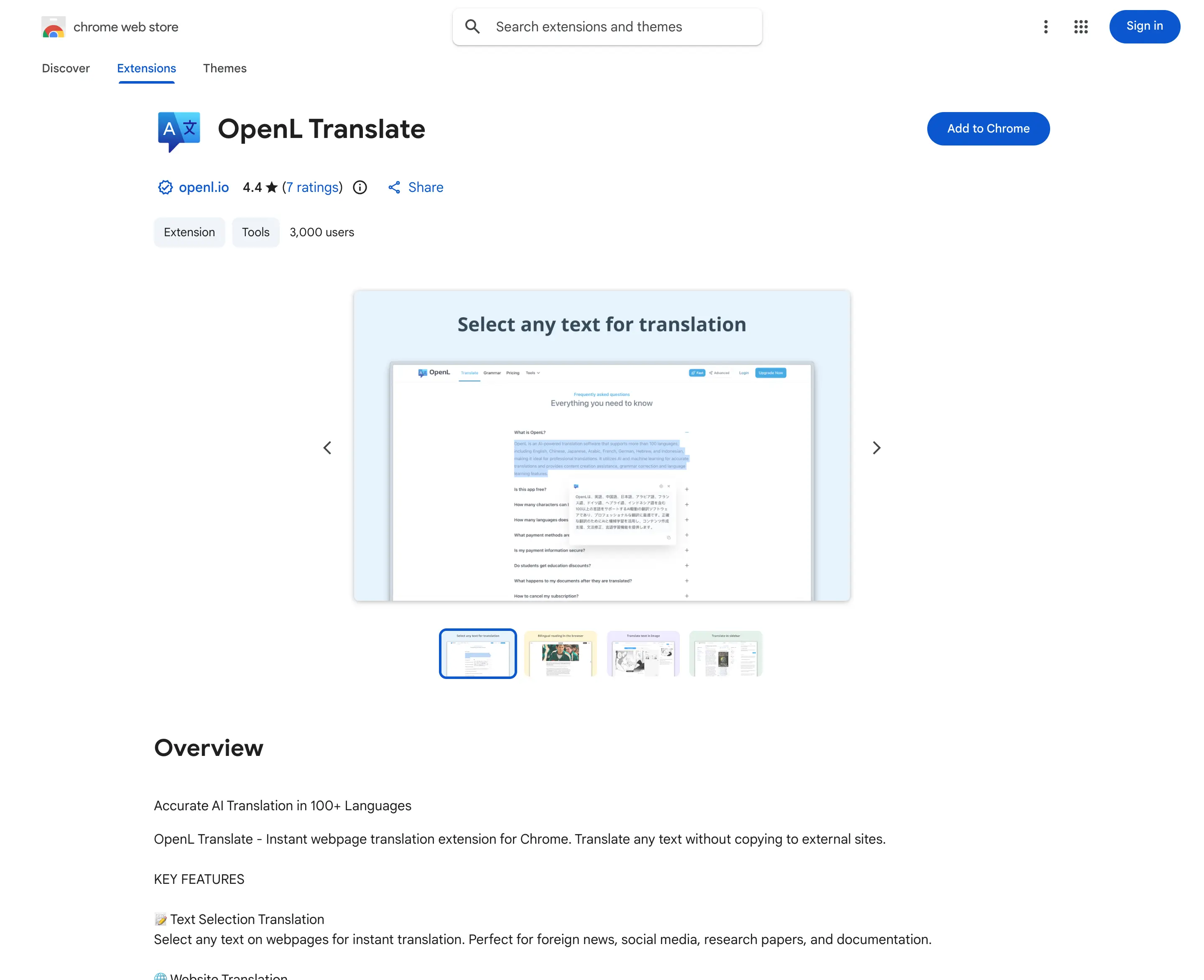
OpenL Translate is the most well-rounded pick in this comparison for one simple reason: it covers the everyday browser tasks that usually force people to bounce between multiple tools. According to its Chrome Web Store listing, it supports text selection translation, website translation, a built-in sidebar, and image translation, all inside Chrome. That mix is unusually practical.
The sidebar matters more than it sounds. Many extensions are fine when you are translating one sentence, but get awkward the moment you need to compare a longer paragraph, paste a block of text, or keep checking multiple snippets while reading. OpenL’s sidebar-based approach makes it easier to stay in flow.
It also has a stronger image angle than most browser translators. If you regularly run into screenshots, diagrams, social posts, or images with embedded text, that can save a surprising amount of time. This makes OpenL especially useful for research, documentation browsing, and multilingual social content.
The Chrome Web Store listing says OpenL supports 100+ languages, offers a free plan with 40 daily translations, and includes a student discount. The store page also states that the developer discloses no data collection or usage and positions the product as privacy-first.
If your everyday browsing often jumps between articles, screenshots, product pages, and social posts, this is the easiest extension in the list to recommend first because it asks you to make fewer workflow trade-offs.
Pros
- Strong all-around feature mix: selected text, webpage translation, sidebar, and image translation
- Better fit than most tools for mixed browsing workflows
- Useful free plan for casual browsing
- 100+ language support
- Good option when you need both webpage and screenshot translation
Cons
- Smaller rating base than more established mass-market competitors
- Some advanced usage is naturally tied to the broader OpenL product ecosystem
- Power users may still need the web app for larger document workflows
Pricing
- Free: 40 daily fast credits on the pricing page, with Chrome extension support listed
- Starter: $8.9/month billed yearly
- Pro: $9.9/month billed yearly
- Ultimate: $24.9/month billed yearly
Best for: People who want one Chrome extension for text, webpages, longer sidebar translation, and image-based translation without constantly switching tools.
2. DeepL: translate and write with AI
Chrome Web Store: DeepL: translate and write with AI
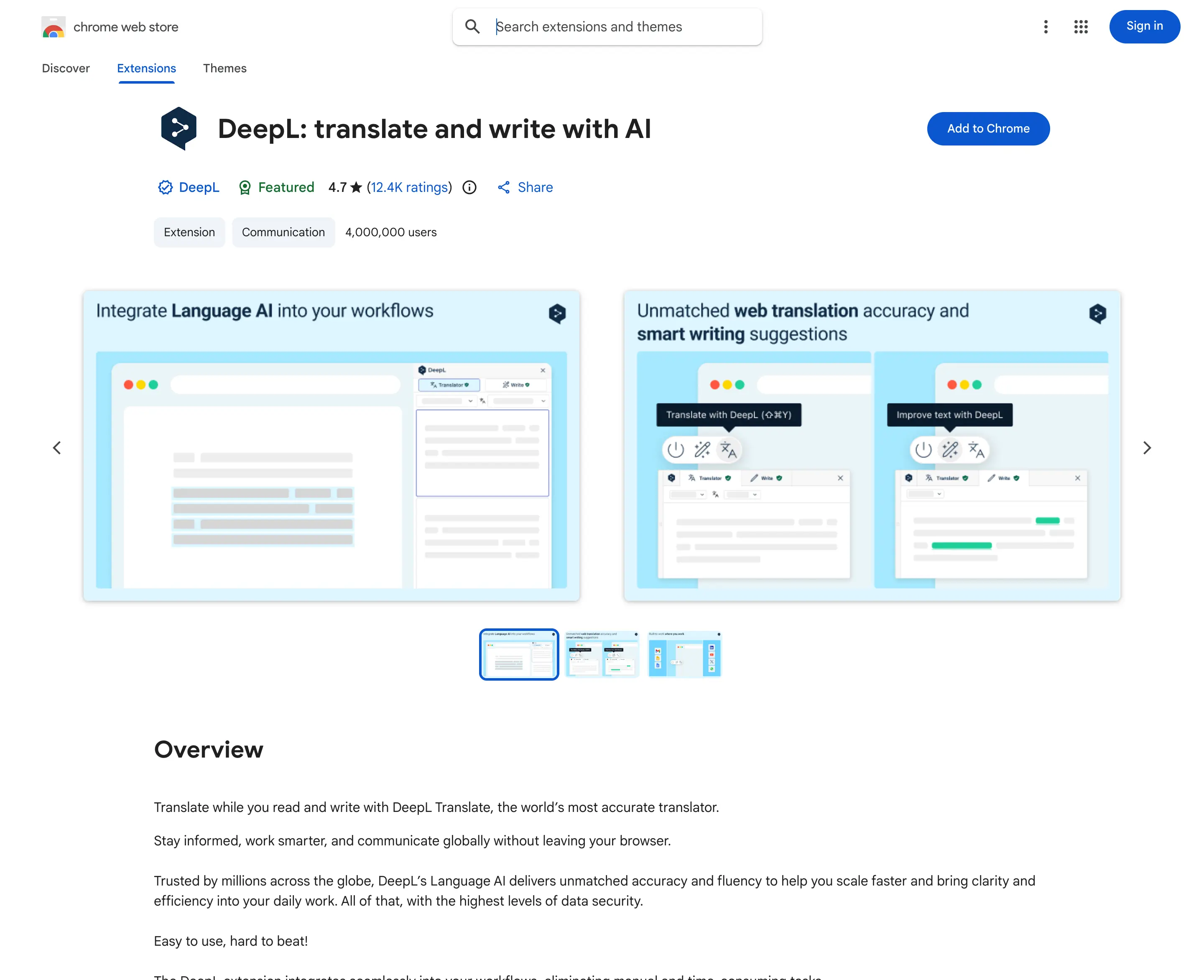
If your top priority is translation quality and polished writing assistance, DeepL is still one of the safest recommendations. Its extension is not trying to be a Swiss Army knife in the same way OpenL or Immersive Translate are. Instead, it leans into what DeepL is best known for: strong phrasing, cleaner output, and a more professional feel for reading and rewriting text.
The extension supports translating sections of text on the fly and, according to the Chrome Web Store listing, entire-page translation is available with DeepL Pro, while automated page translation is also a Pro feature. DeepL also emphasizes integrations with Gmail, Google Docs, and Google Slides, which is a big advantage if you move between browsing and writing during the same workday.
DeepL is also one of the few options here that clearly frames security as part of the value proposition. Its listing distinguishes between the free version and paid plans, noting that paid DeepL plans provide stronger data handling protections for professional use. DeepL’s own help documentation also clearly names the paid Translator tiers as Pro Starter, Pro Advanced, and Pro Ultimate, even though exact public pricing can vary by region and billing setup.
This is not the best choice if your browser translation problems are mostly about screenshots, subtitles, or mixed media. But if you spend your day reading foreign-language reports, researching competitors, or rewriting text in multiple languages, DeepL remains excellent.
In other words, DeepL is easier to recommend as a quality-first tool than as an all-purpose browser utility.
Pros
- Very strong reputation for natural translation quality
- Useful for both reading and writing workflows
- Google Workspace integrations add real productivity value
- Clearer enterprise and data-security positioning than most consumer extensions
Cons
- Free version is more limited than it first appears
- Full-page automation is tied to paid plans
- Not the best fit for image-heavy or OCR-heavy translation tasks
- Supports fewer languages than some broader competitors
Pricing
- Free version available with character limitations
- Paid Translator tiers publicly named by DeepL include Pro Starter, Pro Advanced, and Pro Ultimate
- Exact prices may vary by region, currency, and billing setup, so confirm the current amount on DeepL’s official pricing page
Best for: Users who care more about translation quality and writing assistance than about OCR, screenshots, or subtitle workflows.
3. Immersive Translate - Translate Web & PDF
Chrome Web Store: Immersive Translate
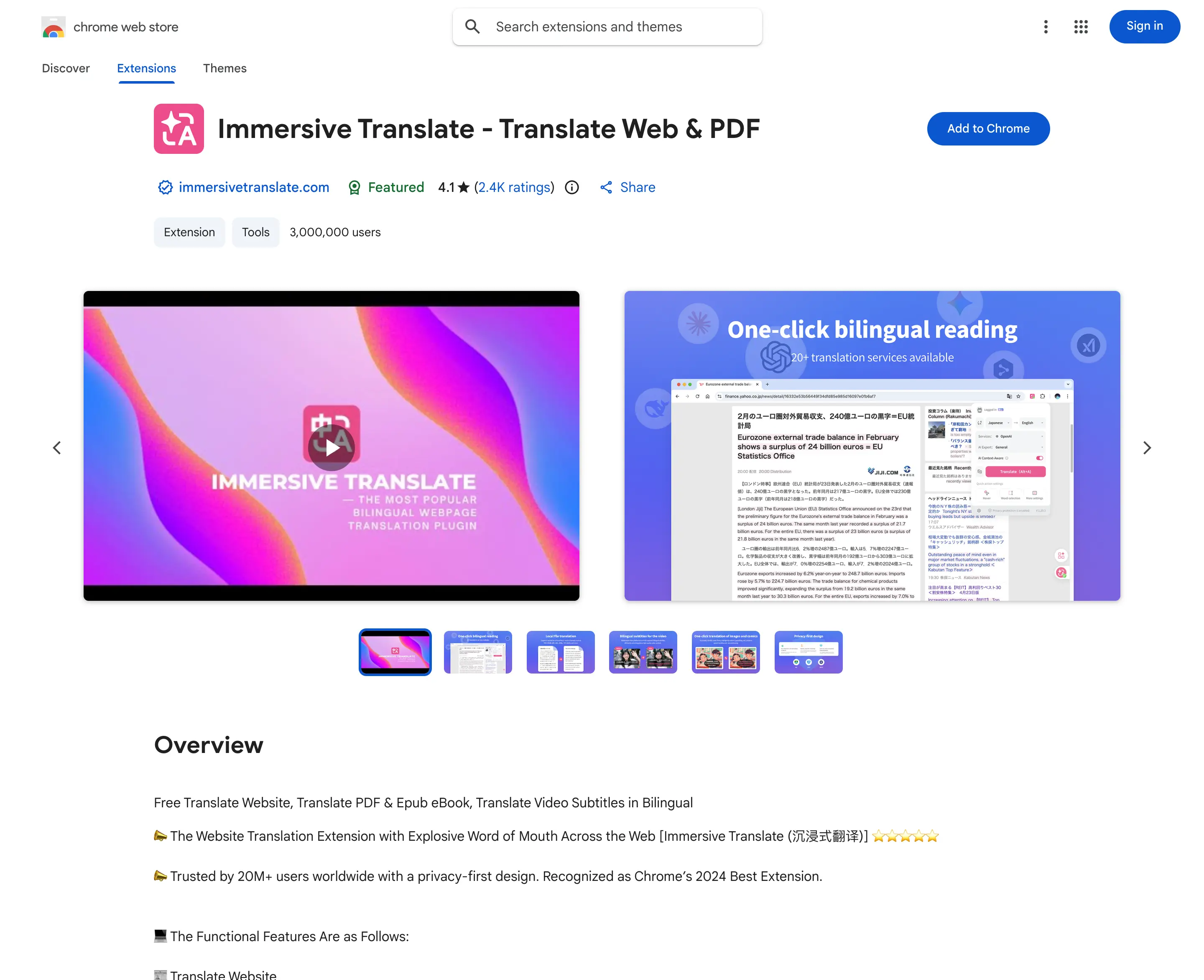
Immersive Translate is probably the most distinctive reading-focused extension in this list. Rather than simply replacing text, it leans hard into bilingual webpage translation, paragraph-level presentation, hover translation, and support for content types that ordinary page translation handles badly.
Its Chrome Web Store page highlights website translation, PDF and ePub translation, and bilingual video subtitles. That makes it a strong choice for people who read long-form content, academic material, or international web content regularly. The idea behind Immersive Translate is not just “translate faster,” but “read foreign-language content more comfortably while preserving context.”
That reading-first philosophy is why it stands out. Some users actively prefer seeing both the original and translated text at once, especially when they are learning a language or fact-checking terminology. In those cases, Immersive Translate can feel better than a blunt full-page replacement.
That makes it especially appealing for people who read to understand, not just to get a quick gist.
Its official pricing page also emphasizes privacy-first positioning, including claims about no retention of translated content and end-to-end encrypted transmission.
Pros
- Excellent for bilingual reading rather than simple one-click replacement
- Broader support for PDFs, ePub files, and subtitle-heavy workflows
- Hover and paragraph-level translation can feel more natural than full-page replacement
- Strong fit for research-heavy users and multilingual readers
Cons
- Feature set can feel heavier than necessary for simple casual use
- More complex than Google Translate if you only want quick text selection
- Pro pricing exists, but the plan structure is less immediately obvious than some simpler tools
Pricing
- Free version available
- Pro membership available through Immersive Translate
- The official pricing page is clearer about features and quotas than it is about at-a-glance public plan comparison, so check the live page for the current amount and billing options
Best for: Heavy readers, bilingual learners, and users who care about PDFs, ePub files, and context-preserving webpage translation.

4. Trancy - Immersive Translate & Language Learning
Chrome Web Store: Trancy
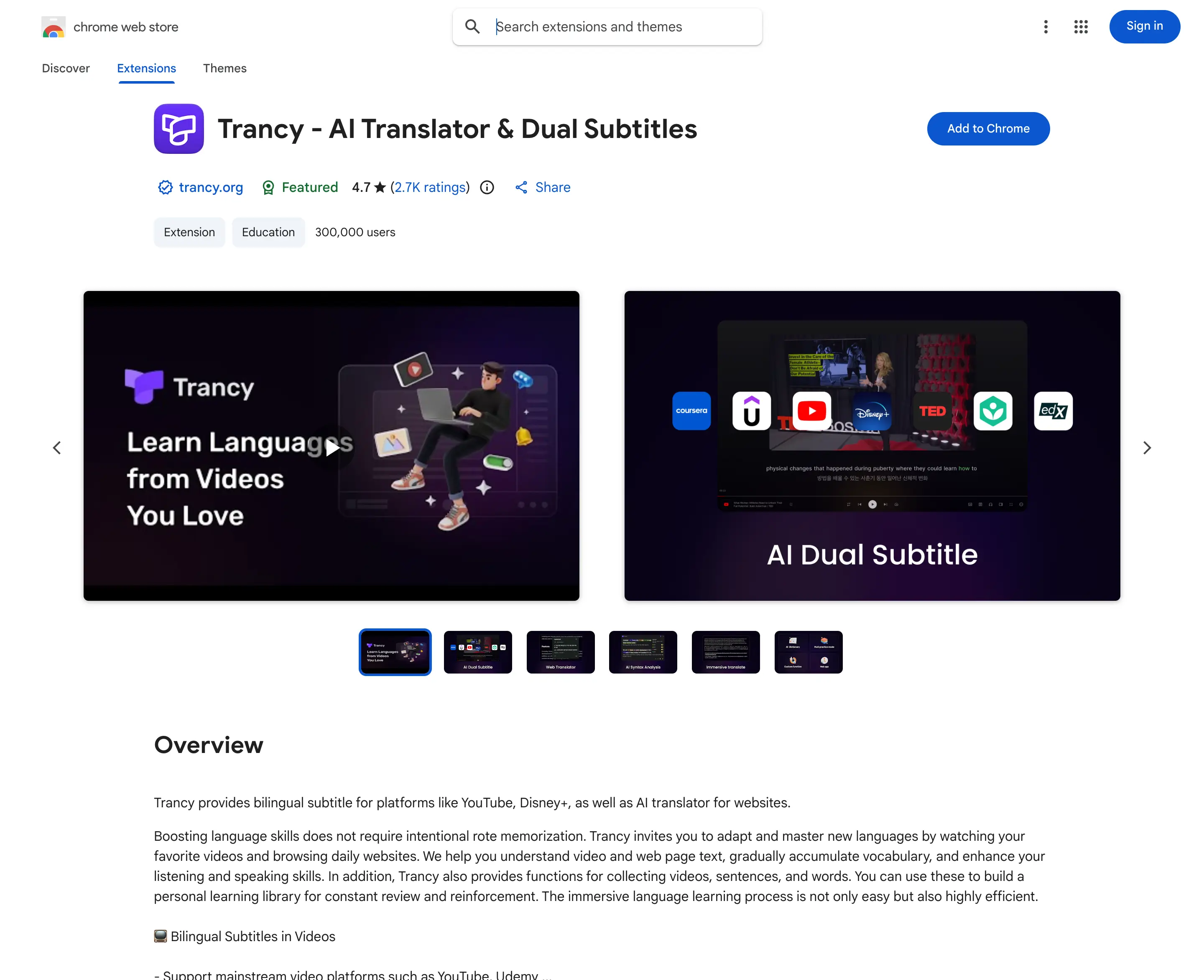
Trancy sits slightly to the side of the standard “browser translator” category because it is clearly optimized for language learning, bilingual subtitles, and video-based comprehension. If your daily browsing includes YouTube, Netflix, Udemy, online courses, or subtitle-heavy content, Trancy is more specialized than most of the tools here.
Its Chrome Web Store listing highlights bilingual subtitles, immersive web translation, sentence and word translation, grammar analysis, and AI-assisted study features. Its official pricing page adds more detail: the free tier includes unlimited word and sentence translation, smart web immersive translation, subtitle downloads, and dual-engine translation, while paid plans expand into AI subtitle transcription, PDF translation, and more advanced learning tools.
That makes Trancy a strong pick for users who are not just trying to understand a page once, but trying to learn from it. The extension is much closer to a browser-based language-learning companion than a pure utility tool.
The trade-off is obvious: if your priority is workplace translation, business documents, or image OCR, Trancy is not the cleanest fit. But for learners, it is genuinely differentiated.
Among the five tools here, Trancy has the clearest “this is built for me” feeling if your browser is part of your study routine.
Pros
- Excellent for bilingual subtitles and language-learning workflows
- Free plan is more useful than many people expect
- Better fit than general translators for online courses and video content
- Includes word collection, grammar, and study-oriented features
Cons
- Less ideal for business-oriented translation workflows
- Feature set may feel too study-focused for users who just want quick browsing help
- Translation experience is strongest in its learning and subtitle scenarios, not necessarily in every general-purpose task
Pricing
- Free tier available
- Paid tiers publicly named as Premium and Premium + Advanced AI
- The official pricing page clearly differentiates features and quotas, but its public price display can be inconsistent in static page output, so verify the current checkout price before subscribing
Best for: Language learners, subtitle-heavy browsing, and users who want a browser extension that doubles as a study tool.
5. Google Translate
Chrome Web Store: Google Translate
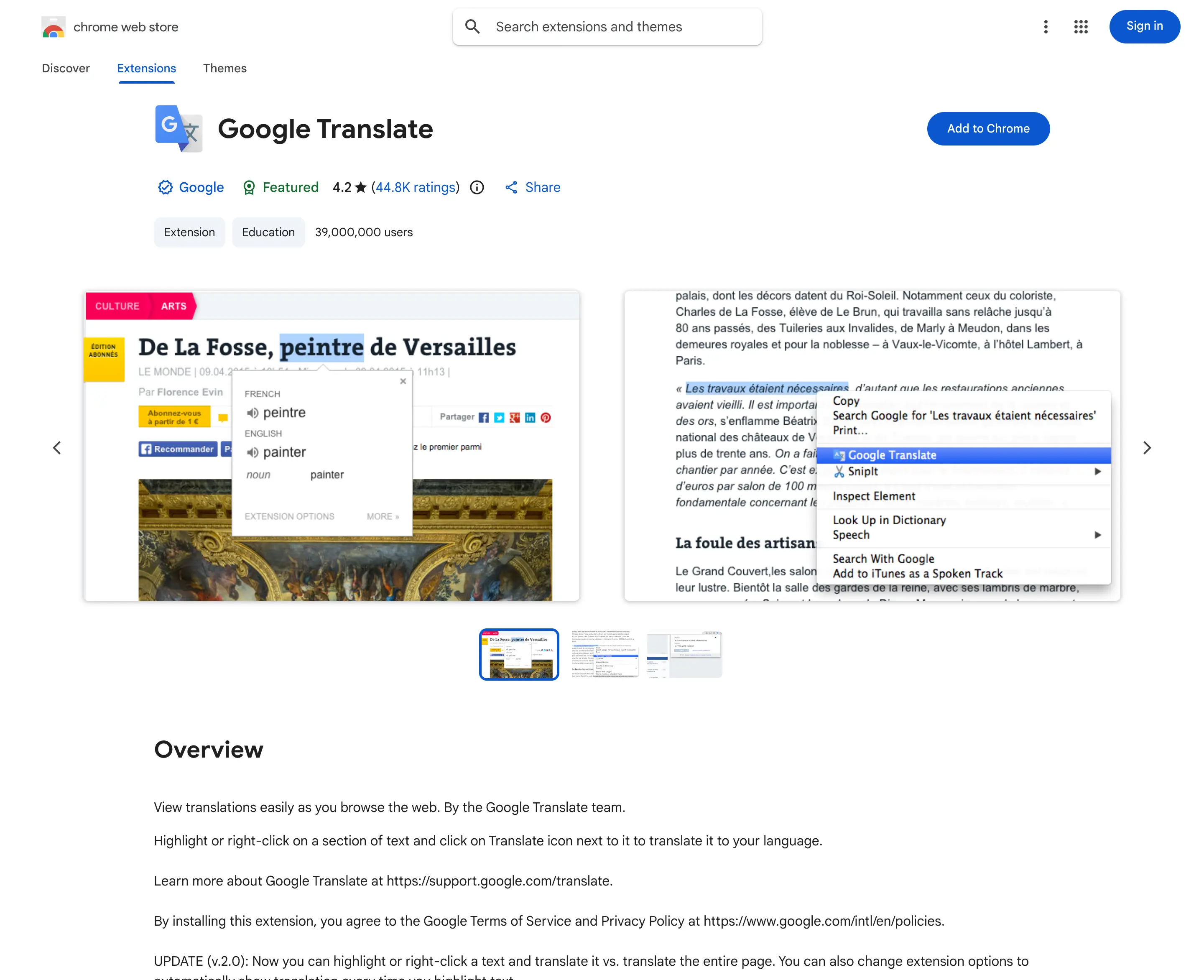
Google Translate is still the default name many people think of first, and that matters. It is familiar, free, and easy to trust for quick text-selection tasks. But it is important to be precise about what the extension does in 2026.
According to the current Chrome Web Store listing, the extension is mainly for highlighting or right-clicking a section of text and translating it in place. The listing also explicitly states that page translation is now supported natively in Chrome browsers and is no longer supported in the Google Translate extension. Google’s own Chrome Help documentation points users to Chrome’s built-in page translation workflow for full-page translation.
That means Google Translate still deserves a place in this comparison, but not for the reasons people often assume. It is here because it remains one of the fastest and simplest free tools for translating selected text while browsing. If you want a minimalist helper and you already live inside Chrome, that may be enough.
What it does not offer is the richer workflow depth that newer competitors now bring: no strong OCR story inside the extension, no image-translation workflow like OpenL, no bilingual reading emphasis like Immersive Translate, and no subtitle-learning specialization like Trancy.
That is why Google Translate ranks lower here as a full workflow tool, even though it remains one of the most recognizable names in the category.
Pros
- Completely free
- Extremely familiar and easy to use
- Great for quick highlighted-text translation
- Works naturally alongside Chrome’s built-in page translation
Cons
- The extension itself is no longer the main tool for full-page translation
- Limited compared with newer extensions built around OCR, sidebars, or bilingual reading
- Not the best option for image-based content or longer workflows
Pricing
- Free
Best for: Casual users who mostly want quick text selection translation and are happy to rely on native Chrome for full-page translation.
What to Look for in a Chrome Extension Translator
The best extension for you depends less on brand and more on the shape of your work.
If you mostly read articles, documentation, and social posts, prioritize:
- clean selected-text translation
- reliable webpage translation
- minimal visual clutter
If you regularly deal with screenshots, scanned content, or image-heavy pages, prioritize:
- OCR or image translation support
- a sidebar or flexible workspace
- support for mixed content rather than plain text only
If you are learning a language, prioritize:
- bilingual layouts
- subtitle support
- word collection or grammar features
If you work in business or research contexts, prioritize:
- translation quality
- writing assistance
- privacy and data-handling clarity
This is why there is no single perfect winner for every user. DeepL is not the same kind of tool as Trancy. Google Translate is not trying to do what Immersive Translate does. And OpenL’s strength is not just raw translation but covering more of the messy everyday browser workflow in one place.
When a Chrome Extension Is Not Enough
Even the best extension has limits. Once you move beyond live browsing, a browser extension usually stops being the whole answer.
You are probably outgrowing the extension-only workflow if you need to:
- translate scanned PDFs
- preserve formatting in Word or PowerPoint files
- translate batches of screenshots or images
- localize subtitles and documents together
- process larger business files with higher accuracy requirements
That is where dedicated translation workflows become more useful than a browser toolbar icon. In OpenL’s case, for example, the Chrome extension makes sense for browsing, but the larger OpenL platform goes further into documents, images, speech, and structured file translation. Other vendors make a similar jump from extension utility to broader platform.
So the real goal is not to pick one tool forever. It is to pick the right first tool for the job you do most often inside Chrome.
Final Verdict
If you want the most balanced all-purpose Chrome translator in 2026, OpenL Translate is the best place to start. It covers selected text, webpages, sidebar workflows, and image translation in a way that reflects how people actually browse.
If you care most about polished phrasing and writing quality, choose DeepL.
If you want a richer bilingual reading experience, especially for PDFs or long-form content, choose Immersive Translate.
If your browser is part of your language-learning workflow, Trancy is the strongest specialized pick.
And if you want the simplest free helper for selected text while using Chrome’s native page translation for the rest, Google Translate still earns its spot.
For most readers, the choice is simpler than it looks:
- Pick OpenL for the most complete browser workflow
- Pick DeepL for the strongest language quality
- Pick Immersive Translate for bilingual reading
- Pick Trancy for learning and subtitles
- Pick Google Translate for lightweight free convenience
The good news is that this category is much better than it was even a year ago. The bad news is that “translate this page” is no longer enough as a buying criterion. In 2026, the right extension is the one that matches your real workflow: reading, learning, writing, researching, or handling mixed media content without breaking your rhythm.
Sources
- OpenL Translate Chrome Web Store: https://chromewebstore.google.com/detail/openl-translate/dpngdpbihjohmoiemijcnnoiedflabdn
- OpenL pricing page: https://openl.io/pricing
- DeepL Chrome Web Store: https://chromewebstore.google.com/detail/deepl-translate-and-write/cofdbpoegempjloogbagkncekinflcnj
- DeepL Pro overview: https://www.deepl.com/en/pro
- Immersive Translate Chrome Web Store: https://chromewebstore.google.com/detail/immersive-translate-trans/bpoadfkcbjbfhfodiogcnhhhpibjhbnh
- Immersive Translate pricing: https://immersivetranslate.com/en/pricing/
- Trancy Chrome Web Store: https://chromewebstore.google.com/detail/ai-subtitles-immersive-tr/mjdbhokoopacimoekfgkcoogikbfgngb
- Trancy pricing: https://www.trancy.org/en/pricing
- Google Translate Chrome Web Store: https://chromewebstore.google.com/detail/google-translate/aapbdbdomjkkjkaonfhkkikfgjllcleb
- Google Chrome Help on page translation: https://support.google.com/chrome/answer/173424