Translate a PDF Online Without Breaking Tables and Columns
 Add to Chrome
TABLE OF CONTENTS
A fluent sentence is not enough when the numbers sit under the wrong header, or the right-hand column continues the wrong paragraph. If you translate a PDF online, tables and columns are usually the first things to break — and the last things a quick skim catches.
Why tables and columns break in online PDF translation
A PDF stores glyphs at coordinates. It does not store “this is column A” or “this cell belongs under that header” the way Word or HTML does. Online tools still have to extract text, translate it, then put it back onto a page that was never designed to reflow.
Three failure modes show up again and again:
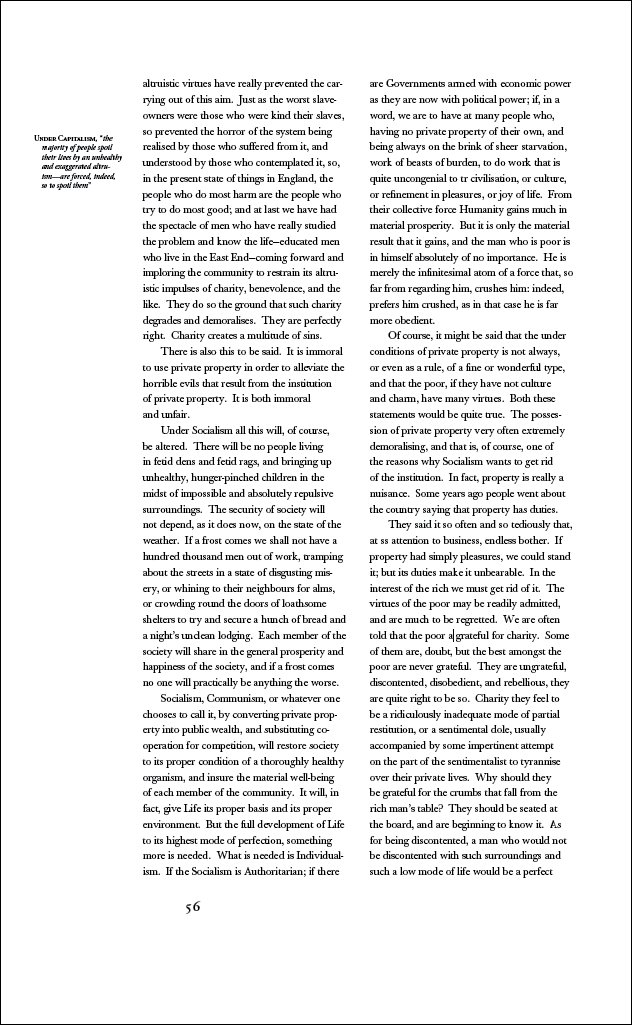
- Reading order vs. visual order. On a two-column page, your eye finishes the left column before starting the right. Extractors that walk top-to-bottom across the whole page can splice left and right lines into one nonsense sentence — for example, “Revenue grew 12% year over year, driven by The board approved a hiring freeze” when those halves lived in different columns at the same height. The W3C’s PDF3 technique describes the same risk for assistive technology: without correct structure, a multi-column page can be read as a single column left-to-right across both gutters.
- Tables that are only lines and boxes. Many PDFs draw table borders as vectors and park each cell as a separate text run. If the tool translates strings without rebuilding the grid, labels and figures reshuffle into a word soup even when every word is “correct.”
- Text that no longer fits. Translated text is often longer than the source. Andiamo’s expansion table puts English→French around +15% to +20% and English→German around +10% to +35%. The W3C’s text-size guidance adds that short labels expand most — exactly the strings that live in narrow table headers and column gutters. Fixed cell widths and narrow columns then clip, wrap into tall rows, or push content onto the next page.
Google Cloud Translation’s document docs are blunt about the same weak spots: complex PDF layouts can lose formatting in data tables, multi-column layouts, and labeled graphs — and scanned PDFs lose more than native ones.

For table-specific review patterns after any document translation (not only PDF), see what happens to tables during document translation. For scan-only files, start with OCR and scanned PDF layout instead of this page.
Three online approaches compared
You do not need a desktop DTP suite to get a usable result. You do need to pick the online path that matches how hard your tables and columns are.
| Approach | Best when… | Tables | Multi-column pages | Main risk |
|---|---|---|---|---|
| A. Paste text into a chat translator | You need a quick gist of a short paragraph | Poor — grid is discarded | Poor — reading order is guesswork | Fluent text, unusable page |
| B. Upload the PDF to a layout-aware online translator | Native PDF with real text; you want a translated PDF back in the browser | Good chance if the tool rebuilds cells | Depends on column detection | Overflow in tight cells; weak on messy scans |
| C. Convert to DOCX online, translate, export PDF | Dense tables or brochure columns where you must edit afterward | Strongest control — real table objects | Strong if the converter kept columns | Conversion can still misread visual-only tables |
Approach A is fine for meaning checks. It is the wrong tool when the deliverable is the PDF itself.
Approach B is the usual “translate PDF online” workflow: upload → choose language → download. Prefer tools that return a rebuilt PDF you can open and inspect — not only a text dump. Spot-check the hardest table and the column break before you pay for a full file.
Approach C trades one extra conversion for editable structure. Microsoft Word’s “Open PDF” path (and similar online converters) can turn drawn columns into real sections and drawn grids into Word tables. You then translate the DOCX and export a new PDF. Use this when Approach B’s preview still shows collapsed cells or interleaved columns.
How to translate a PDF online without breaking tables and columns
Step 1 — Confirm native text vs scan
In any PDF viewer, try selecting a table cell or a column paragraph.
- If you can highlight words, you have a native text layer. Prefer a layout-aware upload (Approach B) or DOCX round-trip (Approach C). Do not force OCR on a clean text PDF — you replace exact characters with a guess.
- If the page behaves like an image, you have a scan. OCR first, then expect more drift on tables and columns. See the scanned PDF OCR guide.
Step 2 — Stress-test the hard pages before the whole file
Open the pages that decide success or failure:
- Every data table (especially merged headers and numeric columns)
- The first two-column spread
- Sidebars, footnotes, and full-width headings that cross both columns
- Any page where labels are shorter than five words (highest expansion risk)
Copy one representative page (or use the tool’s sample preview) and check reading order: the last sentence of the left column should lead into the first sentence of the right, not into a caption or a sidebar.
Step 3 — Run a layout-aware online translation (or DOCX path)
For most native PDFs, upload to an online document translator that rebuilds structure rather than stripping it. OpenL’s PDF translator is built to retain tables, images, fonts, and page layout where supported, with a free daily preview so you can judge tables and columns on a sample before paying for the full file.
If the preview still shows broken grids or interleaved columns, switch to Approach C: convert that PDF to DOCX online or in Word, translate the DOCX, fix cell widths and column breaks by hand, then export PDF.
Step 4 — Review tables and columns like a checklist (not a skim)
On the downloaded file, check these in order:
- Column break continuity — Left column end → right column start still makes sense.
- Header ↔ cell alignment — Every label still sits above or beside the right values.
- Merged spans — Multi-column headers still cover the intended group.
- Numbers and identifiers — Digits, units, minus signs, and codes unchanged unless you intentionally localized them.
- Overflow — No clipped last lines in narrow cells; no text drawn over borders or figures.
- Full-width elements — Titles and notes that spanned both columns still span them.
Microsoft’s accessibility guidance for Word tables favors simple rectangular grids: merged, split, and nested cells are harder for both people and software to keep straight — the same structures are fragile after PDF round-trips. When a table is mission-critical, prefer the editable DOCX path so you can restore a clean grid.

Step 5 — Escalate when the PDF is the wrong source
If tables are nested, columns weave around figures, or the file is a flat design export, translating the PDF online will keep fighting the format. Ask for the Word, InDesign, or spreadsheet source; translate that; export a new PDF. Longer target text is easier to absorb when the layout can actually reflow — more on that in why translated documents become longer.
Quick decision guide
| Your PDF looks like… | Start with… |
|---|---|
| Native text, simple one-column body, one clean table | Online layout-aware upload + preview |
| Native text, two columns or several tables | Online upload; if preview fails, DOCX round-trip |
| Scan / photo of a page | OCR workflow first |
| Marketing brochure with tight frames | Editable source if you have it; else DOCX repair |
Soft next step: upload a page that includes your worst table and a column break to doc.openl.io/translate/pdf, preview how cells and columns land, and only then run the full document.
Sources
- PDF3: Ensuring correct tab and reading order in PDF documents — W3C WAI — Multi-column reading-order failures without proper structure
- Text size in translation — W3C Internationalization — Why short labels expand most and fixed-width cells overflow
- Expansion and contraction factors — Andiamo! — Language-pair expansion ranges used when planning table and column slack
- Translate documents — Google Cloud Translation — Official notes that complex PDFs can lose tables and multi-column layout; scans lose more than native files
- Make your Word documents accessible — Microsoft Support — Prefer simple tables; merged/split cells disrupt structure
- AI PDF Translator — OpenLDoc — Online PDF translation with table/layout retention and free daily preview