
How to Add Translated Subtitles to Instagram Reels
 Add to Chrome
TABLE OF CONTENTS
Your Reel can travel to viewers who don’t speak your language. Subtitles in their language are what make them stay.
Instagram says about a third of video plays on the app happen with the sound off (Instagram), and a viewer who can’t follow the words usually swipes away. This guide shows five ways to add translated subtitles to a Reel, from one tap inside Instagram to a full SRT workflow that works for any language. Use the table to pick your method, then follow its steps.
Which Method Should You Use?
| Your situation | Best method | Cost |
|---|---|---|
| You want captions now, and viewers can translate them | Method 1: Captions sticker | Free |
| You talk to camera and want viewers to hear you in their language | Method 2: Meta AI translations | Free |
| You want two languages on screen at once | Method 3: Edits bilingual captions | Free |
| You already edit in CapCut and need one target language | Method 4: CapCut auto captions | Free app (paid plans exist) |
| You need a language the apps don’t cover, or full control over wording | Method 5: Translate an SRT file | Free to paid |
Method 1: Add the Captions Sticker and Let Instagram Translate It
Pick this if you want the fastest result and don’t need to control the translation yourself.
- Record or upload your Reel in the Instagram app. Edit it as usual until you reach the editing screen.
- Open the sticker tray and tap Captions. Instagram transcribes the speech automatically (Instagram).
- Tap any wrong word and correct it. Fix names, brand terms, and slang now. A wrong word in the source caption becomes a wrong word in every translation.
- Share the Reel. Viewers who have Translate text on reels turned on can see the Captions sticker translated, and they can switch it off to read your original text (Instagram Help Center).
You can also leave on Instagram’s separate auto-generated captions. Before sharing, go to Advanced settings → Accessibility → Show captions. For a Reel you already posted, open Options → Advanced settings and toggle Show captions (Instagram Help Center). The help page notes that captions may not be available to everyone, and that the default caption language depends on the viewer’s device settings.
Limit: you don’t see or approve what each viewer reads. For a product demo or anything with exact terms, use Method 3, 4, or 5.
Method 2: Translate Your Voice and Captions with Meta AI
Pick this if you speak to camera. Meta AI dubs your voice into another language, can match your lip movements, and labels the result “Translated with Meta AI” (Meta).
- Get to the final screen before you publish. Look for the Translate voices with Meta AI toggle. If it isn’t there, tap More options (Instagram for Creators).
- Turn the toggle on and open Translation settings. Choose your target languages and decide whether to add lip sync.
- Turn on review before publishing. Instagram notifies you when the translations are ready, and you can publish or discard them. Neither choice affects your original Reel (Instagram for Creators).
- Check views by language after posting. Instagram shows a breakdown of views for each translation.
What to know before you rely on it:
- Languages on Instagram: English, Spanish, Portuguese, Hindi, Bengali, Tamil, Telugu, Marathi, Kannada, and, since July 14, 2026, French, German, Italian, Japanese, and Korean (Meta).
- Captions too: Instagram head Adam Mosseri said on July 14, 2026 that you can now translate your voice and any on-screen captions in the same Reel (Threads).
- Who gets it: it is free for public Instagram accounts in countries where Meta AI is available (Meta).
- No undo: if you turn translation off after posting, you can’t turn it back on for that Reel (Meta Japan newsroom).
- Best input: face forward, speak clearly, don’t cover your mouth, and keep music and background noise low (Instagram for Creators).
Instagram also warns viewers that Meta AI translations may not be accurate (Instagram Help Center). If a mistranslated price or claim could cost you, review every translation before it goes live.
Method 3: Add Bilingual Captions in the Edits App
Pick this if you want your original line and its translation on screen together. Edits is Instagram’s free video editor, and its captions are free and unlimited (Instagram for Creators).
- Open your project in Edits and tap Captions.
- Choose the language spoken in the video and a caption style. You can also set punctuation, title case, and whether to show curse words (Instagram Help Center).
- Tap Generate captions.
- Select the captions layer and tap Bilingual. Pick the second language. Use Edit to fix the transcript and Move to reposition the captions.
- Export the video and post it to Instagram. The captions are part of the video, so every viewer sees the same thing.
Instagram added bilingual captions to Edits in July 2026. They work in English, Indonesian, Russian, Portuguese, Gujarati, Spanish, Hindi, Korean, Bengali, German, Italian, Thai, French, Japanese, and Kannada (@creators on Threads).
Method 4: Burn In Translated Subtitles with CapCut
Pick this if you already edit in CapCut and want subtitles in one target language instead of your own.
- Open your project in CapCut and tap Captions → Auto Captions.
- Choose the language spoken in the video.
- Choose your target language under Translate to. CapCut writes the subtitles in that language. On desktop and web, the same tools sit under Captions in the toolbar (CapCut Help).
- Tap each subtitle block to check the text and timing. CapCut itself recommends reviewing auto-generated subtitles (CapCut Help).
- Export the video and upload it to Instagram as a Reel.
Method 5: Translate an SRT File for Any Language
Pick this if your audience speaks a language the built-in tools don’t cover, if you need several language versions, or if you want to edit the wording before it goes on screen. An SRT file is a plain-text list of numbered subtitles with timecodes, kept separate from the video (Library of Congress).
- Generate captions in the original language in CapCut Desktop or Web. Use Captions → Auto Captions and correct the transcript.
- Export the captions as an SRT file. In the export dialog, select caption export and choose SRT. Only captions made with Auto Captions can be exported, not text you typed by hand (CapCut Help).
- Translate the SRT file. Upload it to OpenL’s SRT translator, choose the target language, and download the result. It translates only the subtitle text and keeps timecodes, cue numbers, and line breaks, so the file stays in sync. If you want to compare other tools first, see Best SRT Translators in 2026.
- Read the translated file once. Shorten any line that runs long (see the next section). Keep the file saved as UTF-8 so accents and non-Latin scripts display correctly (CapCut Help).
- Import the translated SRT into CapCut Desktop or Web. On desktop, go to Captions → Add Captions and pick the file. The mobile app can’t import subtitle files, but projects imported on desktop or web sync to mobile through CapCut Cloud (CapCut Help).
- Style the subtitles, export, and post. For more language versions, translate the same SRT again and export one video per language.
Instagram’s help pages describe auto captions and the Captions sticker, not uploading a subtitle file to a Reel. Burning the translated SRT into the video is the reliable way to get it on screen. For the general subtitle workflow outside Instagram, see How to Translate Subtitles.
Make Translated Subtitles Easy to Read
Translated subtitles fail more often because they are hard to read than because the words are wrong.
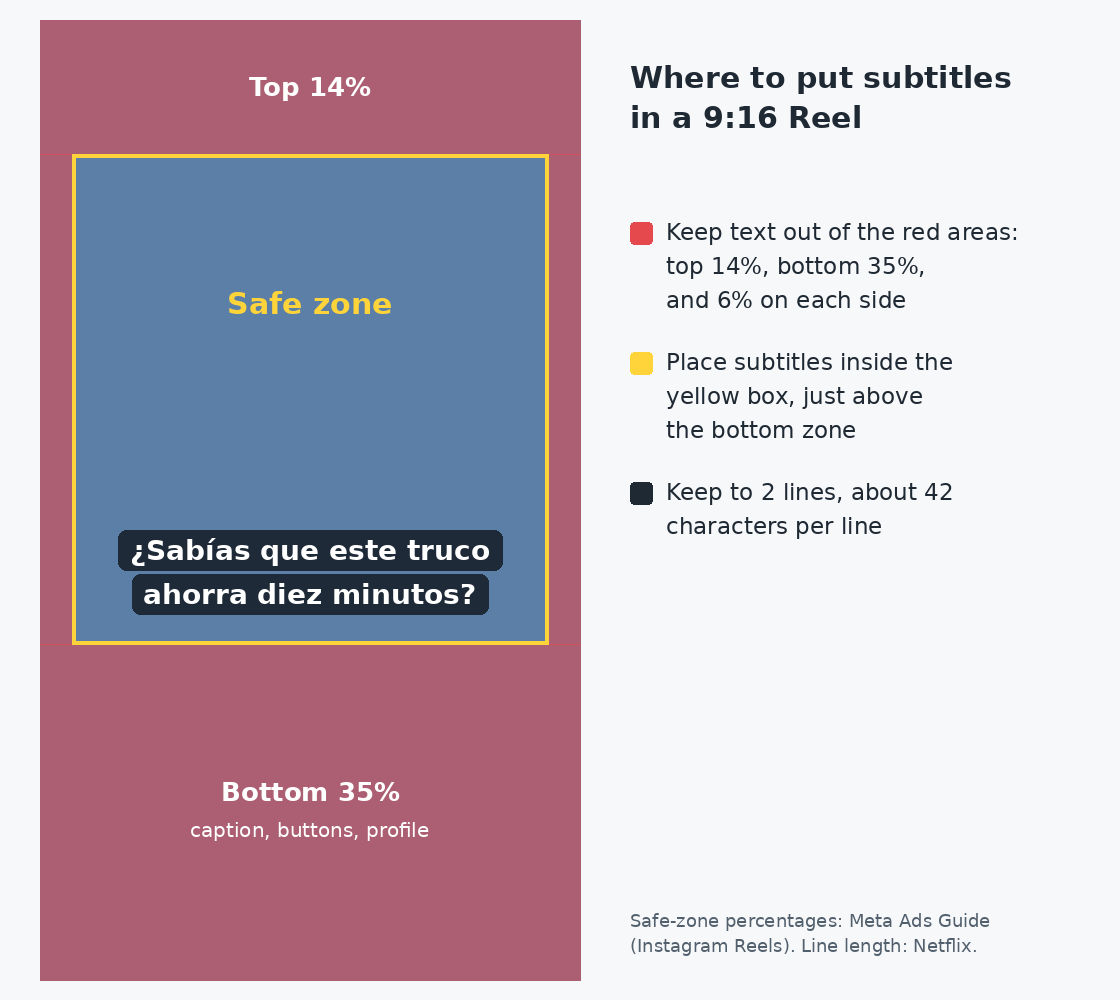
- Keep subtitles out of the edges. Meta’s Instagram Reels specs suggest keeping the top 14%, bottom 35%, and 6% on each side free of text, so nothing is covered by the profile icon or buttons (Meta Ads Guide). The guide is written for ads, but organic Reels show the same caption and buttons over the bottom of the video, so it’s a sensible map for subtitles too.
- Use two lines at most. Netflix’s subtitle rules cap lines at 42 characters, allow a maximum of two lines, and keep text to one line unless it’s longer than that (Netflix).
- Leave enough reading time. Netflix sets a ceiling of 20 characters per second for adult viewers. A 40-character line needs about two seconds on screen. If a translation runs longer than your source, cut words rather than squeezing time.
- Don’t double up. If you burned subtitles into the video, check whether Instagram’s auto captions are also showing, and turn Show captions off if the two overlap (Instagram Help Center).
- Translate the post caption as well. Instagram shows a See Translation button under captions in other languages (Instagram Help Center). If you’d rather write the caption yourself, a translator like OpenL gives you a first draft in seconds that you can adjust for tone. Replies in other languages are covered in How to Translate Instagram Comments.
FAQ
Can I upload an SRT file directly to an Instagram Reel?
Instagram’s help pages don’t describe an SRT upload option for Reels. Their documented tools are auto captions and the Captions sticker. To use an SRT file, burn it into the video in an editor such as CapCut Desktop (Method 5).
Why don’t I see the Meta AI translation toggle?
Tap More options on the sharing screen first (Instagram for Creators). If it still isn’t there, check that your account is public. The feature is limited to countries where Meta AI is available (Meta), and Instagram says translated Reels aren’t yet available for everyone (Instagram Help Center).
Which method works best for a Reel with music and no speech?
Methods 1 to 4 start by transcribing speech, so there is nothing to transcribe in a music-only Reel. Type your on-screen text yourself, or write a short SRT file and translate it with Method 5.
Is it better to dub or to subtitle?
Dubbing (Method 2) suits talking-head Reels in supported languages. Burned-in subtitles (Methods 3 to 5) suit everything else: on-screen text, multiple speakers, any language, and wording you’ve checked yourself. Instagram’s own tips say Meta AI translation works best with a single speaker for now (Instagram for Creators). The same choice comes up on other platforms. See How to Translate TikTok Videos for TikTok’s tools.
Sources
- Advancing Accessibility on Instagram (Instagram): one third of video plays with sound off, Captions sticker on Reels
- Manage reels and video captions on Instagram (Instagram Help Center): Show captions setting before and after sharing
- Read the Captions sticker on Instagram reels in its original language (Instagram Help Center): Translate text on reels setting
- See translations for comments, captions and profiles (Instagram Help Center): See Translation for post captions
- Watch translated Instagram reels in other languages (Instagram Help Center): viewer controls and accuracy note for Meta AI translations
- Discover Reels From Around the World With Meta AI Translation (Meta): supported languages, eligibility, July 14, 2026 update
- Instagram Reels AI translation adds Japanese (Meta Japan newsroom, in Japanese): setup steps and the no-undo note
- Expanding Translations to More Languages to Help You Reach Bigger Audiences on Reels (Instagram for Creators): toggle location, review flow, views by language, best practices
- Adam Mosseri on Threads, July 14, 2026: voice and on-screen captions translated together
- Add text or captions to your video on Edits (Instagram Help Center): Edits captions and the Bilingual option
- Edits Captions tutorial (Instagram for Creators): Edits captions are free and unlimited
- @creators on Threads: Edits bilingual captions: launch and supported languages
- How to Recognize Bilingual Subtitles? (CapCut Help): Auto Captions with Translate to
- How Do I Recognise Subtitles? (CapCut Help): auto captions on each platform
- Why Do the Captions Fail to Export? (CapCut Help): SRT export settings and limits
- How Do I Import Subtitles? (CapCut Help): SRT import on desktop and web, UTF-8
- SubRip Subtitle format (Library of Congress): what an SRT file is
- Instagram Reels video ad specs (Meta Ads Guide): 14% / 35% / 6% safe zone
- English (USA) Timed Text Style Guide (Netflix): 42 characters per line, two lines, 20 characters per second