Best OCR Tools for Scanned PDFs in 2026
 Add to Chrome
TABLE OF CONTENTS
If your scanned PDF is messy, the translator is not the first decision. Pick the OCR tool that can recover clean text, tables, and layout before you translate, archive, search, or review the file.
Quick Picks
| Need | Best pick | Why |
|---|---|---|
| Best desktop OCR cleanup | ABBYY FineReader PDF | Strong PDF-to-editable-document workflow with OCR correction tools |
| Best if you already edit PDFs | Adobe Acrobat Pro | OCR, PDF editing, redaction, and review in one familiar app |
| Best free open-source engine | Tesseract OCR | Free, scriptable, and supports many languages, but needs setup |
| Best simple OCR API | OCR.space | Fast API testing, searchable PDF output, and clear free/pro limits |
| Best AWS document pipeline | Amazon Textract | Extracts text, handwriting, tables, forms, queries, and signatures |
| Best Azure document pipeline | Azure Document Intelligence | Read and layout models for structured extraction before translation |
If you want a one-click scanned-PDF translation tool, read our best scanned PDF translators in 2026 instead. This guide is narrower: it helps you choose the OCR layer before translation, search, compliance review, or layout rebuild.
Pricing notes were checked on July 15, 2026. Verify the official pricing pages before buying, because OCR vendors change limits and plan names often.
How to Choose an OCR Tool for Scanned PDFs
The right OCR tool depends on what breaks first.
| Question | Pick this kind of tool |
|---|---|
| Is the scan crooked, blurry, stamped, or full of tables? | Desktop OCR editor |
| Do you need searchable PDFs from a small web workflow? | Online OCR API |
| Do you need batch processing inside an app? | Cloud document intelligence API |
| Do you need local/offline processing? | Desktop OCR or open-source OCR |
| Do you need translation after OCR? | OCR first, then send the cleaned text or DOCX to a translator |
The practical workflow is simple: clean scan -> OCR -> review extracted text -> translate or export. If the OCR step misreads names, totals, course codes, or table labels, translation will only make the error harder to catch. For a full translation workflow, pair this article with how to translate a scanned PDF in 2026.
The 6 Best OCR Tools for Scanned PDFs in 2026
1. ABBYY FineReader PDF — Best Desktop OCR Cleanup Tool
Website: FineReader PDF
Pricing: Standard starts at $99/year; Corporate starts at $165/year on ABBYY’s pricing page at the time of writing.
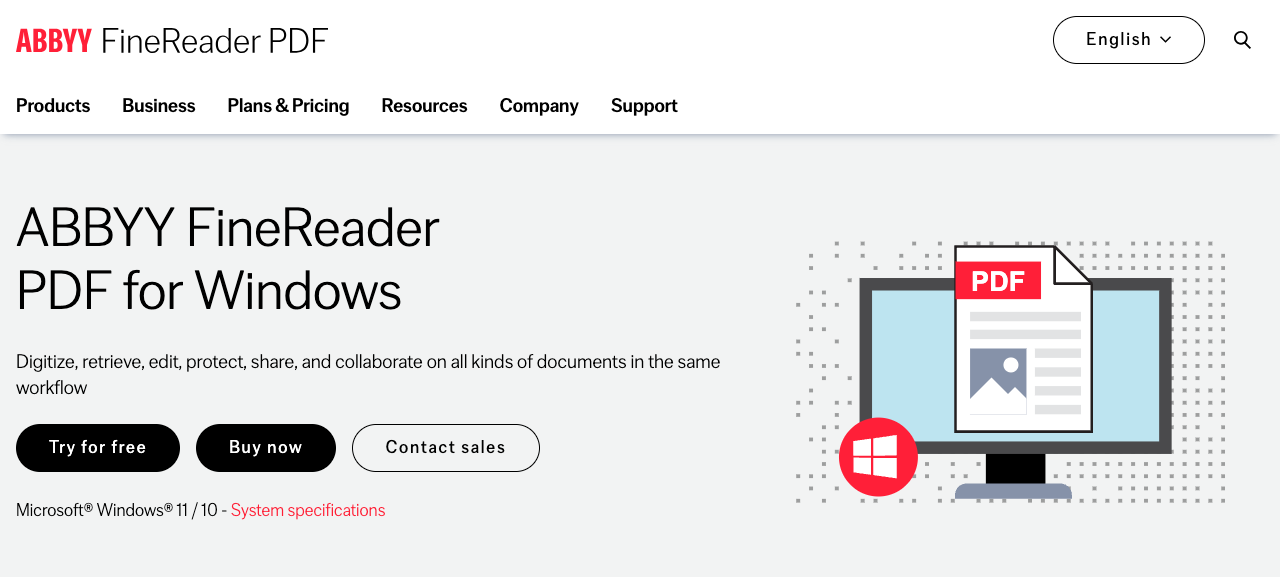
ABBYY FineReader PDF is the strongest choice when the OCR result needs manual repair before anything else happens. ABBYY positions FineReader as a PDF tool for editing, converting, comparing, and digitizing scans, and its feature list includes extracting text and tables from PDFs plus correcting OCR areas and results.
Pros
- Better fit for poor scans, old archives, dense tables, and multi-column PDFs
- Lets you inspect and correct OCR before translation or export
- Can export searchable or editable documents for downstream review
- Good choice for legal, academic, finance, and records workflows
Cons
- Paid desktop software
- Slower than a one-upload web workflow
- Not the tool you need if the scan is already clean and you only want a quick translation
Best for: Messy PDFs where OCR quality matters more than speed.
Bad fit if: You only need to translate a clean two-page scan once.
2. Adobe Acrobat Pro — Best OCR Tool Inside a PDF Editor
Website: Adobe Acrobat Pro pricing & options
Pricing: Acrobat Pro is listed at $19.99/month, annual plan billed monthly, on Adobe’s US pricing page at the time of writing.
Adobe Acrobat Pro is the easiest recommendation for teams that already use Acrobat for PDF editing, redaction, signatures, and review. Adobe’s pricing comparison lists scanned-document conversion into editable, searchable PDFs as a Pro feature, and its help docs cover recognizing text, fixing OCR issues, enhancing scans, and editing scanned documents.
Pros
- OCR lives beside PDF editing, redaction, optimization, and review tools
- Good for office teams that already have Adobe subscriptions
- Useful when scanned PDFs need cleanup, redaction, and final PDF delivery
- Familiar interface for non-technical users
Cons
- Subscription cost is higher than free OCR tools
- OCR is part of a broader PDF suite, not a specialist data-extraction platform
- Batch automation is not its main strength
Best for: Business users who already handle PDFs in Acrobat.
Bad fit if: You need a cheap API or an open-source OCR engine.
3. Tesseract OCR — Best Free Open-Source OCR Engine
Website: Tesseract User Manual
Tesseract is a free, open-source OCR engine under the Apache 2.0 license. Its documentation says Tesseract 5 is the current stable major version, can run from the command line or an API, and supports a wide variety of languages. It is not a polished PDF editor; it is an OCR engine you build into a workflow.
Pros
- Free and open source
- Scriptable for repeatable local workflows
- Useful when documents cannot be uploaded to a cloud OCR service
- Works well for developers who can add preprocessing and QA steps
Cons
- No built-in GUI
- Needs setup, language data, and PDF/image preprocessing
- Layout recovery is your responsibility
Best for: Developers, researchers, and privacy-sensitive local workflows.
Bad fit if: You want a polished interface or support team.
4. OCR.space — Best Simple OCR API for Small Web Workflows
Website: Free OCR API
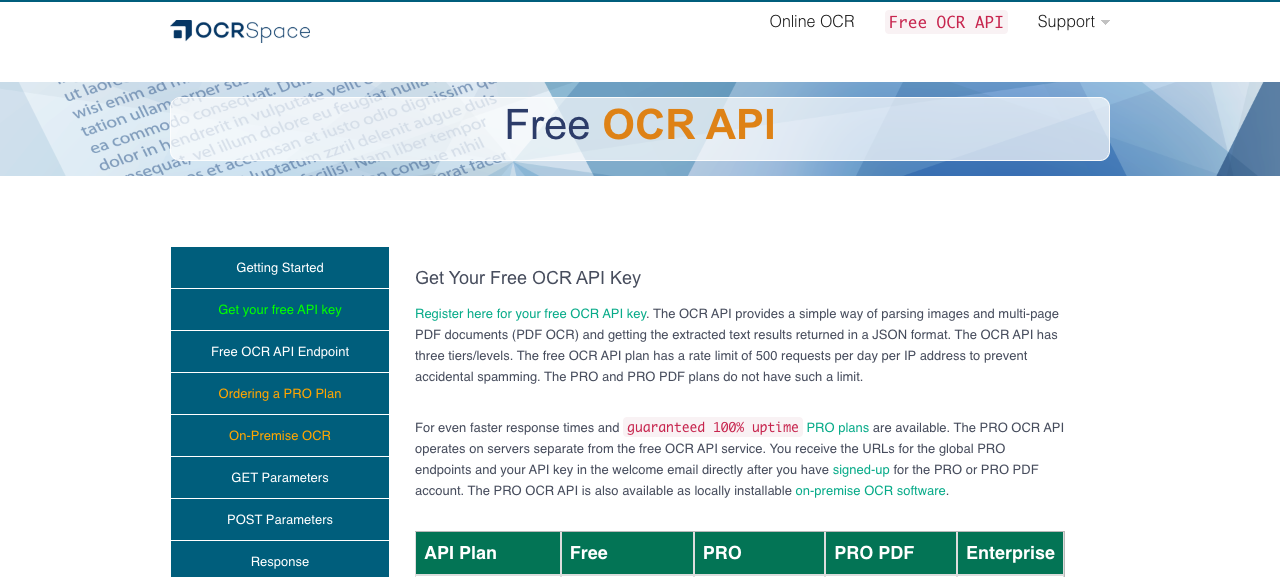
OCR.space is useful when you want a quick API that accepts images and multi-page PDFs and returns extracted text in JSON. Its official API page lists a free tier, paid PRO and PRO PDF plans, searchable PDF creation, and clear limits for monthly requests, file size, and PDF page count.
Pros
- Easy API testing
- Free tier for small experiments
- Clear pricing table with PRO and PRO PDF plans
- Searchable PDF output is available
Cons
- Free tier has tight file and PDF-page limits
- Web/API workflow is less private than offline OCR
- Not a full manual OCR correction workspace
Best for: Simple app integrations, prototypes, and small OCR utilities.
Bad fit if: You need desktop review tools or confidential offline processing.
5. Amazon Textract — Best OCR API for AWS Document Pipelines
Website: Amazon Textract
Pricing: Amazon Textract bills by API and page type; its pricing page includes a three-month free tier for new AWS customers and usage examples.
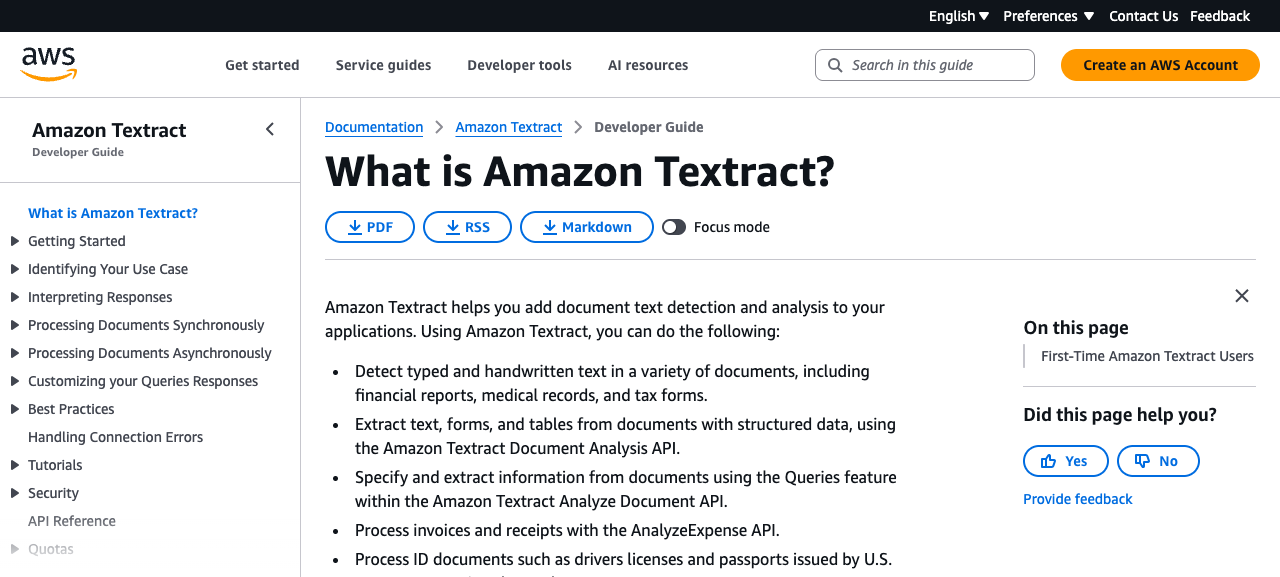
Amazon Textract is not just basic OCR. AWS describes it as a machine-learning service that extracts printed text, handwriting, layout elements, forms, tables, signatures, IDs, expenses, and lending-document data from scanned documents. That makes it a better fit for structured document processing than for casual one-off PDF cleanup.
Pros
- Strong fit for forms, tables, IDs, invoices, and business documents
- Usage-based pricing
- Works naturally inside AWS workflows
- Better for automation than desktop tools
Cons
- Requires AWS setup and engineering work
- Pricing depends on API choice and page volume
- Overbuilt for a single scanned PDF
Best for: Teams already building document automation on AWS.
Bad fit if: You just need a readable DOCX from one scan.
6. Azure Document Intelligence — Best OCR API for Microsoft Cloud Workflows
Website: What Is Azure Document Intelligence in Foundry Tools?
Pricing: Azure lists a free tier for testing and pay-as-you-go pricing by pages analyzed.
Azure Document Intelligence applies OCR and document understanding to extract text, tables, structure, and key-value pairs. Its Read model is built for extracting text from documents, while its Layout model extracts text and layout information. If your company already uses Azure, this is the natural cloud OCR layer before indexing, review, or translation.
Pros
- Read and layout models cover common scanned-document extraction needs
- Works with Microsoft cloud infrastructure
- Free tier for testing
- Good fit for structured pipelines and compliance workflows
Cons
- Requires cloud setup and developer effort
- Pricing can be harder to understand than desktop software
- Not a writer-friendly PDF editor
Best for: Microsoft-cloud teams that need OCR inside a larger app or document system.
Bad fit if: You want a simple upload-and-download OCR app.
Side-by-Side Comparison
| Tool | Type | Best use | Translation built in? | Pricing model |
|---|---|---|---|---|
| ABBYY FineReader PDF | Desktop PDF/OCR software | Manual OCR cleanup | No | Subscription |
| Adobe Acrobat Pro | PDF editor with OCR | PDF editing plus OCR | No | Subscription |
| Tesseract OCR | Open-source OCR engine | Local scripted OCR | No | Free |
| OCR.space | OCR API | Lightweight web/API OCR | No | Free + paid plans |
| Amazon Textract | Cloud document API | AWS document extraction | No | Usage-based |
| Azure Document Intelligence | Cloud document API | Azure document extraction | No | Free tier + usage-based |
Which One Should You Pick?
Choose ABBYY FineReader PDF if the scanned PDF is messy and you need the cleanest editable output before translation.
Choose Adobe Acrobat Pro if your team already reviews, redacts, and edits PDFs in Acrobat.
Choose Tesseract OCR if you need a free local engine and can handle setup.
Choose OCR.space if you want a quick OCR API for small documents or prototypes.
Choose Amazon Textract if forms, tables, and AWS automation matter more than manual PDF editing.
Choose Azure Document Intelligence if your document pipeline already lives in Microsoft Azure.
If you also need translation after OCR, export the clean result as text, DOCX, or searchable PDF, then use a document-aware translator. OpenL’s scanned document translator handles OCR and translation together when you do not want a separate OCR step.
Common OCR Mistakes to Avoid
- Choosing a translator before fixing OCR. If the source text is wrong, the translation will be wrong.
- Ignoring tables. Many OCR tools can read words but lose rows, columns, and labels.
- Uploading confidential scans casually. For legal, HR, medical, or student records, check privacy and retention terms before using cloud OCR.
- Skipping sample tests. Run two representative pages before buying a subscription or building an API workflow.
- Assuming handwriting is solved. Printed text is still much easier than cursive or messy handwritten notes.
For final review, use a focused QA pass after OCR and translation. Our translation QA checklist is a useful last step when names, numbers, and formatting matter.
FAQ
Is OCR the same as scanned-PDF translation?
No. OCR turns page images into text. Translation turns that text into another language. Some tools combine both steps, but a bad OCR result will still create a bad translation.
What is the best free OCR tool for scanned PDFs?
Tesseract is the strongest free open-source engine if you can handle setup. OCR.space is easier for quick API tests, but its free tier has limits.
What is the best OCR tool for confidential PDFs?
Use local desktop OCR when cloud upload is not allowed. ABBYY FineReader PDF, Adobe Acrobat Pro, or a local Tesseract workflow are safer starting points than public web OCR.
What should I do after OCR?
Review the extracted text, check tables and numbers, export to DOCX or searchable PDF, then translate or archive the file. Do not skip the review step for certificates, contracts, invoices, transcripts, or IDs.
Sources
- ABBYY FineReader PDF — OCR, PDF conversion, editing, and document digitization features.
- ABBYY FineReader PDF pricing — Standard and Corporate plan pricing.
- Adobe Acrobat pricing and OCR features — Acrobat Pro pricing and scanned-document features.
- Adobe: Edit scanned PDFs — Acrobat OCR, scan enhancement, and scanned-PDF editing workflow.
- Tesseract OCR documentation — open-source OCR engine, license, language support, and usage model.
- OCR.space OCR API — API tiers, PDF OCR, request limits, file limits, and searchable PDF output.
- Amazon Textract — OCR and document extraction capabilities for scanned documents.
- Amazon Textract pricing — API types, free tier, and usage-based pricing examples.
- Azure Document Intelligence overview — OCR, Read model, Layout model, and document extraction capabilities.
- Azure Document Intelligence pricing — free tier and page-based pricing model.