How to Translate a PDF Without Losing Formatting (2026)
 Add to Chrome
TABLE OF CONTENTS
You upload a PDF to an online translator, download the result, and open it. The text is translated — but your tables are a pile of words, images have shifted, and every font is now Arial. Here are three methods to fix this, from one-click tools to OCR-first workflows for scanned documents.
Method 1: Use an All-in-One Document Translator
Best for: Clean, text-based PDFs with straightforward layouts. You want the fastest path from upload to translated file, no extra steps.
These platforms automatically detect text in your PDF, translate it, and re-render the output — preserving fonts, tables, images, and page structure. Pick a tool first, then follow the steps below.
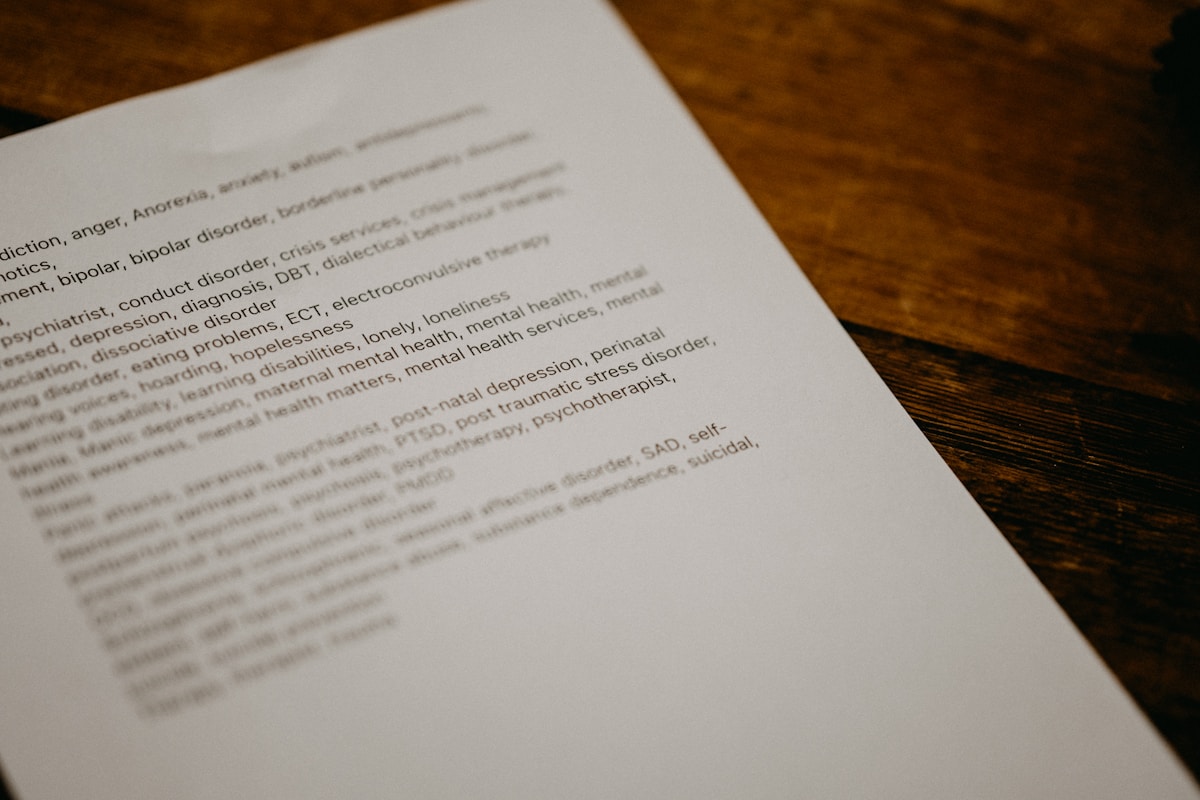
Tools for this method:
- OpenL Doc Translator — Free daily preview; pay-per-document for full translations. Supports PDF, DOCX, PPTX, XLSX, EPUB, SRT, and more. 100+ languages, up to 80 MB per file. Preserves fonts, colors, tables, and page layout. Advanced Translation mode for business and academic documents handles specialized terminology without scrambling it into literal equivalents. Delivers both a clean translated PDF and a bilingual side-by-side version.
- iLovePDF Translate PDF — Free for 1 document per day (up to 15 MB). Built-in OCR handles scanned PDFs without a separate step. Outputs to 25 languages.
- NoteGPT — Completely free. 100+ languages, up to 50 MB per file. Produces a side-by-side bilingual view. Good for research papers and contracts.
- Smartcat — 14-day free trial. 280+ languages, translation memory and glossary support. Built for teams and agencies.
Steps:
-
Upload your PDF. Drag and drop the file onto your chosen platform. Most tools auto-detect the source language — double-check it’s correct before proceeding.
-
Select your target language and translation mode. If the tool offers quality tiers (like OpenL’s Advanced Translation mode or Smartcat’s AI engine selection), choose based on your document type: standard mode for everyday text, advanced for legal, medical, or technical content where terminology accuracy matters.
-
Download and verify the output. Open the translated PDF and scan for layout issues — check the first and last pages, any tables, and image captions. If the tool offers a bilingual comparison file (OpenL and NoteGPT both do), use it to spot-check passages against the original.
Limitations of this method: All-in-one tools work best with clean, text-based PDFs. If your PDF has dense multi-column layouts, inline formulas, or heavy branding with custom fonts, Method 2 gives you more control. If it’s a scanned document — where the text is actually a photo of text — go to Method 3. For a deeper dive into that workflow, see our guide to translating scanned PDFs.
Method 2: Convert to Word First, Then Translate
Best for: PDFs with dense tables, multi-column layouts, marketing brochures, or any document where you need precise control over the final formatting.
PDF files store text as independent blocks positioned by coordinates — the file has no concept of paragraphs, rows, or columns. When a translation tool replaces text in place, text expansion (German can add up to 30% more characters; French around 15–20%) pushes everything out of alignment. DOCX handles content differently: it organizes text as a structural hierarchy — sections, paragraphs, tables, inline images — that translation tools can navigate without guessing. Converting to DOCX first keeps the structure intact, then the translator works with real paragraphs and table cells instead of coordinate-positioned fragments.
-
Convert your PDF to DOCX. Start with a converter that preserves layout — this is the step where formatting either survives or dies. (If you’re working exclusively with Word documents, see our step-by-step guide to translating DOCX files.) Microsoft Word itself handles this surprisingly well: open the PDF directly in Word (File → Open → select the PDF). It converts tables, columns, and images into an editable document. For browser-based options, Smallpdf (2 free conversions per day), iLovePDF (2 per hour), and UtilVox (browser-native, files never leave your device) all produce clean DOCX output with good layout retention.
-
Upload the DOCX to a document translator. DeepL produces the most natural-sounding translations for European languages and handles DOCX well, though its free tier caps at 3 documents per month and 5 MB. OpenL Doc Translator accepts DOCX alongside PDF and covers 100+ languages — useful if you’re working with Japanese, Arabic, or Korean where DeepL’s language coverage falls short. Google Cloud Translation API supports 249 languages and preserves document structure when translating native-format files, though it requires some technical setup.
-
Download the translated DOCX and inspect it. Open the translated file and scan for layout issues: check that table cells didn’t collapse, images stayed near their captions, and page breaks landed in reasonable places. Most issues are fixable directly in Word with minor adjustments.
-
Export as PDF. File → Save As → PDF. The result is a translated PDF with formatting that survived the round trip.
Method 3: OCR-First for Scanned and Image-Based PDFs
Best for: Scanned documents, image-only PDFs, photographed pages, handwritten notes. (For handwritten documents specifically, our handwritten notes translation guide covers penmanship challenges in more depth.)
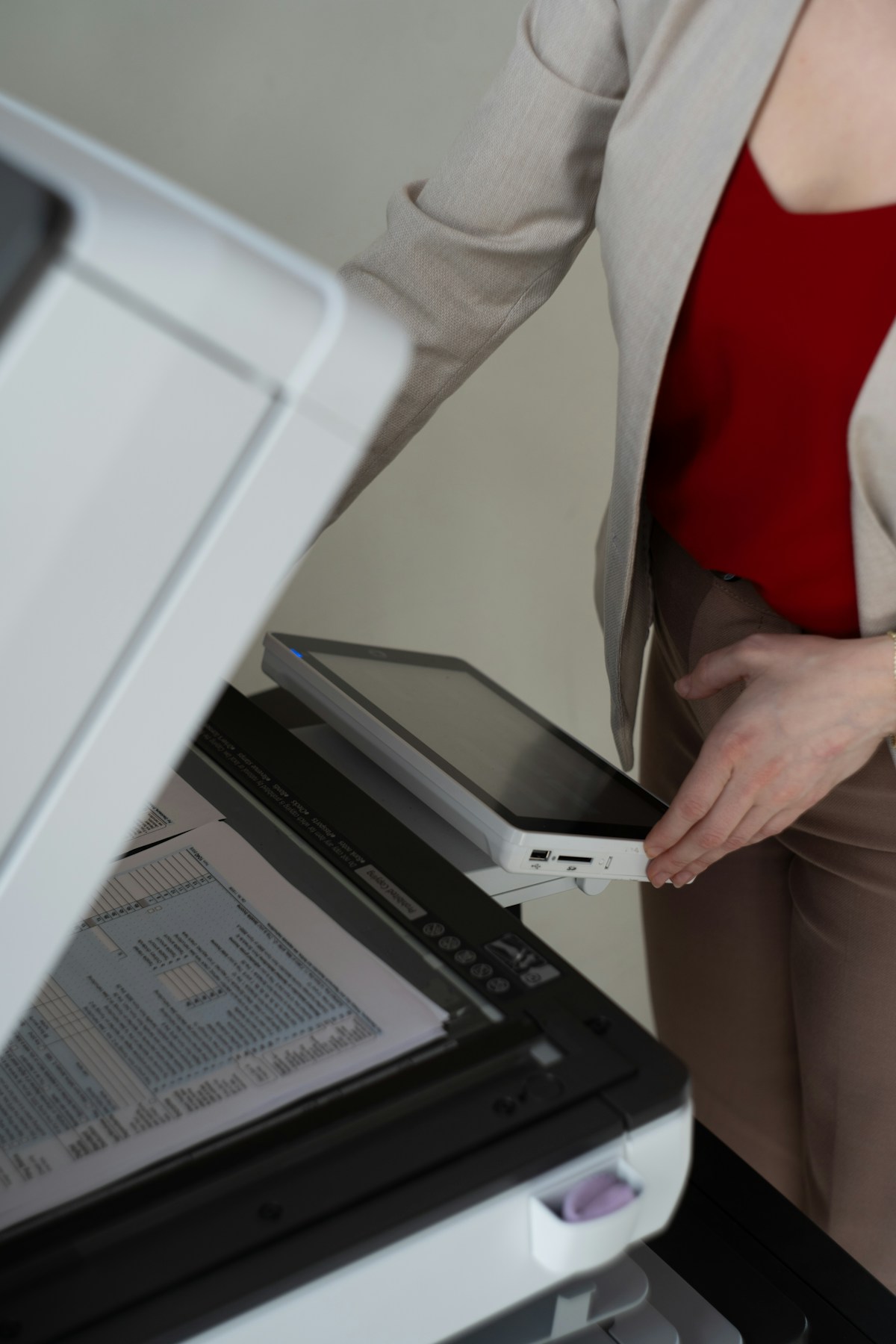
A scanned PDF is not a text document — it’s a collection of pictures that happen to contain text. Most translation tools will either ignore it entirely or produce garbled output because there’s no text layer to work with. You need OCR (Optical Character Recognition) to extract the text before translation.
-
Run OCR on your scanned PDF. The quality of this step determines everything downstream. ABBYY FineReader has the highest OCR accuracy in the industry (190+ recognition languages, handles low-resolution scans, stamps, and rotated pages) — it’s a desktop app, so files stay local. Immersive Translate BabelDoc is a free, open-source option with pixel-level layout preservation, built-in OCR, and 500,000 free tokens per month — strong for academic papers with formulas and multi-column layouts. iLovePDF includes OCR in its Translate PDF tool, so steps 1 and 2 merge into one upload — convenient for clean scans where you don’t need fine-grained OCR control.
-
Save as a searchable PDF or DOCX. After OCR, export the file with the recognized text layer embedded. A searchable PDF retains the original scanned image underneath while adding an invisible text layer. A DOCX export gives you an editable document ready for Method 2.
-
Translate the cleaned file. If you exported a searchable PDF, use Method 1 (all-in-one tool) — the embedded text layer lets document translators work directly. If you exported a DOCX, use Method 2 (Word-first pipeline) for the best formatting control. Either way, the translation tool now has actual text to work with instead of guessing at pixels.
-
Compare against the original. Scanned documents have quirks OCR can miss: smudged characters, mixed-language sections, stamps overlapping text. Open the translated file side by side with the original. Pay special attention to numbers, dates, proper names, and anything in small print — these are where OCR errors concentrate.
Which OCR tool for which document:
| Document type | Best OCR tool | Why |
|---|---|---|
| Clean printed scans (200+ DPI) | iLovePDF (built-in) | OCR and translation in one upload — no extra steps |
| Academic papers with formulas and columns | Immersive Translate BabelDoc | Preserves multi-column layout and formula rendering at pixel level; 500K free tokens/month |
| Low-quality, skewed, or archival scans | ABBYY FineReader | Highest accuracy on degraded text, rotated pages, and stamps; 190+ recognition languages |
| Sensitive/confidential documents | ABBYY FineReader (desktop) | Files stay local — no upload to cloud services |
The key distinction: if your scan quality is good and you want speed, built-in OCR tools (iLovePDF, BabelDoc) handle everything in one workflow. If scan quality is poor or the document is confidential, desktop OCR first is worth the extra step.
When OCR fails: If the scan is low-resolution (under 200 DPI), heavily skewed, or contains handwritten cursive, OCR accuracy drops sharply. In these cases, try rescanning at 300+ DPI first — a cleaner source image often solves the problem without changing tools. For documents you can’t rescan (archival materials, one-of-a-kind records), ABBYY FineReader handles degraded text better than any other consumer OCR engine.
Which Method Should You Use?
| Factor | Method 1: All-in-One | Method 2: Word First | Method 3: OCR First |
|---|---|---|---|
| Best for | Clean text-based PDFs | Tables, columns, brochures | Scanned/image-based PDFs |
| Format retention | Good | Very good | Depends on OCR quality |
| Effort | 2 minutes, 3 clicks | 10–15 minutes | 20–30 minutes |
| Cost | Free previews; paid for full | Free to moderate | Free to ~$70/yr (ABBYY) |
| Pick this if… | Your PDF is a report, contract, or article with standard formatting | Your PDF has tight tables, multiple columns, or you’ll need to edit the translation | Your PDF is a scan, photo, or image where text isn’t selectable |
Tips
- Test one page first before translating a 100-page document. Every PDF is different — a tool that handles your 20-page report perfectly might fail on a different file with mixed layouts. Translate one representative page, verify the output, then batch the rest.
- Expect text expansion. Translated text rarely fits the same space. German can run up to 30% longer than English; French around 15–20%. Chinese and Japanese are typically more compact. Text boxes, table cells, and narrow columns designed for the source language may overflow or leave awkward gaps. After translation, scan for clipped text at the edges of containers.
- Strip passwords and restrictions before uploading. Password-protected or print-restricted PDFs will fail silently on most translation platforms. Unlock the file first using your PDF reader’s security settings — or print to a new, unrestricted PDF.
- Don’t upload confidential documents to free tools unless their privacy policy explicitly guarantees auto-deletion and no data use for training. DeepL Pro and OpenL both state they do not retain or train on uploaded documents. Free tiers of many other services reserve the right to use your content — read the terms.
FAQ
Can I translate a PDF for free without losing formatting?
Partially. Free tools like iLovePDF (1 document/day), NoteGPT (free, 50 MB), and OpenL’s free daily preview cover occasional needs. But every free tier has limits — file size caps, daily quotas, or reduced output quality. For regular use, paid plans (DeepL Pro from ~€9/month, OpenL’s pay-per-document model) are the practical option.
Why do tables always break when I translate a PDF?
Tables in PDFs are stored as independent text blocks positioned by coordinates — the file has no concept of rows, columns, or cell relationships. When translated text changes length, the tool has to guess where each piece belongs. A tool designed for document translation (like OpenL or DeepL’s document mode) analyzes the coordinate geometry to reconstruct table structure. Generic translation tools that extract plain text and dump it back don’t — that’s when your 5-column table becomes a wall of words.
Which tool keeps images and captions together?
OpenL Doc Translator and Smartcat both prioritize keeping visual elements — images, charts, captions — in their original positions relative to the surrounding text. iLovePDF also preserves image placement well. If your PDF is image-heavy (product brochures, illustrated guides), test the all-in-one tools in Method 1 first.
What if my PDF has multiple languages mixed on the same page?
This is one of the hardest cases for automated tools. Most translators assume a single source language per document. For PDFs with intentional mixed-language content (bilingual contracts, language textbooks, annotated research papers), try OpenL Doc Translator — its AI engine detects and handles mixed-language sections better than rule-based alternatives. For critical documents, manual post-translation review is essential.
Does font choice survive translation?
In most cases, no — not exactly. Translated documents typically use system fonts or the tool’s default font family rather than the original custom typeface. OpenL preserves font styling (bold, italic, size hierarchy) and color but substitutes unavailable fonts with close equivalents. If brand typography is non-negotiable, use Method 2 (Word-first) and re-apply your fonts in the translated DOCX before exporting to PDF.
Sources
- OpenL Doc Translator — document translation features, supported formats, pricing, and free tier details
- DeepL Document Translation Limits — maximum upload limits per format and plan tier
- iLovePDF Translate PDF — AI translation feature with OCR and layout preservation
- Immersive Translate BabelDoc — open-source PDF translation with pixel-level layout preservation
- ABBYY FineReader PDF — OCR accuracy, supported languages, and platform availability
- Smartcat PDF Translation Tools — comparison of 10 free PDF translation tools with formatting retention
- Fixthephoto — Best Online PDF Translators 2026 — reviewed and tested list of 9 PDF translators
- Google Cloud Translation API — Document Translation — native vs scanned PDF behavior, glossary support, and page limits
- Lara Translate — PDF Layout Preservation — 8 tools compared for PDF translation without formatting loss
- PDFMathTranslate — Academic PDF Translation — engine comparison: DeepL vs OpenAI vs Google vs Ollama for formula and layout preservation