Best Scanned PDF Translators in 2026
TABLE OF CONTENTS
Scanned PDFs are a different problem from normal PDFs. A native PDF already contains selectable text. A scanned PDF is usually just a stack of page images, so the real job is not only translation but also OCR, layout recovery, and QA.
That is why the best scanned PDF translator in 2026 is not simply the tool with the most fluent output. The right choice depends on whether you need direct PDF-in, PDF-out translation, better OCR cleanup, stronger privacy controls, or an automated workflow for teams.
If you are specifically looking for the best scanned PDF translator for contracts, forms, reports, or academic records, start by asking one question first: do you need the tool to recover text well, or merely translate text that is already recoverable?
If you want the hands-on workflow first, see our companion guide on how to translate a scanned PDF. If your file is already text-based, our broader best PDF translator comparison may be a better fit. If the source is image-heavy rather than PDF-heavy, our guide on how to translate text from images and photos is also useful.
Quick answer: For most people who want a direct upload workflow, OpenL Doc Translator is the best fit in this comparison because it supports document translation with formatting retention and a direct workflow for PDF and image-based files. If OCR quality matters more than speed, ABBYY FineReader PDF is the strongest first step before translation. If your scan is already clean and you care most about fluent phrasing, DeepL is the best language-quality pick.
Quick picks:
- Best overall direct workflow: OpenL Doc Translator
- Best for natural-sounding translation: DeepL
- Best for automation and APIs: Google Cloud Translation
- Best OCR-first cleanup workflow: ABBYY FineReader PDF + DeepL
- Best for Adobe/Microsoft users: Acrobat Pro + Word Translator
Disclosure: OpenL is our product. It is included here because it is relevant to the topic, but we call that out clearly and keep the trade-offs visible. This article contains no affiliate links.
Why Scanned PDF Translation Is Different
The best scanned PDF translator is the one that handles the weakest part of your workflow well enough that the rest of the pipeline does not collapse. In practice, that usually means balancing four things: OCR quality, translation quality, layout recovery, and review effort.
Three things make scanned PDFs harder than standard document translation:
1. OCR comes before translation.
Adobe and ABBYY both document this clearly in their OCR guides: a scanned file starts as image data, so software has to recognize text before it can become searchable or editable. If OCR fails, translation quality fails next.
2. Formatting is more fragile.
Scanned contracts, forms, invoices, and research papers often contain tables, seals, signatures, stamps, footnotes, or multi-column layouts. Even when OCR succeeds, the reconstructed text flow may shift.
3. High-stakes files need more review.
If you are translating legal, medical, HR, or academic records, machine output alone is not enough. Names, dates, numbers, and labels should always be reviewed by a person before reuse or submission.
How We Assessed These Tools
This comparison was built from official product documentation and workflow verification checked on March 9, 2026. We prioritized documented capabilities over marketing claims. Because product plans and limits can change, verify the latest pricing and file restrictions on each vendor’s official page before purchase.
We weighted the following factors most heavily:
- Scanned PDF handling: Does the tool explicitly support scanned PDFs or image-based pages?
- OCR quality and recovery workflow: Can it turn image-only pages into usable text?
- Formatting retention: How well does it preserve tables, headings, and page structure?
- Workflow effort: Is it a direct upload workflow or a multi-step OCR pipeline?
- Pricing clarity: Is the pricing model understandable for one-off and ongoing use?
- Trust signals: Official docs, product transparency, and clear limitations.
This is intentionally a buyer’s guide, not a synthetic lab benchmark. Enterprise tools, desktop OCR suites, and online translators are not always comparable on a single score. Where a tool is better as an OCR-first workflow than as a one-click translator, we say so directly.
The 5 Best Scanned PDF Translators in 2026
1. OpenL Doc Translator — Best Overall for Direct Scanned-PDF Translation
Website: doc.openl.io/translate/pdf
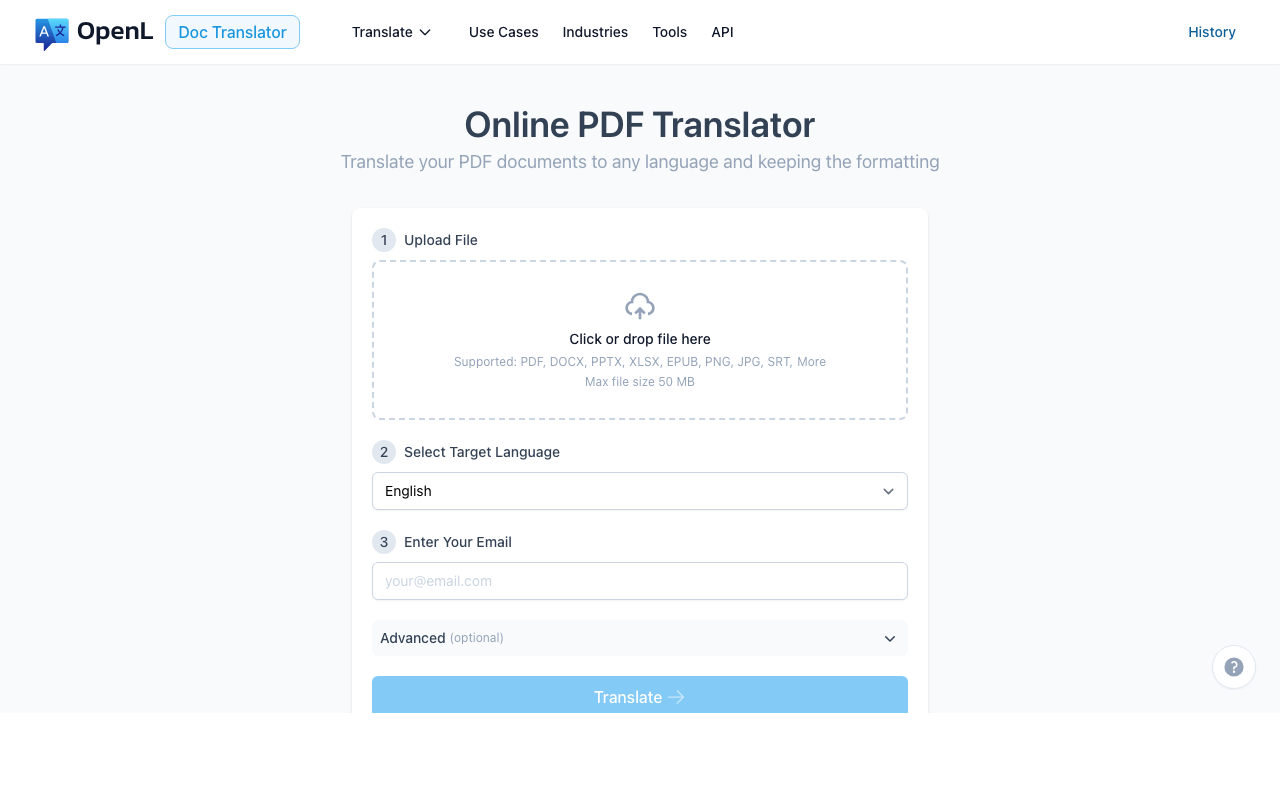
OpenL is the most straightforward choice if you want a direct upload-and-translate workflow. Its PDF translation page emphasizes formatting retention, and the uploader officially accepts not only PDF but also image files such as PNG and JPG. That matters for scanned documents because many “PDF translators” only work well when a text layer already exists.
OpenL Doc Translator uses a pay-per-use pricing model, so you only pay for the pages you translate. The platform supports 186 languages, which makes it more flexible than many document translators that are strongest only in a narrower language set.
Pros
- Direct PDF workflow with no separate OCR tool required for many common cases
- Supports PDF plus image formats, which is useful when scans arrive as loose page images
- Positioning is document-first, not text-box-first
- Transparent entry pricing and simple trial path
Cons
- As with any AI document translator, messy scans still need review
- Not a full desktop OCR editor for heavy manual cleanup
- Because this is our product, readers should test with a representative sample before committing
Best for: Users who want the simplest path from scanned file to translated output without building a multi-app workflow.
Known limits: Check the latest file-size limits on the product page before committing; the product is strongest for direct cloud workflow, not for manual OCR correction page by page.
Bad fit if: You need desktop-side redaction, detailed OCR zoning, or heavy manual repair before translation.
2. DeepL — Best for Natural-Sounding Translation Once OCR Is Clean
Website: deepl.com
Docs: Translate PDF files, Supported document formats

DeepL remains one of the strongest choices when phrasing quality matters most, especially for European language pairs. Its official help center explicitly states that it can translate scanned and digital PDFs, and its developer docs list PDF among supported document formats.
The catch is practical rather than conceptual: DeepL is strongest when the OCR layer is already clean, or when the scan quality is high enough that OCR does not introduce major noise. In other words, DeepL is an excellent translator, but not always the best recovery tool for ugly scans.
Pros
- Excellent fluency for many business and general-purpose texts
- Official scanned-PDF support
- Good choice when you care about polished target-language wording
- Familiar product with strong documentation
Cons
- OCR recovery is not its main differentiator
- Complex layouts can still shift after translation
- Best value appears when your source scan is already reasonably clean
Best for: Clean scans, searchable PDFs, and users who prioritize output quality over OCR repair depth.
Known limits: DeepL officially supports scanned PDFs, but the workflow still depends on readable OCR and can struggle more when scans are noisy or layout-heavy.
Bad fit if: Your file contains bad scans, dense tables, stamps, or lots of structural cleanup.
3. Google Cloud Translation — Best for Automation and Batch Pipelines
Website: Cloud Translation document translation docs
Pricing: cloud.google.com/translate/pricing
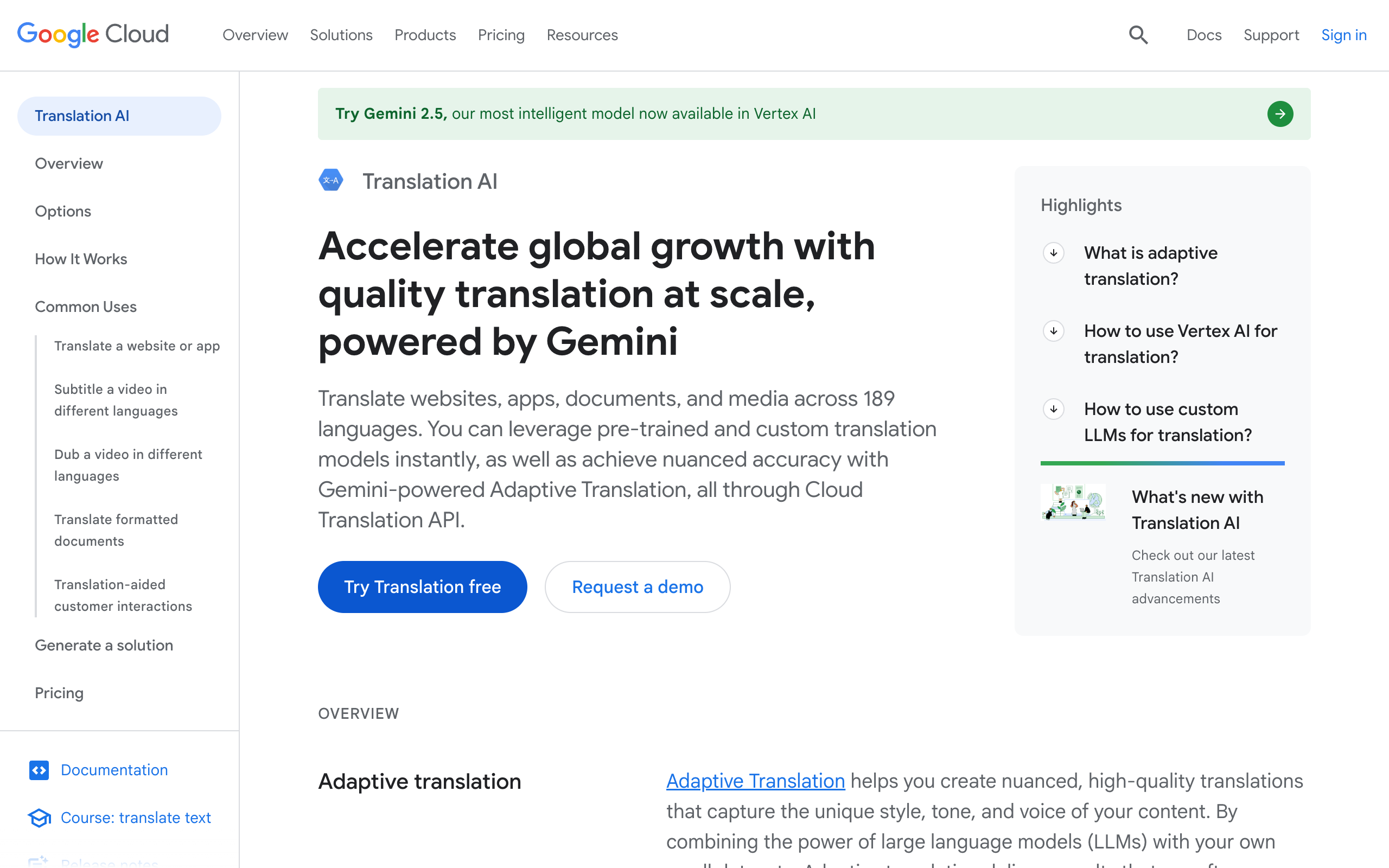
Google Cloud Translation is the strongest option on this list for developers and teams building automation. Google’s official documentation says Document Translation supports both native and scanned PDFs, but it also spells out important limitations: scanned PDFs can suffer formatting loss, scanned PDF requests are limited to 20 pages per file in that workflow, and text that slopes up or down on the page might not be correctly parsed.
That honesty is useful. If your team translates large volumes of forms, claims, reports, or intake packets and you already live inside GCP, Google Cloud is powerful. But it is not the easiest option for a solo user who just wants to upload one file and download a polished translated PDF.
Pros
- Official support for scanned PDF translation
- Strong API and batch workflow story
- Good fit for engineering teams and document pipelines
- Clear cloud documentation and usage-based billing
Cons
- Scanned PDFs can lose formatting
- 20-page scanned-PDF limit in the documented workflow
- Better for systems than for casual users
Best for: Engineering teams, operations teams, and businesses that need translation to plug into larger document-processing pipelines.
Known limits: Google’s official docs call out formatting loss for scanned PDFs, a 20-page limit in the scanned workflow, and potential parsing issues with sloping or skewed text.
Bad fit if: You want a polished one-off translation without building around cloud APIs and post-processing.
4. ABBYY FineReader PDF + DeepL — Best OCR-First Cleanup Workflow
Website: ABBYY FineReader PDF
OCR guide: ABBYY FineReader PDF User’s Guide

ABBYY FineReader PDF is not the best answer if your only requirement is “upload, translate, done.” It is here because many scanned PDFs fail before translation ever starts. ABBYY’s strength is the OCR layer: turning image-only pages into searchable, editable text and giving you more control over cleanup before you send the document into a translator.
In real workflows, that often means using ABBYY first, exporting an editable or searchable document, and then translating the cleaned file with DeepL or another translation engine. This two-step process is slower, but it is one of the safest ways to handle poor scans, rotated pages, stamps, and dense tables.
Pros
- Strong OCR-first reputation and workflow
- Better fit for low-quality or inconsistent scans
- Useful when text recognition quality matters more than one-click convenience
- Lets you fix OCR problems before translation compounds them
Cons
- Not a one-tool translation workflow
- More steps and more time
- Costs can stack if you pair it with another translation service
Best for: Low-quality scans, archival documents, forms, and business records where OCR accuracy matters more than speed.
Known limits: ABBYY is the OCR backbone here, not the translation engine. You still need another step for translation and final document cleanup.
Bad fit if: You want a browser-based one-click result with minimal setup.
5. Adobe Acrobat Pro + Word Translator — Best for Existing Adobe/Microsoft Users
Docs: Edit scanned PDFs in Acrobat, Translate text into a different language in Word
If you already pay for Acrobat Pro and work inside Microsoft 365, you may not need a new platform at all. Adobe documents the OCR flow through Recognize Text for scanned PDFs, and Microsoft documents whole-file translation in Word as a translated copy workflow. Together, they create a familiar, surprisingly practical path:
- OCR the scanned PDF in Acrobat.
- Export or open the recognized text in Word.
- Use Word’s whole-file translation.
- Recheck formatting, numbers, names, and tables.
This is not the most elegant pipeline on the list, but it is a real option for office teams that already live in Acrobat and Word every day.
Pros
- Uses software many teams already have
- Good for ad hoc office workflows
- Useful when the document needs manual cleanup anyway
- No new specialist localization stack required
Cons
- Multi-step process
- Formatting rework is common after export and translation
- Less efficient than dedicated document-translation platforms
Best for: Internal office documents, one-off translations, and teams that prefer familiar desktop tools over new vendors.
Known limits: This workflow inherits the limits of both Acrobat OCR and Word translation, so quality depends heavily on export cleanliness and manual review afterward.
Bad fit if: You need batch automation, strong localization QA features, or a dedicated translation platform.
Side-by-Side Comparison
Privacy and limit notes below reflect workflow posture and official documentation we reviewed, not an independent legal audit of each vendor.
| Tool / workflow | Direct scanned PDF support | OCR strength | Formatting retention | Privacy / data posture | Scanned-file limits | Pricing model | Best for |
|---|---|---|---|---|---|---|---|
| OpenL Doc Translator | Yes | Good for common cases | Strong for direct workflow | Cloud upload workflow | Check current plan limits; higher plans raise file caps | Pay-per-use | Fast upload-translate-download use |
| DeepL | Yes | Moderate | Good, but layout can shift | Cloud upload workflow | Plan-based limits apply; verify current document limits | Subscription | Natural-sounding output on clean scans |
| Google Cloud Translation | Yes | Moderate | Limited on scanned PDFs | Enterprise cloud workflow | 20-page scanned-PDF limit in documented flow | Usage-based | APIs, automation, batch systems |
| ABBYY FineReader PDF + DeepL | OCR first, then translate | Strong | Depends on export workflow | Local OCR first, then translation service of choice | Practical limit depends on OCR/export workflow | Commercial OCR + translator | Dirty scans and cleanup-heavy work |
| Acrobat Pro + Word Translator | OCR first, then translate | Good | Moderate | Desktop OCR plus Microsoft translation workflow | Practical limit depends on desktop workflow quality | Existing subscriptions | Familiar office workflow |
How to Pick the Best Scanned PDF Translator
Choose OpenL if you want the most direct route from scanned document to translated file.
Choose DeepL if your scan is already clean and you care most about polished wording.
Choose Google Cloud Translation if your real problem is scale, not one document. It is best when translation is part of a system.
Choose ABBYY FineReader PDF + DeepL if OCR failure is your biggest risk. This is usually the safest path for messy, low-resolution, or archive-quality scans.
Choose Acrobat Pro + Word if you already own both tools and want a familiar manual workflow.
Common Mistakes When Translating Scanned PDFs
- Skipping scan cleanup. Low DPI, skewed pages, shadows, and stamps hurt OCR before translation even starts.
- Assuming tables will survive untouched. Scanned tables and multi-column pages are common failure points.
- Trusting names and numbers blindly. Dates, invoice totals, passport numbers, and academic records need line-by-line review.
- Using public tools for sensitive files without checking policy details. Privacy, retention, and compliance matter more for HR, legal, medical, and education documents.
- Choosing based on fluency alone. The most natural translation is not helpful if the OCR layer is wrong.
For final QA, pair any tool with a short checklist like our translation QA checklist. If formatting fidelity matters as much as language quality, our guide on how to translate PDF files and keep formatting can help you avoid common handoff mistakes.
FAQ
Can any tool perfectly preserve a scanned PDF?
No. A scanned PDF has to be reconstructed before it can be translated. The better the scan and OCR, the better the final result. For complex layouts, expect some manual cleanup.
Do I always need OCR before translation?
Yes, either explicitly or behind the scenes. If a file is image-only, the text must be recognized first. Some tools do that automatically; others expect you to do it yourself.
What is the best option for legal or academic records?
Use an OCR-first workflow and review everything manually. For sensitive files, desktop OCR plus controlled translation is usually safer than a quick public web upload.
Is a free tool enough?
Sometimes, for simple low-risk documents. But once the file contains stamps, signatures, tables, or important records, the cost of a mistake is usually higher than the cost of a better workflow.
What about handwritten PDFs?
Handwritten PDFs are a separate difficulty spike. Most tools in this article are much more reliable on printed text than on handwriting. If handwriting is important, test one or two pages first and expect manual correction.
What if my scanned PDF is over 20 pages?
That matters especially for Google Cloud Translation, whose documented scanned-PDF flow includes a 20-page limit. In larger jobs, split the file, switch workflows, or use OCR-first tools to rebuild the document before translation.
Which option is safest for confidential files?
The safest pattern is usually local OCR first, then a controlled translation workflow with a vendor policy your organization accepts. For especially sensitive files, involve your legal, compliance, or security team before uploading anything.
What is the best free workflow for one-off use?
For one-off, low-risk documents, the most practical free approach is often to improve the scan first, test a small sample with a free or trial translation tool, and review the result manually. Free workflows are rarely the best choice for contracts, certificates, or regulated documents.
Final Verdict
If you want the best balance of convenience, document support, and direct scanned-PDF workflow in 2026, OpenL Doc Translator is the best fit for most users in this comparison.
If your scans are messy, the smartest decision is often to stop thinking about “the best translator” and start with the best OCR step. That is where ABBYY FineReader PDF or Acrobat Pro can outperform simpler web tools, because they reduce recognition errors before translation starts.
And if your organization needs scale, monitoring, and automation, Google Cloud Translation is the most robust infrastructure play, even though it is less friendly for one-off users.
The practical rule is simple: clean scan -> OCR -> translation -> QA. The best tool is the one that removes the biggest risk in that chain.