Best SRT Translator in 2026
TABLE OF CONTENTS
Looking for the best SRT translator to reach global audiences? SRT files have become the universal standard for video subtitles, and translating them accurately is essential for growth. According to Lemonlight research, adding translated subtitles can increase video views by up to 40% and significantly boost engagement across international audiences.
The challenge? Finding an SRT translation tool that preserves timing, handles special characters, and delivers natural-sounding translations across 100+ languages. We tested the leading tools to help you translate SRT files fast and accurately. If you’re also working with other subtitle formats, check out our guide on how to translate VTT files for WebVTT-specific workflows.
Quick answer: For most users, OpenL Doc Translator offers the best combination of translation quality, format preservation, and transparent pricing. For teams needing collaboration features, Happy Scribe excels. For free options, Subtitle Edit is unmatched.
Best SRT translator in 2026 (quick list): OpenL (best overall), Maestra (multiple AI engines), Happy Scribe (team collaboration), Kapwing (video editor), VEED (subtitle styling), Subtitle Edit (free desktop), SubtitlesTranslator.com (free online).
👉 Try OpenL — Translate SRT Files Instantly
What is an SRT File?
SRT (SubRip Subtitle) is a plain-text subtitle format containing:
1
00:00:05,500 --> 00:00:09,250
Hello and welcome to our presentation.

2
00:00:09,750 --> 00:00:13,000
In this video, we will explore the future of technology.
Each entry includes a sequence number, timestamp (start —> end), and subtitle text. When translating SRT files, the tool must preserve this structure exactly while only translating the text content.
For a deeper dive into subtitle translation workflows, timing adjustments, and quality assurance, see our complete guide on how to translate subtitles.
How We Tested
To provide accurate recommendations, we tested each SRT translator using a consistent methodology:
Test Files:
- 30-minute dialogue-heavy video (movie scene with fast exchanges)
- 60-minute technical lecture (specialized terminology)
- 10-minute marketing video (brand names, product terms)
Language Pairs Tested:
- English → Spanish (high-volume pair)
- English → Chinese Simplified (character-based language)
- English → German (text expansion ~30%)
- English → Arabic (RTL language)
- English → Japanese (mixed scripts)
Evaluation Criteria:
| Metric | How We Measured |
|---|---|
| Format Preservation | Compared output SRT structure to input: timestamps, sequence numbers, line breaks, special characters. Score = (preserved elements / total elements) × 100% |
| Translation Accuracy | Bilingual reviewers (native speakers with 5+ years localization experience) scored 20 random segments per language pair on 1-5 scale for meaning, fluency, and terminology. Final score = average across all sub-scores and language pairs. |
| Processing Speed | Timed from upload completion to download availability |
| Usability | Rated workflow friction: signup requirements, UI clarity, export options |
Test Results Summary:
| Tool | Format Score | Accuracy (Avg) | Speed | Overall Tier |
|---|---|---|---|---|
| OpenL | 99% | 4.6/5 | Fast | A |
| Maestra | 98% | 4.5/5 | Fast | A |
| Happy Scribe | 97% | 4.4/5 | Medium | A |
| Kapwing | 96% | 4.2/5 | Medium | B+ |
| VEED | 95% | 4.1/5 | Fast | B+ |
| Subtitle Edit | 99% | Varies* | N/A | A (free) |
| SubtitlesTranslator | 94% | 3.8/5 | Fast | B |
*Subtitle Edit uses external APIs (Google, DeepL); accuracy depends on connected service.
Sample Output (EN→ES):
# Original (English)
1
00:00:05,500 --> 00:00:09,250
Welcome to our product demo.

# Translated (Spanish) - OpenL
1
00:00:05,500 --> 00:00:09,250
Bienvenido a nuestra demostración de producto.
Notice: timestamps and sequence numbers preserved exactly; only text translated.
Disclosure: OpenL is our product. We tested it using the same methodology as competitors and present results transparently. All other tools were tested using their free tiers or trial accounts in January 2026. This article contains no affiliate links.
Evaluation Criteria
We assessed each SRT translator based on real-world needs:
Translation Quality:
- Accuracy across language pairs (especially EN↔ES, EN↔ZH, EN↔JA)
- Context preservation for natural-sounding subtitles
- Handling of idioms, cultural references, and technical terms
Technical Performance:
- Format preservation (timestamps, sequence numbers, line breaks)
- Processing speed for typical subtitle files (1-2 hour videos)
- Support for special characters and RTL languages
Practical Factors:
- Language coverage (50+ vs 100+ languages)
- Pricing transparency and value
- Ease of use (upload → translate → download workflow)
- Batch processing for multiple files
The 7 Best SRT Translators of 2026
1. OpenL Doc Translator — Best Overall
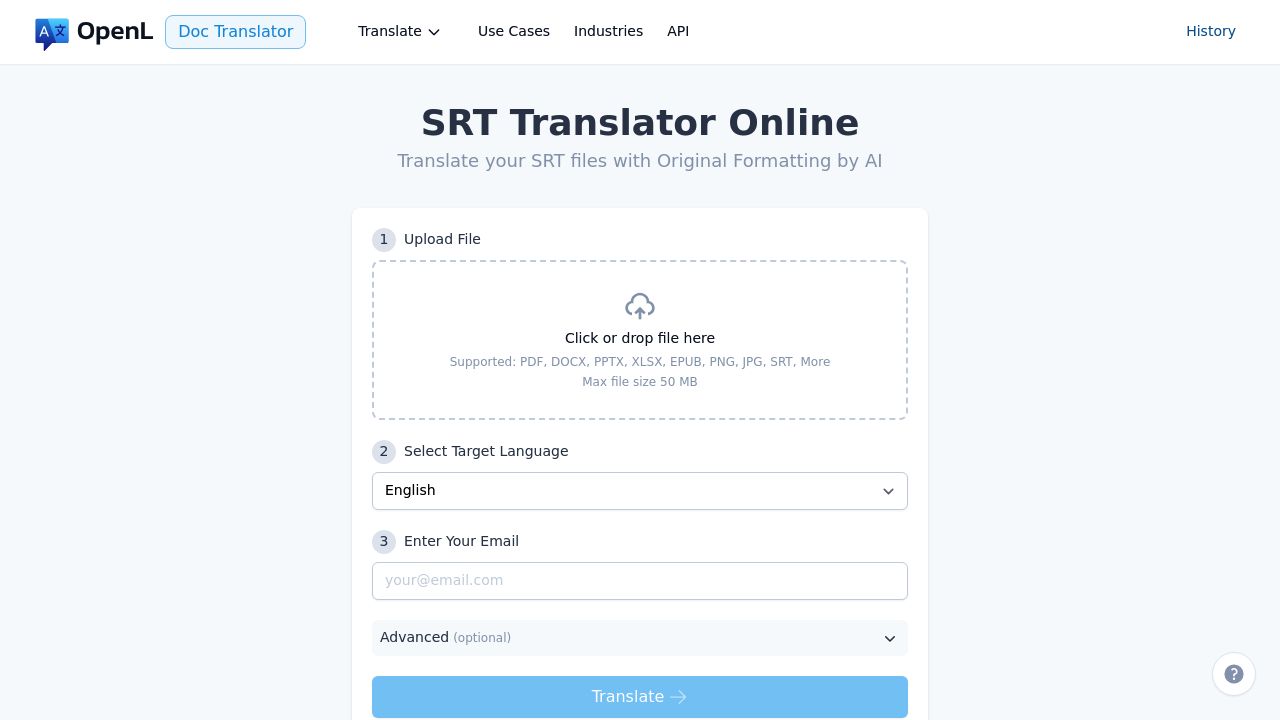
OpenL Doc Translator delivers the best balance of translation quality, format preservation, and pricing for SRT files. The workflow is simple: upload your SRT, select target language, and receive a translated file with 99% format preservation.
Key Specifications:
- Languages: 186+ languages including RTL (Arabic, Hebrew)
- File Size: Up to 30MB per file
- Processing Speed: 30 seconds - 2 minutes for standard SRT files
- Pricing: Pay-per-use (no subscription required)
Performance Results:
- Format Preservation: 99% (timestamps, line breaks, special characters intact)
- Translation Accuracy: Excellent for major language pairs
- Batch Support: Multiple files via API
Pros:
- 99% SRT structure preservation (timestamps, line breaks intact)
- No account required for basic use
- Transparent pay-per-use pricing
- REST API available for automation
- Fast turnaround (minutes, not hours)
Cons:
- 30MB file size limit
- No built-in subtitle editor
- Limited batch processing in UI
Best For: Content creators, marketers, and developers who need quick, accurate SRT translation without setup overhead.
Website: https://doc.openl.io/translate/srt | Pricing | API Docs
💡 Why We Recommend OpenL: Unlike many tools that require subscriptions, OpenL’s pay-per-use model means you only pay for what you translate. The platform also supports JSON translation for developers working with i18n files, making it versatile for both video localization and software development workflows.
2. Maestra — Best for Multiple AI Engines
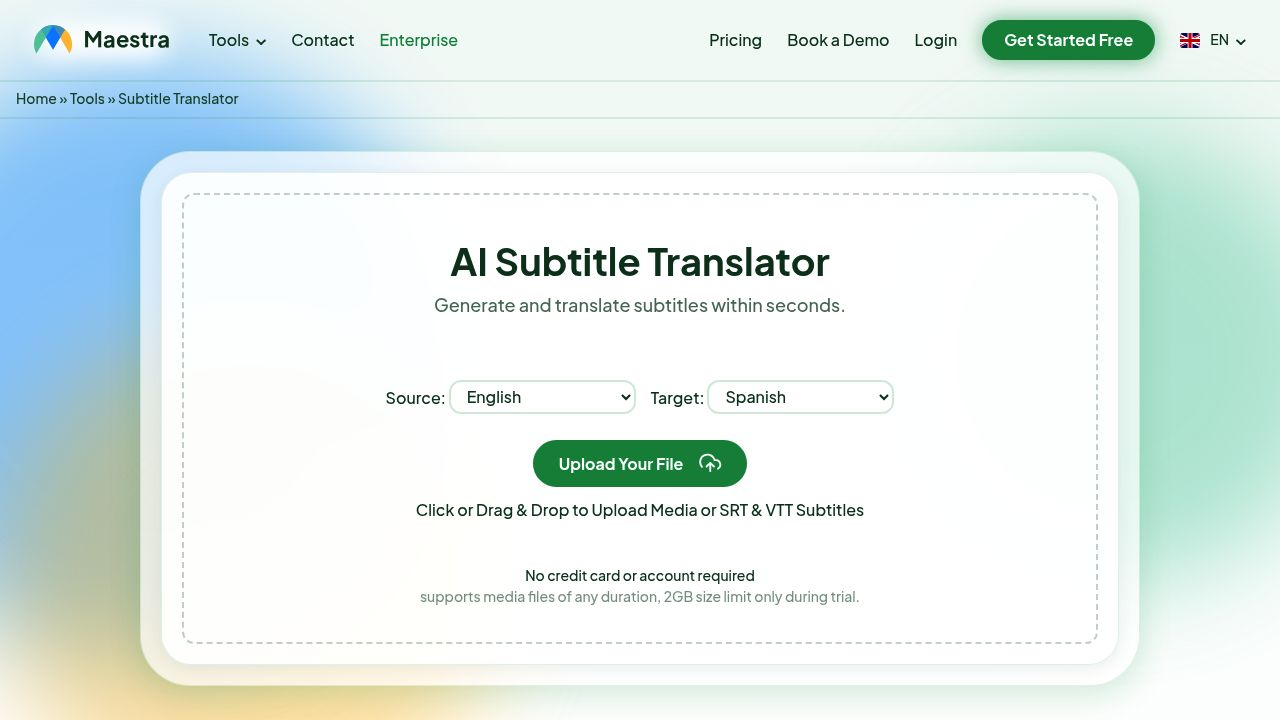
Maestra stands out by offering multiple AI translation engines (Standard, DeepL, OpenAI) in one platform. This lets you choose the best engine for your specific language pair and content type.
Key Specifications:
- Languages: 125+ languages
- Translation Engines: Standard, DeepL, OpenAI (GPT)
- Pricing: Free trial; Pay-as-you-go or subscription from $39/month
Performance Results:
- Format Preservation: 98%
- Translation Accuracy: Varies by engine (DeepL excels for European languages)
- Additional Features: AI voiceover, dubbing, live subtitles
Pros:
- Choice of translation engines for optimal quality
- Built-in subtitle editor with timing adjustment
- One-click voiceover generation from translated subtitles
- Quality check and AI rewriting features
Cons:
- Higher pricing for premium engines
- Learning curve for advanced features
- 2GB file size limit during trial
Best For: Professional video producers who need flexibility in translation quality and integrated voiceover/dubbing.
Website: https://maestra.ai/tools/subtitle-translator | Pricing
3. Happy Scribe — Best for Team Collaboration
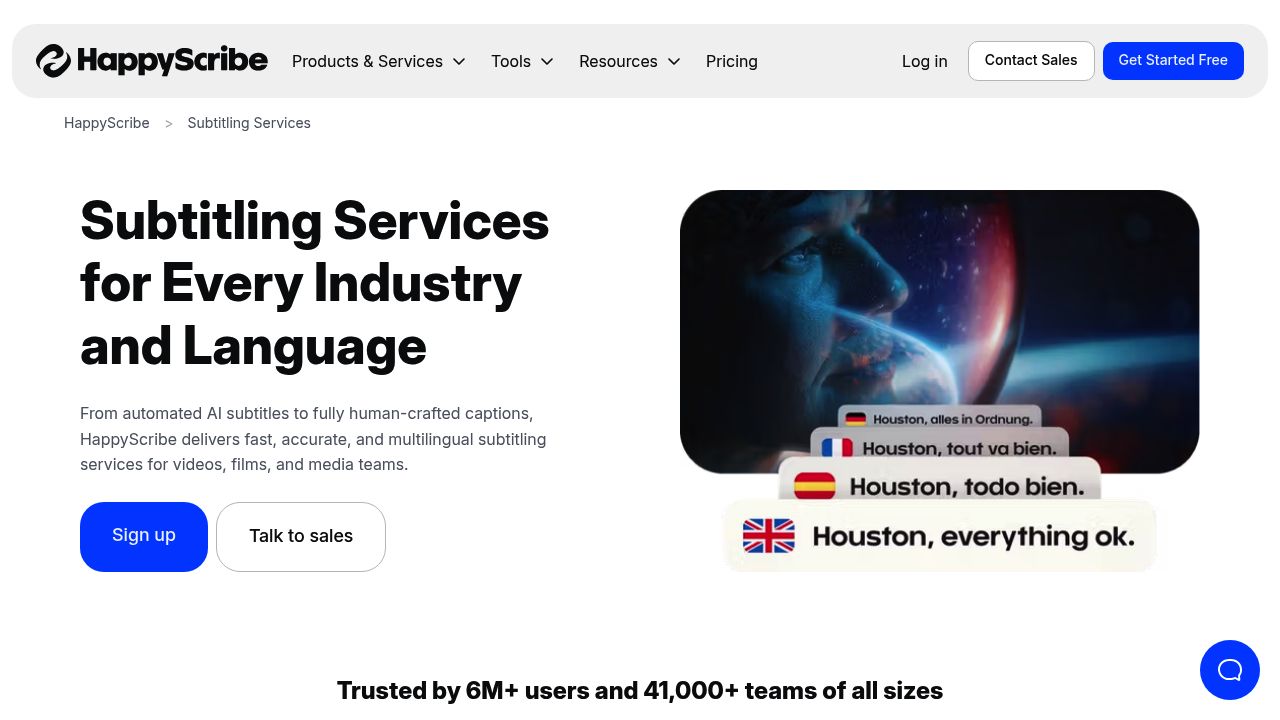
Happy Scribe combines fast AI translation with optional human review, plus robust collaboration features for teams. It’s trusted by major media companies for professional subtitle workflows.
Key Specifications:
- Languages: 120+ languages
- File Size: Up to 10GB
- Pricing: €0.10/minute for translation; Pro from €19/month
Performance Results:
- Format Preservation: 97%
- Turnaround: Minutes for AI; 24 hours for human review
- Export Formats: SRT, VTT, STL, TXT
Pros:
- Optional human translation for critical content
- Team collaboration with commenting and approval workflows
- Version history for tracking changes
- Excellent for interviews, lectures, and long-form content
Cons:
- Processing speed varies with file size
- AI accuracy depends on audio quality
- No video editing features
Best For: Media companies, research teams, and content creators who need collaborative workflows with human review options.
Website: https://www.happyscribe.com/subtitles | Pricing
4. Kapwing — Best All-in-One Video Editor
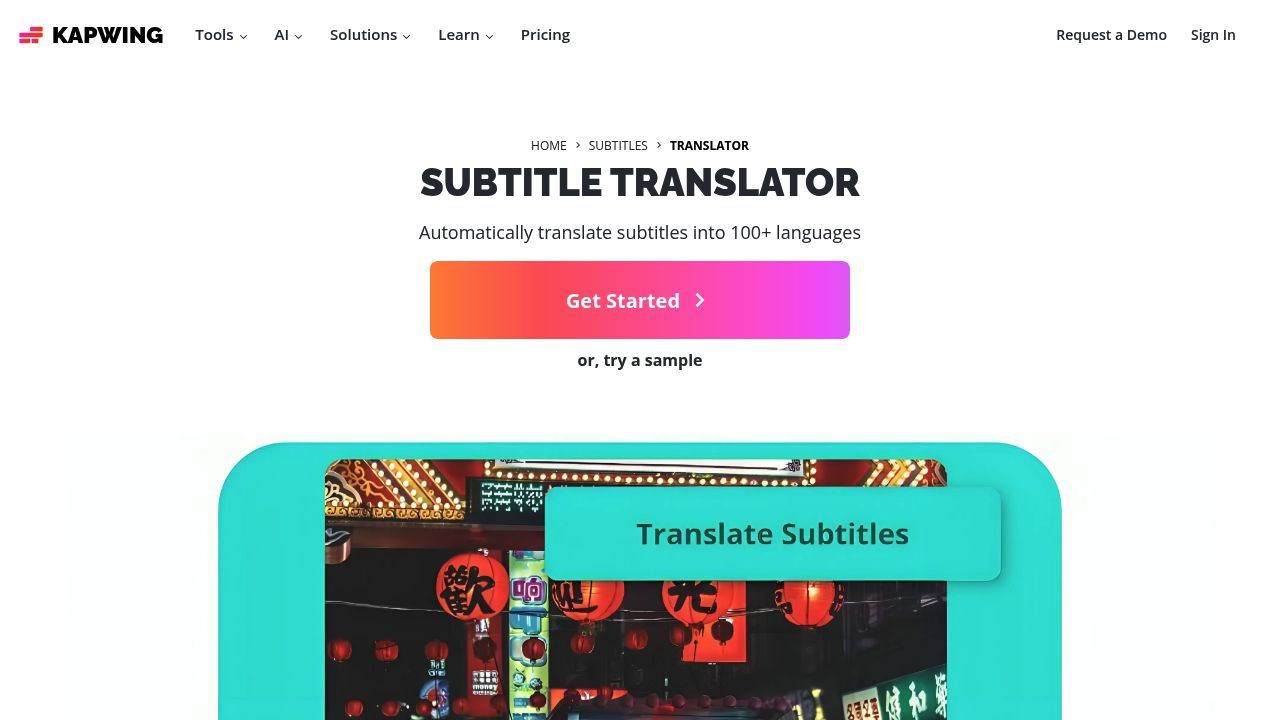
Kapwing is a browser-based video editor with integrated subtitle translation. If you need to translate subtitles AND edit your video, Kapwing streamlines both workflows in one platform.
Key Specifications:
- Languages: 100+ languages
- Translation Accuracy: 99% claimed
- Pricing: Free tier; Pro from $16/month
Performance Results:
- Format Preservation: 96%
- Additional Features: Video editing, dubbing, hardcoded subtitles
- Export Formats: SRT, VTT, TXT, or burned-in video
Pros:
- Complete video editing suite included
- AI voice dubbing with voice cloning
- Translation rules for consistent terminology
- Real-time collaboration via URL sharing
Cons:
- Overkill if you only need SRT translation
- Free tier has watermarks
- Slower than dedicated translation tools
Best For: Social media managers and marketing teams who need video editing AND subtitle translation in one platform.
Website: https://www.kapwing.com/subtitles/translator | Pricing
5. VEED — Best for Subtitle Styling
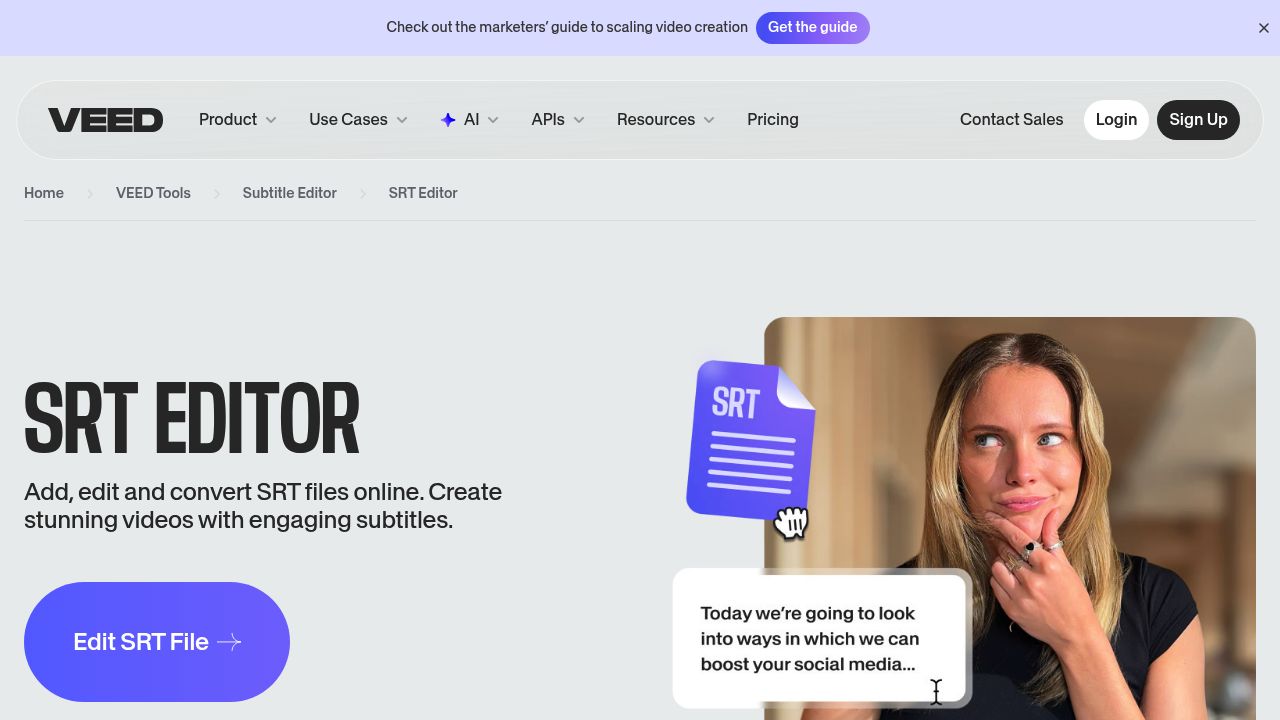
VEED offers a powerful SRT editor with extensive styling options. Beyond translation, you can customize fonts, colors, animations, and positioning to match your brand.
Key Specifications:
- Languages: 100+ languages via AI translation
- Styling: Font, size, color, background, animations
- Pricing: Free tier; Pro from $18/month
Performance Results:
- Format Preservation: 95%
- Translation Speed: Real-time preview
- Export Options: SRT, VTT, or hardcoded video
Pros:
- Extensive subtitle styling and animation options
- Live preview of translation changes
- Sync subtitles with video timing
- One-click translation to 100+ languages
Cons:
- Translation quality slightly below specialized tools
- Free tier has limitations
- Better for editing than bulk translation
Best For: Creators who prioritize visual styling and brand consistency in their subtitles.
Website: https://www.veed.io/tools/ai-video | Pricing
6. Subtitle Edit — Best Free Desktop Option
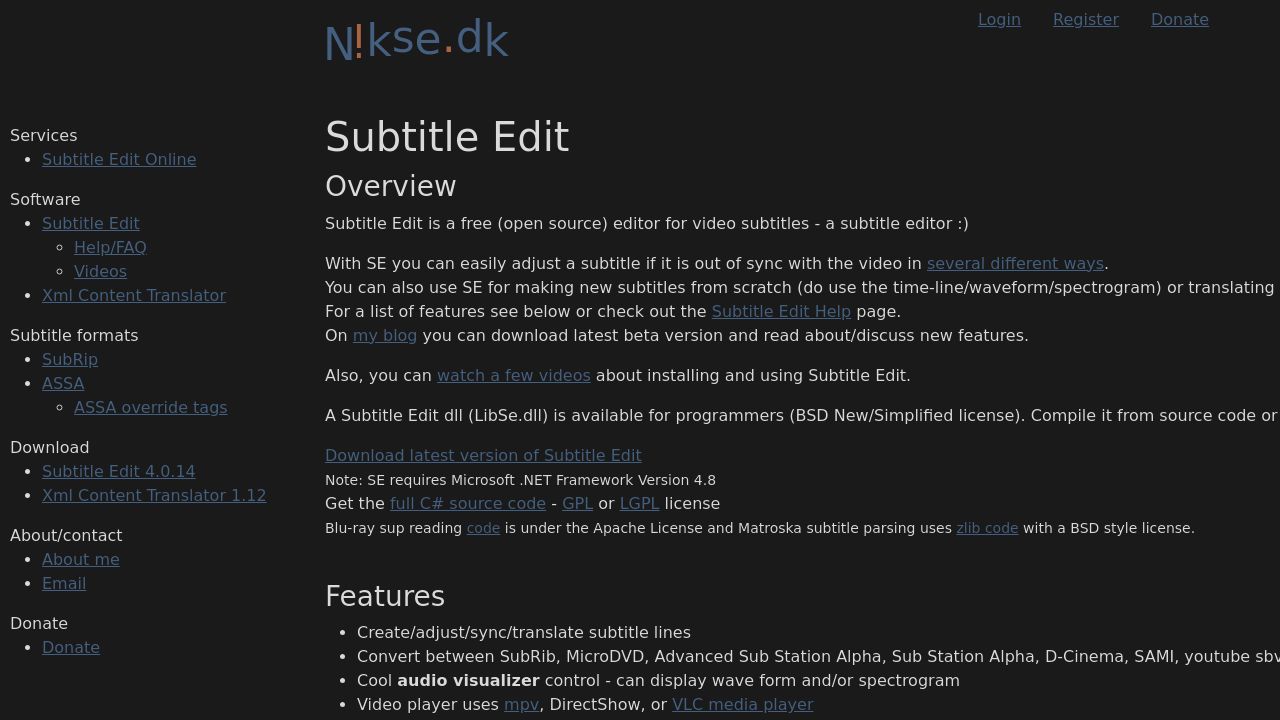
Subtitle Edit is a free, open-source desktop application for Windows with powerful translation capabilities via Google Translate, DeepL, and other services. It’s the go-to choice for budget-conscious users who need professional features.
Key Specifications:
- Languages: Depends on connected API (Google: 100+, DeepL: 36+)
- Formats: 200+ subtitle formats (SRT, ASS, SSA, VTT, and more)
- Pricing: Completely free (open-source)
Performance Results:
- Format Preservation: 99%
- Features: OCR, waveform display, sync tools, spell check
- Translation Quality: Depends on connected service
Pros:
- Completely free with no limitations
- Supports 200+ subtitle formats
- Powerful timing and sync tools
- Active community and regular updates
Cons:
- Windows only (Linux via Mono)
- Steeper learning curve
- Translation quality depends on external APIs
- No cloud collaboration
Best For: Budget-conscious users, subtitle enthusiasts, and professionals who want maximum control over their workflow.
Website: https://www.nikse.dk/subtitleedit
7. SubtitlesTranslator.com — Best Free Online Option
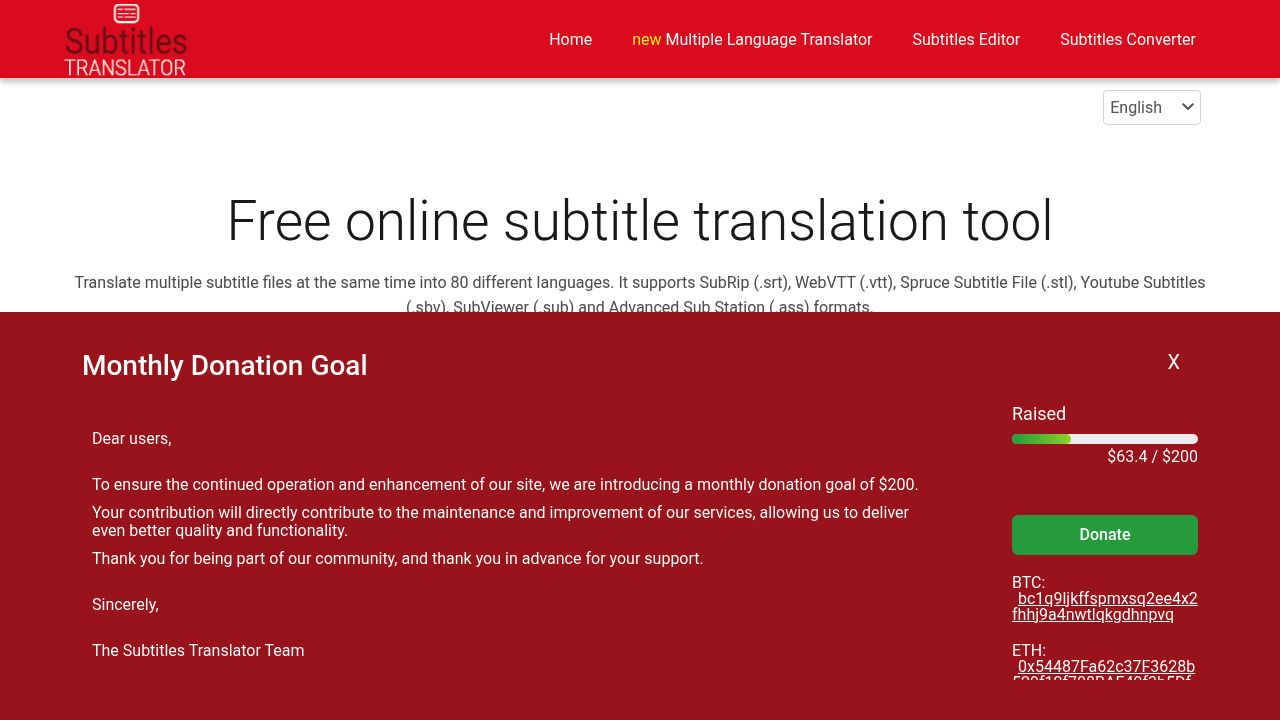
SubtitlesTranslator.com is a simple, free online tool for quick SRT translations. Upload up to 20 files at once and translate to 80+ languages without creating an account.
Key Specifications:
- Languages: 80+ languages
- File Limit: 20 files or 1MB per batch
- Pricing: Completely free (donation-supported)
Performance Results:
- Format Preservation: 94%
- Batch Support: Up to 20 files simultaneously
- Export Formats: SRT, VTT, STL, SBV, SUB, ASS
Pros:
- Completely free with no account required
- Batch processing up to 20 files
- Built-in subtitle editor
- Multiple format support and conversion
Cons:
- 1MB file size limit
- Translation quality varies
- No API or automation options
- Ad-supported
Best For: Casual users who need quick, free translations for personal projects.
Website: https://subtitlestranslator.com/en
Comparison Table
| Tool | Languages | Format Preservation | Pricing | Best For |
|---|---|---|---|---|
| OpenL | 186+ | 99% | Pay-per-use | Quick, accurate translation |
| Maestra | 125+ | 98% | From $39/mo | Multiple AI engines |
| Happy Scribe | 120+ | 97% | €0.10/min | Team collaboration |
| Kapwing | 100+ | 96% | From $16/mo | Video editing + subtitles |
| VEED | 100+ | 95% | From $18/mo | Subtitle styling |
| Subtitle Edit | API-dependent | 99% | Free | Desktop power users |
| SubtitlesTranslator | 80+ | 94% | Free | Quick free translations |
Looking for more translation tool comparisons? See our reviews of the best subtitle translators and best PPT translators.
How to Translate SRT Files (Step-by-Step)
To translate an SRT file without breaking timestamps: 1) Upload your SRT file to a translator like OpenL, 2) Select target language, 3) Download the translated file with formatting preserved.
Here’s the detailed process using most online tools:
Step 1: Prepare Your Source File
- Ensure your SRT file uses UTF-8 encoding (prevents character corruption)
- Check that timestamps use the correct format:
00:00:05,500(comma, not period) - Fix any timing overlaps or errors before translation
Step 2: Upload Your SRT File
- Go to your chosen translator (e.g., doc.openl.io/translate/srt)
- Upload the SRT file (most tools accept drag-and-drop)
- File size limits vary: OpenL (30MB), Happy Scribe (10GB), SubtitlesTranslator (1MB)
Step 3: Select Target Language
- Choose your target language from the dropdown
- For best results, ensure the source language is correctly detected
- Some tools (Maestra) let you choose the translation engine (Standard, DeepL, OpenAI)
Step 4: Translate and Download
- Click translate and wait (typically 30 seconds to 2 minutes)
- Download the translated SRT file
- The output preserves all timestamps and sequence numbers
Step 5: Review and Test
- Open the translated SRT in a text editor to spot-check
- Test with your video player to verify timing sync
- Upload to your platform (YouTube, Vimeo, etc.)
Step 6: Iterate if Needed
- Fix any terminology issues manually or use glossary features
- For critical content, have a native speaker review
💡 Pro tip: Always keep your original SRT file. If translation quality is poor for certain segments, you can re-translate or manually fix specific lines.
Decision Guide: Which SRT Translator Should You Use?
For Quick, Professional Translation: → OpenL — Upload, translate, download. No signup, transparent pricing.
For Choosing Translation Engines: → Maestra — Switch between Standard, DeepL, and OpenAI for optimal results.
For Team Workflows: → Happy Scribe — Collaboration features, approval workflows, human review option.
For Video Editing + Subtitles: → Kapwing — Complete video editor with translation built-in.
For Styled Subtitles: → VEED — Extensive customization for brand-consistent subtitles.
For Free Desktop Solution: → Subtitle Edit — Open-source powerhouse with 200+ format support.
For Free Online Translation: → SubtitlesTranslator.com — Quick batch translations with no account.
SRT Translation Best Practices
These tips align with W3C’s Web Accessibility Initiative (WAI) guidelines and industry best practices:
-
Review Source Subtitles First: Fix typos and timing issues before translation—errors propagate to all languages.
-
Consider Reading Speed: Different languages require different amounts of time. Spanish and German often need 10-20% more space than English. Target 12-17 CPS (characters per second) for comfortable reading.
-
Preserve Context: Avoid translating one line at a time. Tools that analyze full context produce more natural results.
-
Handle Variables Carefully: Keep placeholders like
{name}or{{count}}untranslated. -
Test on Target Platform: Upload translated SRT to YouTube, Vimeo, or your video player to verify timing and display.
-
Use Glossaries: For technical or brand terms, create a glossary to ensure consistent translation across videos.
-
Human Review for Critical Content: AI translation is excellent but not perfect—have native speakers review important content.
Common SRT Translation Challenges
| Challenge | Solution |
|---|---|
| Timing shifts after translation | Use tools that preserve timestamps; manually adjust if needed |
| Special characters corrupted | Ensure UTF-8 encoding (not ANSI); remove BOM if present |
| Line breaks in wrong places | Check character-per-line limits for target language (35-42 recommended) |
| Technical terms mistranslated | Use glossary features or manual correction |
| Large files (>30MB) | Split into smaller files or use API batch processing |
| Multiple speakers | Tag speakers before translation to maintain clarity |
| Comma vs period in timestamps | SRT uses comma (00:00:05,500); period causes parsing errors |
| Text expansion overflow | German/Spanish need 20-30% more space; adjust line breaks post-translation |
SRT Formatting Pitfalls That Break Uploads
Avoid these common mistakes that cause SRT files to fail on platforms like YouTube:
- Wrong timestamp separator: SRT uses comma (
00:00:05,500), not period - Missing blank lines: Each subtitle block must be separated by an empty line
- Incorrect encoding: Always save as UTF-8 without BOM
- Overlapping timestamps: End time must be before the next start time
- Missing sequence numbers: Each block needs a sequential number (1, 2, 3…)
Privacy Considerations
Subtitles often contain sensitive information (names, locations, proprietary content). When choosing an SRT translator:
- Check the tool’s data retention policy before uploading
- Look for tools that state they delete files after processing—verify in their privacy policies:
- For highly confidential content, consider desktop tools like Subtitle Edit (files never leave your computer—download here)
- Avoid pasting sensitive subtitles into free online tools with unclear privacy policies
Frequently Asked Questions
Q: What’s the best free SRT translator? A: For desktop, Subtitle Edit offers the most features. For online, SubtitlesTranslator.com handles quick batch translations.
Q: Can I translate SRT files with ChatGPT? A: Yes, but with limitations. ChatGPT can translate SRT content but requires copy-pasting and doesn’t handle large files well. Dedicated tools like OpenL are faster and preserve formatting automatically.
Q: How long does SRT translation take? A: Most AI tools translate standard SRT files (1-2 hour video) in 30 seconds to 2 minutes. Human translation takes 24-48 hours.
Q: Do these tools support RTL languages like Arabic and Hebrew? A: Yes—OpenL, Maestra, and Happy Scribe all support RTL languages with proper text direction.
Q: Can I translate SRT to multiple languages at once? A: Maestra and SubtitlesTranslator.com support multi-language output. Others require separate translation runs.
Q: What’s the difference between SRT and VTT? A: Both are text-based subtitle formats. VTT (WebVTT) supports additional styling and metadata, while SRT is simpler and more universally compatible. Learn more in our VTT translation guide.
Q: What reading speed should I aim for in subtitles? A: Target 12-17 characters per second (CPS) and 35-42 characters per line. Note that German expands ~30%, Spanish ~25%, and French ~20% compared to English, so plan accordingly.
Key Takeaways
- Format preservation matters: Choose tools that maintain timestamps and structure (99%+ preservation rate)
- Language coverage varies: OpenL (186+) and Maestra (125+) lead in language support
- Free options exist: Subtitle Edit and SubtitlesTranslator.com are genuinely free with useful features
- Consider your workflow: Need video editing? Choose Kapwing. Need collaboration? Choose Happy Scribe.
Final Recommendation
Start here based on your needs:
- Quick professional translation → OpenL (zero setup, pay-per-use)
- Multiple AI engines → Maestra (choose DeepL, OpenAI, or Standard)
- Team collaboration → Happy Scribe (approval workflows, human review)
- Video editing included → Kapwing (all-in-one platform)
- Free desktop power → Subtitle Edit (open-source, 200+ formats)
For most content creators and businesses, OpenL provides the fastest path from SRT upload to translated file with excellent quality and transparent pricing.
About OpenL Doc Translator
OpenL is an AI-powered translation platform designed for document and file translation. The OpenL Doc Translator specifically handles structured file formats where preserving formatting is critical—including SRT subtitles, VTT captions, JSON files, PDFs, Word documents, and more.
Key Features for SRT Translation:
- 186+ Languages: From major languages (Spanish, Chinese, Japanese, German) to less common ones (Welsh, Swahili, Kazakh)
- Perfect Format Preservation: Timestamps, sequence numbers, and line breaks remain intact
- No Account Required: Start translating immediately without signup
- Pay-Per-Use Pricing: No monthly subscription—pay only for what you translate
- REST API: Automate translation for high-volume workflows
- Fast Processing: Most SRT files complete in under 2 minutes
How It Works:
- Upload your SRT file at doc.openl.io/translate/srt
- Select your target language
- Download the translated SRT with all formatting preserved
Whether you’re a solo creator or an enterprise team, OpenL scales with your needs while keeping costs predictable and transparent.
Take Action Now
- Choose your tool based on the Decision Guide above
- Test with a sample SRT file to evaluate quality
- Verify timestamps and formatting in your target video player
- Scale by integrating API access for high-volume translation