Best Subtitle Translators in 2026
 Add to Chrome
TABLE OF CONTENTS
Whether you’re localizing a YouTube channel, translating a film festival submission, or adding multilingual captions to a training video — here are the tools that actually preserve your timecodes and get the translation right. If you need general-purpose translation instead, see our best free online translators guide.
Comparison Table
| Tool | Languages | Formats | Format Preservation | Pricing | Best For |
|---|---|---|---|---|---|
| Maestra | 125+ | SRT, VTT, TXT | 98% | From $12/mo | Multi-engine professional workflows |
| Happy Scribe | 120+ | SRT, VTT, STL, 15+ formats | 97% | From $17/mo | AI + human review, teams |
| OpenL Translate Speech | 100+ | Audio → SRT, text | 99% | Free + Pro $9.9/mo | Audio/video to translated subtitles |
| Kapwing | 100+ | SRT, VTT, TXT | 96% | From $16/mo | Video editing + subtitles combined |
| Subtitle Edit | API-dependent | 200+ formats | 99% | Free | Desktop power users |
| Subtitle Translator (OSS) | 70+ | SRT, ASS, VTT, LRC | High | Free | Batch AI translation, open source |
Maestra — Best Professional Multi-Engine
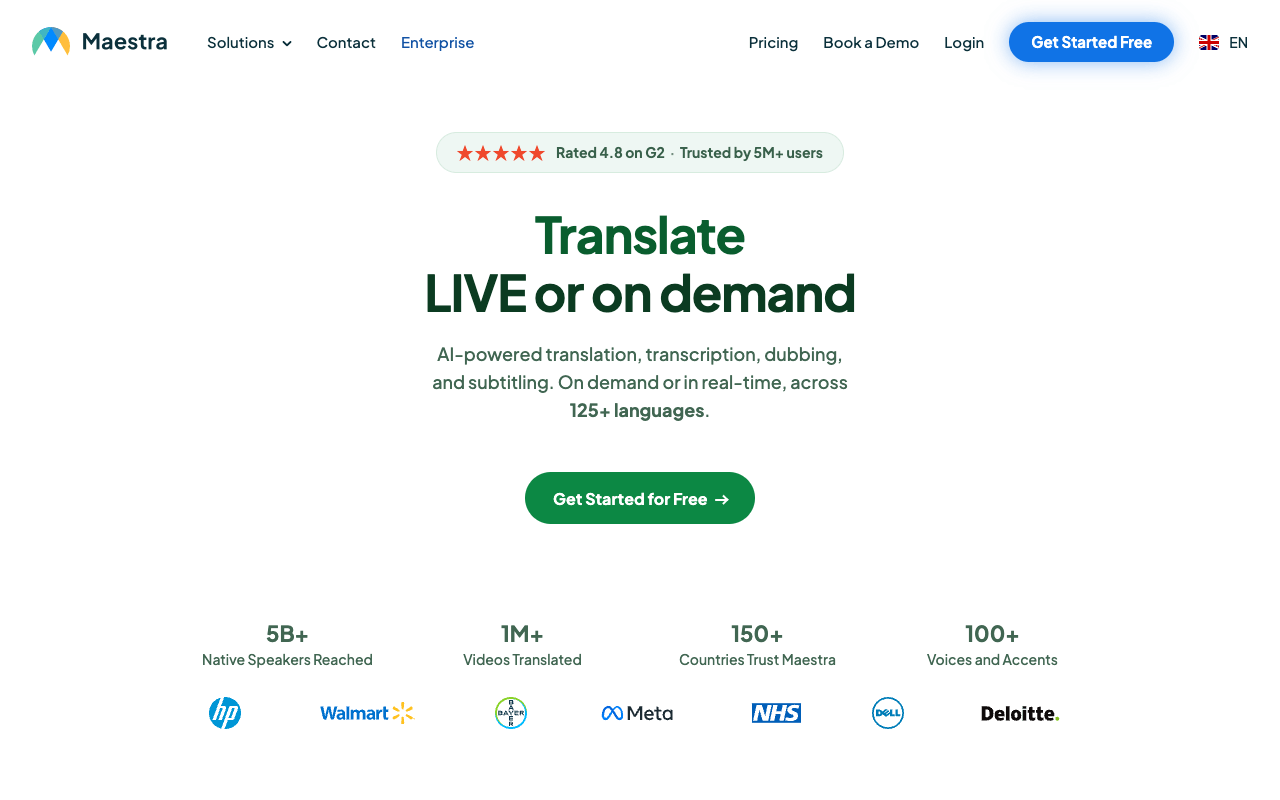
Maestra is a media localization platform built around transcription, translation, and subtitling. Its standout feature is the ability to switch between three translation engines — Standard, DeepL, and OpenAI (GPT) — in the same editor. If one engine handles technical terms better, you can use it for that section without switching tools.
Key features:
- 125+ languages for subtitles; dubbing limited to 29 languages
- Built-in subtitle editor with timing adjustment and waveform view
- One-click voiceover generation from translated subtitles
- Real-time live captions for Zoom, OBS, and vMix
- Custom dictionary and AI summarization
Pros: Switch between three translation engines (Standard, DeepL, GPT) without leaving the editor — rare among subtitle tools. Built-in waveform editor and timing adjustment eliminate round-tripping. Real-time live captions for Zoom and OBS are a unique differentiator.
Cons: Pay-per-minute model means costs scale quickly for heavy users (Basic plan only covers 360 min/month). Voiceover generation covers 29 languages vs. 125+ for subtitles — a gap if you need both. No offline mode; everything runs in the cloud.
Pricing: Pay-as-you-go from $12/mo (60 min), Lite $23/mo (180 min), Basic $39/mo (360 min), Premium $79/mo (900 min).
Website: maestra.ai
Happy Scribe — Best for Teams
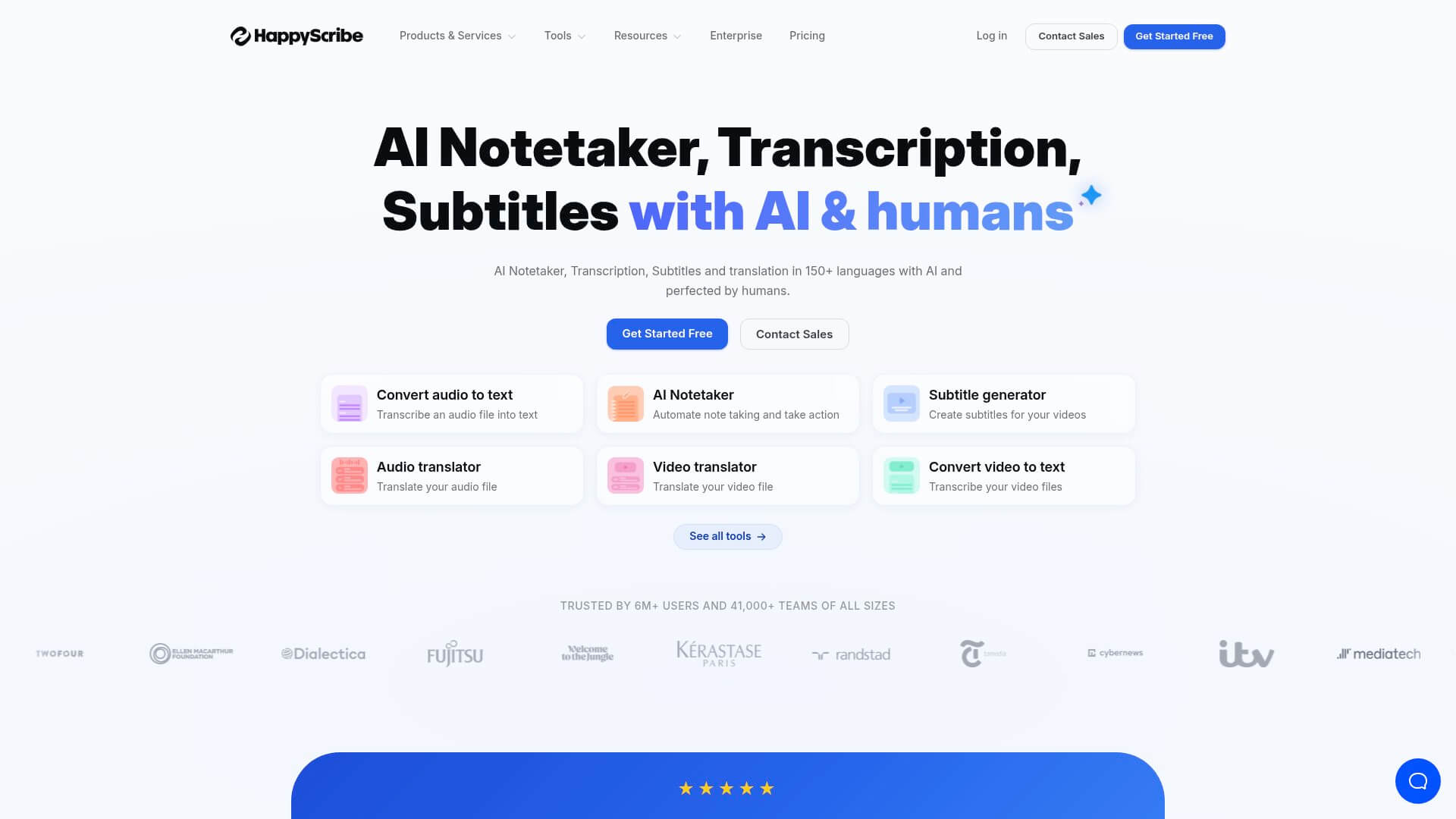
Happy Scribe combines AI transcription and translation with optional human review, all in one collaborative dashboard. It’s trusted by 6 million users and 41,000+ teams including BBC, Netflix, and Spotify. If accuracy matters more than speed — compliance training, broadcast captions, legal depositions — the hybrid AI + human workflow is the main reason to pick it.
Key features:
- 120+ languages for AI translation; 65+ for human translation
- Team collaboration with commenting, approval workflows, and workspace roles
- 15+ export formats (SRT, VTT, STL, FCPXML, EDL, HTML, MP4)
- Speaker detection and custom glossaries
- SOC 2 Type II, GDPR compliant
Pros: The only tool in this list offering AI + professional human translation in one workflow — start with fast AI subtitles, escalate to human review for critical content without changing platforms. Team collaboration features (approval workflows, workspace roles, commenting) are genuinely production-ready. 15+ export formats cover everything from SRT to FCPXML.
Cons: Free plan is a 10-minute trial, not a usable free tier. AI accuracy depends on language pair — common European languages fare better than low-resource ones, as with all machine translation. No built-in subtitle timing editor; you’ll need a separate tool for frame-level adjustments.
Pricing: Free (10 min trial), Basic $17/mo (120 min), Pro $29/mo (600 min), Business $89/mo (6,000 min). Human translation: $2.00/min.
Website: happyscribe.com
OpenL Translate Speech — Best Speech-to-Subtitle
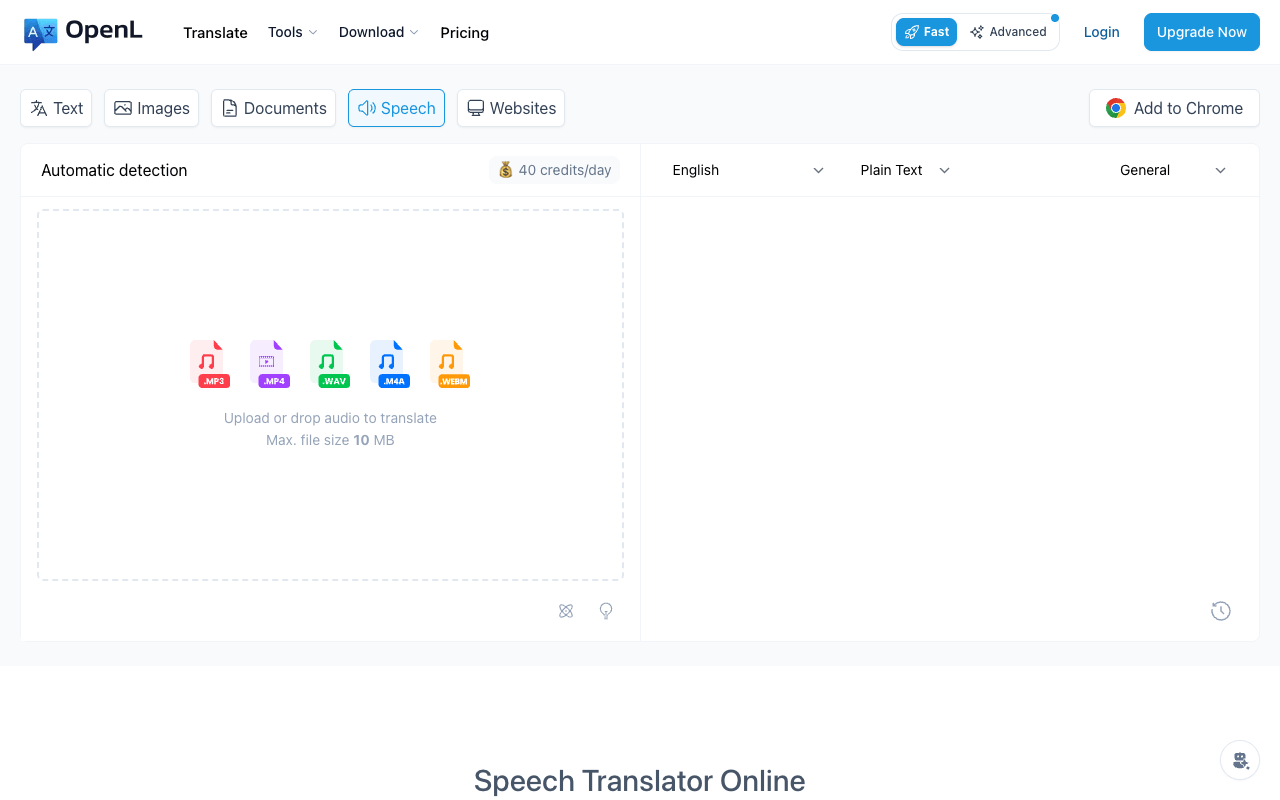
Most subtitle translators expect you to already have an SRT file. OpenL Translate Speech skips that step: upload an audio or video file (MP3, MP4, WAV, M4A, WEBM), and it transcribes the speech into translated subtitles with timecodes — producing an SRT file in your target language that’s ready for Premiere, Final Cut, YouTube, or VLC.
Key features:
- 100+ languages for speech-to-subtitle translation
- Context-aware AI translation with DeepThink mode for professional accuracy
- Smart Context for better handling of idioms and cultural references
- No account required for free tier (up to 1,500 characters)
- Files auto-deleted after translation — nothing stored
Pros: Skips the transcription-and-translate pipeline entirely — upload audio/video, get timecoded SRT subtitles in your target language in one step. DeepThink mode improves accuracy for specialized content (technical, legal, academic). Files auto-deleted after processing, which matters for confidential material. Free tier requires no account. 30% education discount for students and teachers.
Cons: Free tier caps at 1,500 characters and 10 MB — only suitable for short clips. No batch upload for multiple files. No built-in subtitle editor for adjusting timing or text after translation.
Pricing: Free tier available (1,500 characters at a time, 10 MB file limit). Pro plan: $9.9/month (100,000 characters, 100 MB files, DeepThink, Smart Context, Chrome extension). Unlimited plan available for higher volume.
Website: openl.io/translate/speech
Also from OpenL: If you already have an SRT, ASS, or VTT file and just need it translated, OpenL Document Translation handles direct SRT-to-SRT translation with 99% format preservation across 100+ languages. Timecodes, cue numbers, and formatting tags stay intact. Pay-per-use pricing — no subscription needed.
Kapwing — Best All-in-One Video Editor + Subtitles
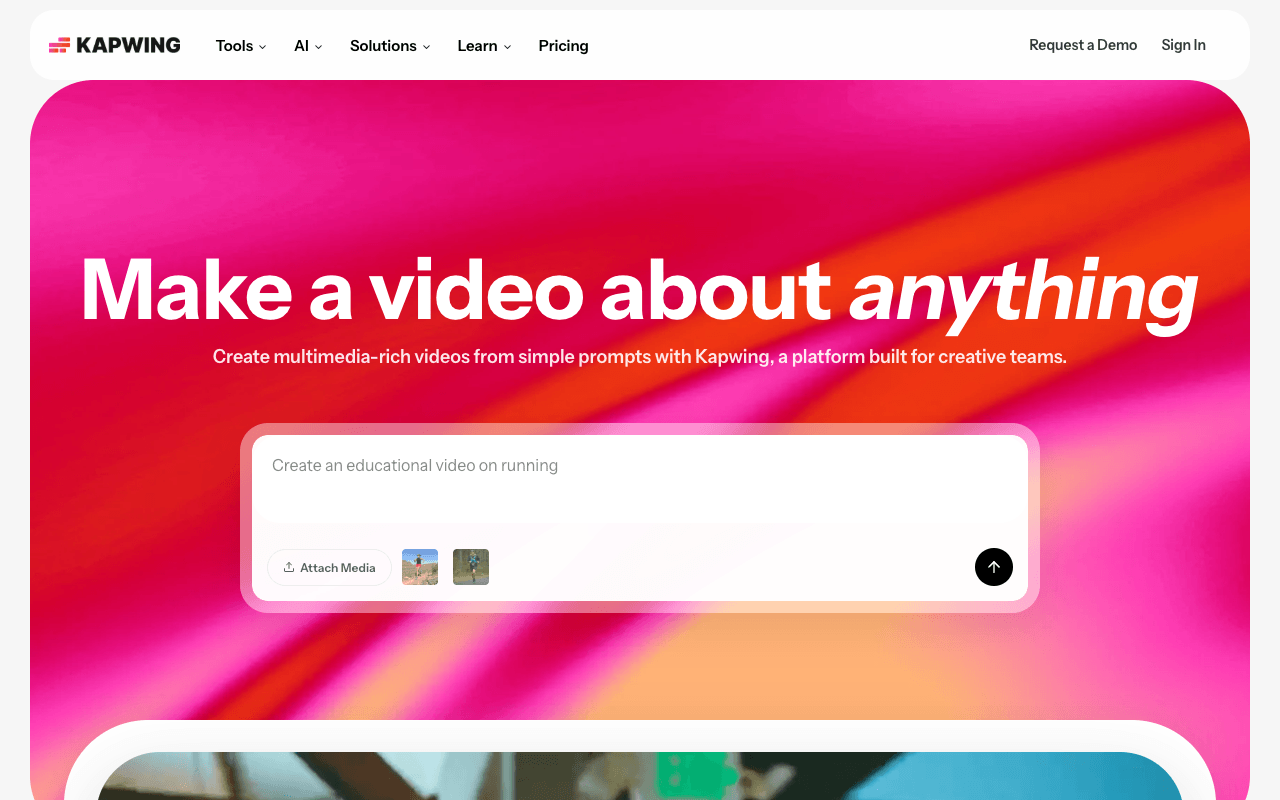
Kapwing is a browser-based video editor with built-in subtitle translation. (For tools focused on full video dubbing with lip-sync, see our best video translator guide.) Instead of translating subtitles in one tool and editing video in another, you do both on the same timeline. It’s ideal for creators producing translated versions of social media content, tutorials, or marketing videos who need to see subtitles in context as they edit.
Key features:
- 100+ languages for subtitle translation; 40+ for AI voice dubbing
- AI voice cloning (Business plan)
- Translation rules and brand glossary for consistent terminology
- Inline subtitle editor with font, color, and positioning controls
- Team collaboration with shared projects
Pros: Edit video and translate subtitles on the same timeline — see translations in visual context as you work. Brand glossary enforces consistent terminology across projects. Clean browser-based interface, no software to install.
Cons: Free plan watermarks all exports. Heavy for the single task of translating an SRT file — you’re loading a full video editor. Dubbing limited to 40 languages (vs. 100+ for subtitles). Voice cloning restricted to Business plan.
Pricing: Free (with watermark), Pro $16/month (annual billing). Business plan with voice cloning available.
Website: kapwing.com
Subtitle Edit — Best Free Desktop Tool
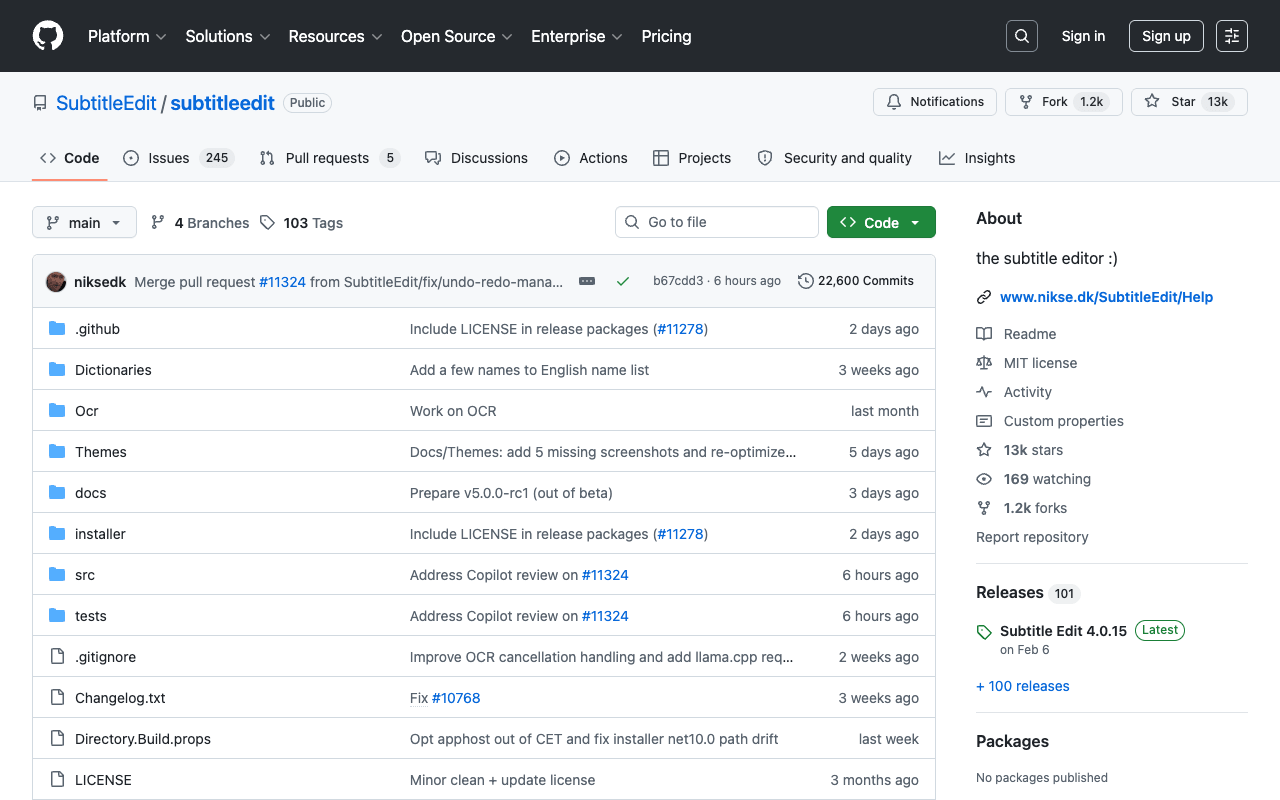
Subtitle Edit is a free, open-source desktop application for Windows (runs on Linux via Mono). It supports over 200 subtitle formats and includes a full suite of timing, synchronization, and OCR tools. Translation works by connecting to external APIs — Google Translate, DeepL, Microsoft Translator, and others — so translation quality depends on which API you configure. It’s the most powerful free option, but comes with a steeper learning curve.
Key features:
- 200+ subtitle formats supported (SRT, ASS, SSA, VTT, STL, and many more)
- Waveform/timeline view for precise subtitle timing
- OCR for extracting text from hard-subbed video
- Full ASS tag support — preserves styles, positioning, and karaoke effects
- Built-in translation via Google Translate, DeepL, and other APIs
Pros: Completely free with no usage limits — no paywall, no credit system. Unmatched format support (200+), including niche and legacy formats. Preserves ASS style tags, positioning, and karaoke effects that web-based tools strip out. Waveform view and timing/spell-check tools are professional-grade.
Cons: Windows-only (Linux via Mono, not native). UI shows its age — steep learning curve for non-technical users. Translation requires separately configuring a Google or DeepL API key. No collaboration or cloud features; everything is local.
Pricing: Free. Translation API costs depend on the service you connect (Google Translate: 500K characters/month free, DeepL: 500K characters/month free).
Website: github.com/SubtitleEdit/subtitleedit
Subtitle Translator (rockbenben) — Best Free Web Batch Tool
This open-source web tool (MIT license, 875+ GitHub stars) is built for speed and scale. It can batch-process hundreds of subtitle files simultaneously, supports multiple AI/LLM backends, and runs entirely in the browser. The latest v2.3.0 (May 2026) added context-aware translation using LLMs — so dialogue flows naturally rather than line-by-line.
Key features:
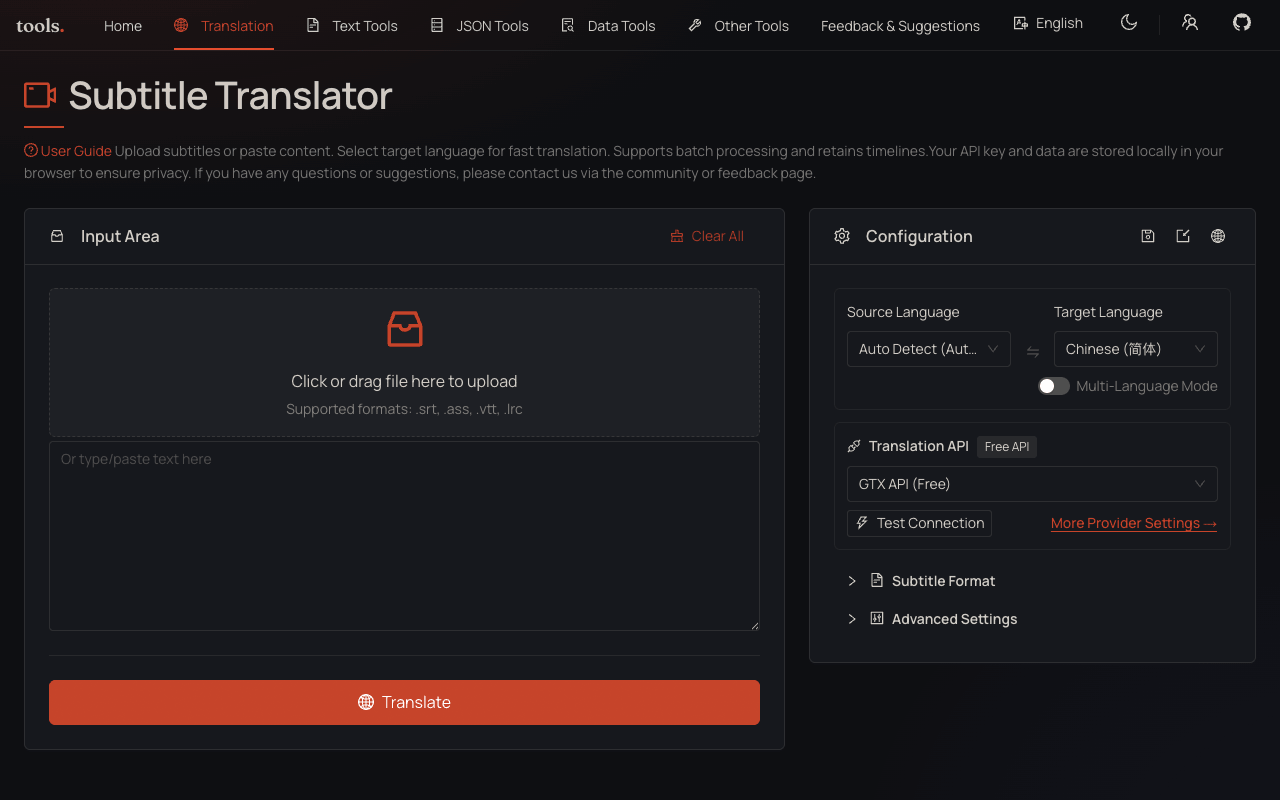
- Supports SRT, ASS, VTT, LRC formats with automatic format detection
- Batch process hundreds of files with parallel processing
- 9 translation backends: 3 free built-in APIs (GTX), 3 commercial APIs (DeepL, Google, Azure), plus OpenAI, DeepSeek, Gemini, Groq, and more
- Context-aware translation with LLMs — reads surrounding lines for coherent dialogue
- Bilingual output (translation inserted below original)
- Translation caching via IndexedDB — avoid re-translating repeated lines
Pros: Batch-process hundreds of files in seconds — unique at this price point (free). Context-aware LLM translation reads surrounding lines, producing more natural dialogue than line-by-line tools. Nine engine options, from free built-in to commercial APIs to self-hosted LLMs. Bilingual output and translation caching (IndexedDB) save time on repeated content. MIT-licensed, self-hostable.
Cons: Best translation quality requires bringing your own API key (DeepL, OpenAI, etc.). Free built-in GTX engines are noticeably lower quality — usable for gist, not for publication. Web-only with no offline support. ASS tag preservation is good but not 100% — complex styling may need manual cleanup.
Pricing: Free. Free built-in translation engines included. Commercial/LLM APIs require your own key (DeepL free: 500K chars/month, Google free: 500K chars/month).
Website: tools.newzone.top/en/subtitle-translator
Which One Should You Pick?
| Your situation | Best pick |
|---|---|
| I have audio/video and need SRT subtitles in another language | OpenL Translate Speech — upload, get timecoded SRT in one step |
| I need the best translation quality and want to switch AI engines | Maestra — DeepL, GPT, and standard engines in one editor |
| My team needs AI speed + human accuracy for compliance content | Happy Scribe — hybrid workflow with approval tools |
| I’m editing a video and need subtitles in context | Kapwing — full timeline editor + translation |
| I need powerful desktop tools and don’t want to pay anything | Subtitle Edit — 200+ formats, full control |
| I have hundreds of SRT files to translate at once | Subtitle Translator (OSS) — batch AI processing in your browser |
| I already have an SRT/ASS/VTT file and just need it translated | OpenL Document Translation — direct file translation, pay-per-use |
FAQ
Can I translate subtitles for free?
Yes. Subtitle Edit (desktop) and Subtitle Translator (web) are both completely free and open source. For Subtitle Edit, you’ll need to configure a free translation API (Google and DeepL both offer 500K free characters per month). For Subtitle Translator, the built-in GTX engines are free but lower quality; connecting an LLM API key gives better results.
Which tool handles ASS (Advanced SubStation Alpha) format best?
Subtitle Edit is the best choice for ASS files — it preserves style tags, positioning, fonts, and karaoke effects that other tools strip out. The open-source Subtitle Translator also handles ASS with automatic format detection and bilingual output.
How important is format preservation?
It depends on your workflow. If you’re round-tripping subtitles back into Premiere or Final Cut, 99% preservation (timecodes, cue numbers, line breaks intact) saves you from manually fixing every entry. If you’re only extracting text for reference, 94% is fine. For SRT-to-SRT translation, OpenL Document Translation and Subtitle Edit lead on format preservation at 99%.
Do AI subtitle translators handle context well?
Line-by-line translation without context can produce awkward results — especially for dialogue where pronouns, references, and tone carry across lines. Tools with context-aware translation (OpenL Translate Speech’s Smart Context, Maestra’s GPT engine, Subtitle Translator’s LLM mode) produce more natural dialogue. For critical content, Happy Scribe’s human review option remains the safety net. See our OpenL vs DeepL comparison for a closer look at how AI translation engines differ.
Sources
- OpenL Translate Speech — speech-to-text translation tool features and pricing
- OpenL Document Translation - SRT — SRT file translation features and pricing
- Maestra — official website, features, and pricing
- Happy Scribe Pricing — official pricing and plan comparison
- Kapwing — official website and features
- Subtitle Edit GitHub — open-source project page
- Subtitle Translator GitHub — rockbenben open-source project, v2.3.0 features
- Subtitle Translator Web Tool — live web application
- HeyGen Blog: Video Translator Comparison 2026 — multi-tool comparison data
- Reap Blog: Best Subtitle Translator Tools 2026 — tool comparison and use cases
- OpenL Blog: Best SRT Translator 2026 — format preservation and accuracy benchmarks
- Lara Translate Blog: Best AI Subtitle Translators — 7-tool comparison with feature breakdowns
- SaaSHub: SRT Translator Alternatives — tool listing and alternatives
- Software Advice: Maestra 2026 — Maestra pricing and feature profile