Best DOCX Translator in 2026
TABLE OF CONTENTS
Word documents are deceptively hard to translate well. A short memo is easy. A 30-page contract, report, or manual with tables, headings, and branded terminology is not. The wrong tool can translate the text but leave you with a file that no longer feels usable when you open it again.
If you’re searching for the best DOCX translator in 2026, the real question is not just “Which tool translates best?” It is “Which tool can translate a Word file without turning the rest of the document into cleanup work?” For most users, OpenL Doc Translator is the strongest overall fit because it is built around document translation and explicitly centers original-format preservation.
If you want the step-by-step workflow after choosing a tool, see How to Translate a Word Document and How to Translate PDF Files and Keep Formatting.
Quick answer
- Best overall: OpenL Doc Translator
- Best paid file-translation option: DeepL
- Best free browser option: Google Docs
- Best inside Office: Microsoft Word Translator
- Best for teams: Smartcat
Why DOCX translation is harder than plain-text translation
Plain text gives a translator one job: translate the text. DOCX files add a second job: keep the document usable. That means preserving table structure, heading hierarchy, spacing, emphasis, and the flow of a file that someone still has to read, edit, or share afterward.
That is why a “great translator” and a “great DOCX translator” are not always the same thing. A general text engine may sound good sentence by sentence but still create a poor Word-file workflow. For this roundup, documented file handling mattered more than marketing claims about raw AI quality.
How we evaluated DOCX translators
We ranked tools on six practical criteria:
- Native DOCX workflow
- Formatting preservation
- Terminology or glossary control
- File-size and workflow limits
- Privacy and sensitivity notes
- Fit for real use cases
That last point matters. A solo consultant translating one proposal needs something very different from a localization team translating the same user manual every month.
The best DOCX translators in 2026
1. OpenL Doc Translator - Best overall for layout-sensitive Word files
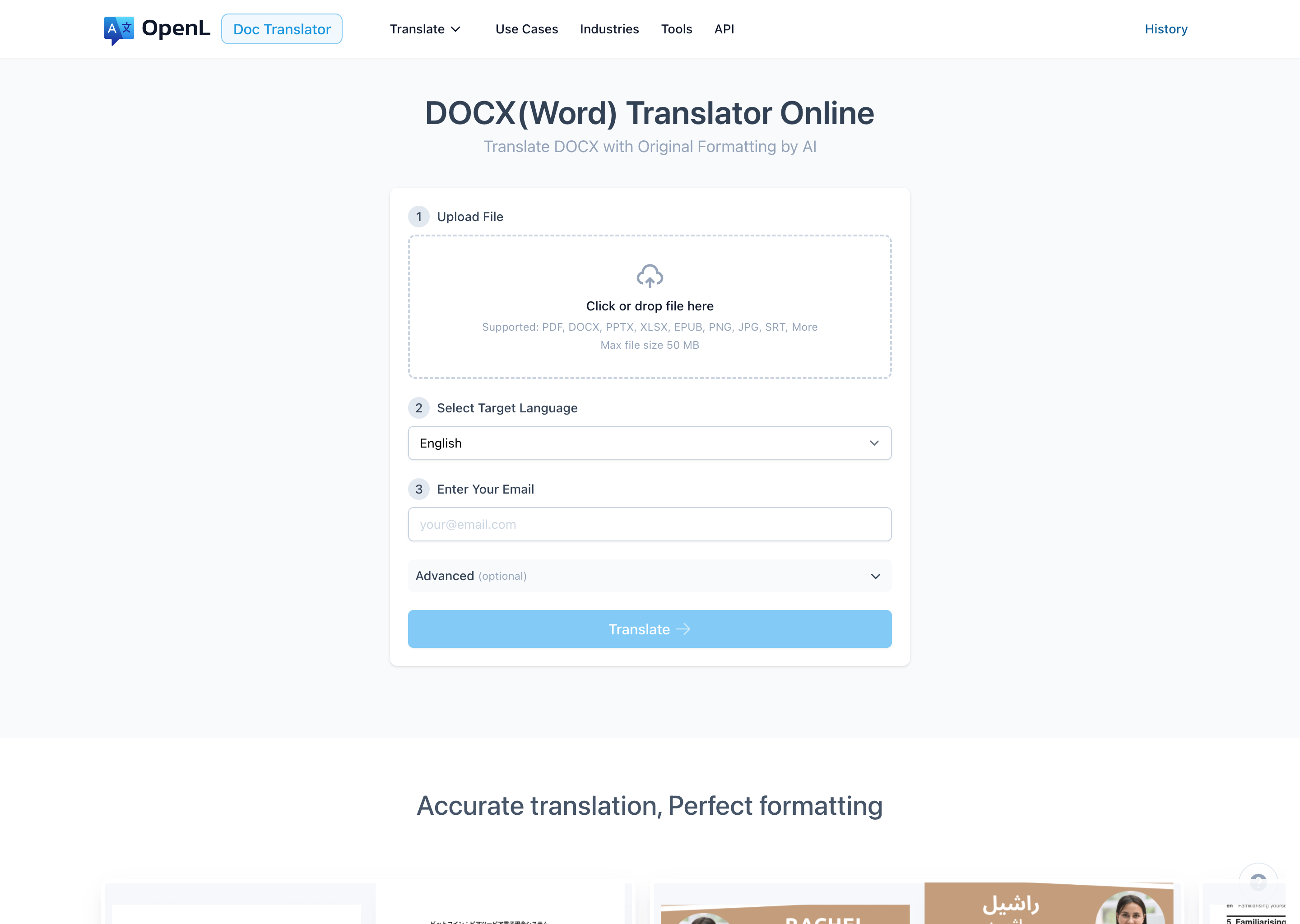
OpenL is the best DOCX translator for most people because it is designed around document translation first, not pasted text. Its public DOCX page explicitly promises “Translate DOCX with Original Formatting by AI,” and the page currently shows a 50 MB file limit.
The workflow is simple: upload the Word file, choose a target language, and translate the document as a document. OpenL’s current DOCX page also exposes two useful advanced options directly in the UI: Advanced Mode for business and research content, and AI Terminology for more standardized term handling. As of March 2026, the same page exposes 134 target-language options, including regional and style variants.
That combination is what makes OpenL the most practical default pick. It feels purpose-built for people who need to translate DOCX, PDF, PPTX, and similar business files without rebuilding formatting after the fact.
Best for: professionals, teams, and students who care most about keeping Word files clean and readable after translation.
Watch out for: as with any AI translator, legal, certified, medical, or highly sensitive documents still need human review before final use.
2. DeepL - Best for paid file translation with glossary support
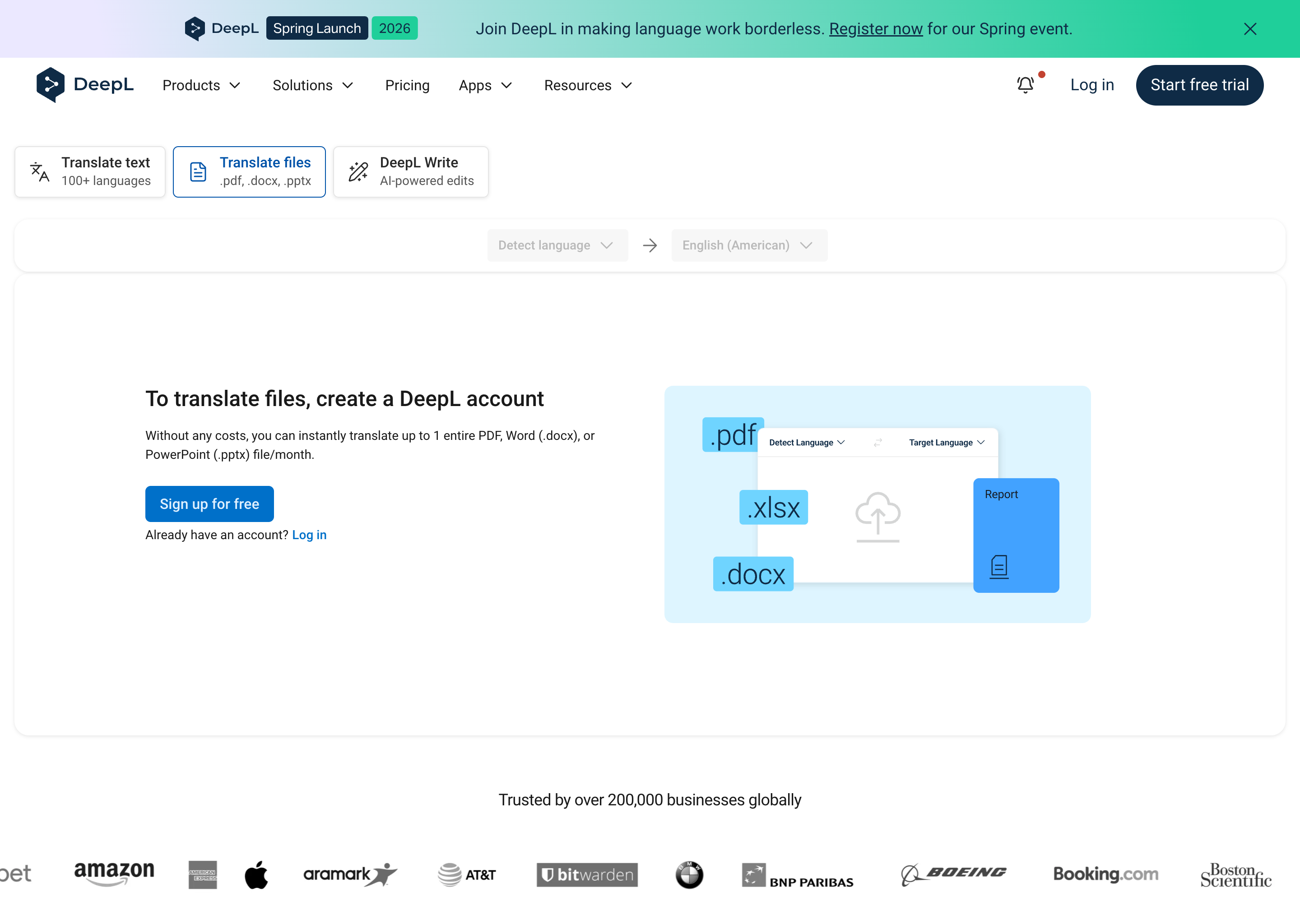
DeepL remains one of the strongest DOCX options if you are willing to pay for a more polished file workflow. Its help center documents native file translation for DOCX/DOC, PPTX, XLSX, and PDF, and it also supports applying glossaries to file translation.
The biggest reason DeepL ranks highly here is not just translation reputation. It is the combination of file translation plus terminology control. If you regularly translate proposals, reports, or client-facing documents with recurring terms, glossary support matters.
DeepL’s documentation also makes an important limitation clear: the free tier is much tighter than paid plans. Its support pages note smaller DOCX limits for free use and larger limits for paid plans, and DeepL also states that translated documents are editable only for paid subscribers. That means DeepL is much more compelling as a paid workflow than as a free DOCX tool.
Best for: users who want a polished paid file-translation workflow and care about glossary support.
Watch out for: the free plan is restrictive, so DeepL’s best DOCX experience sits behind a subscription.
3. Google Docs - Best free option if you can tolerate conversion
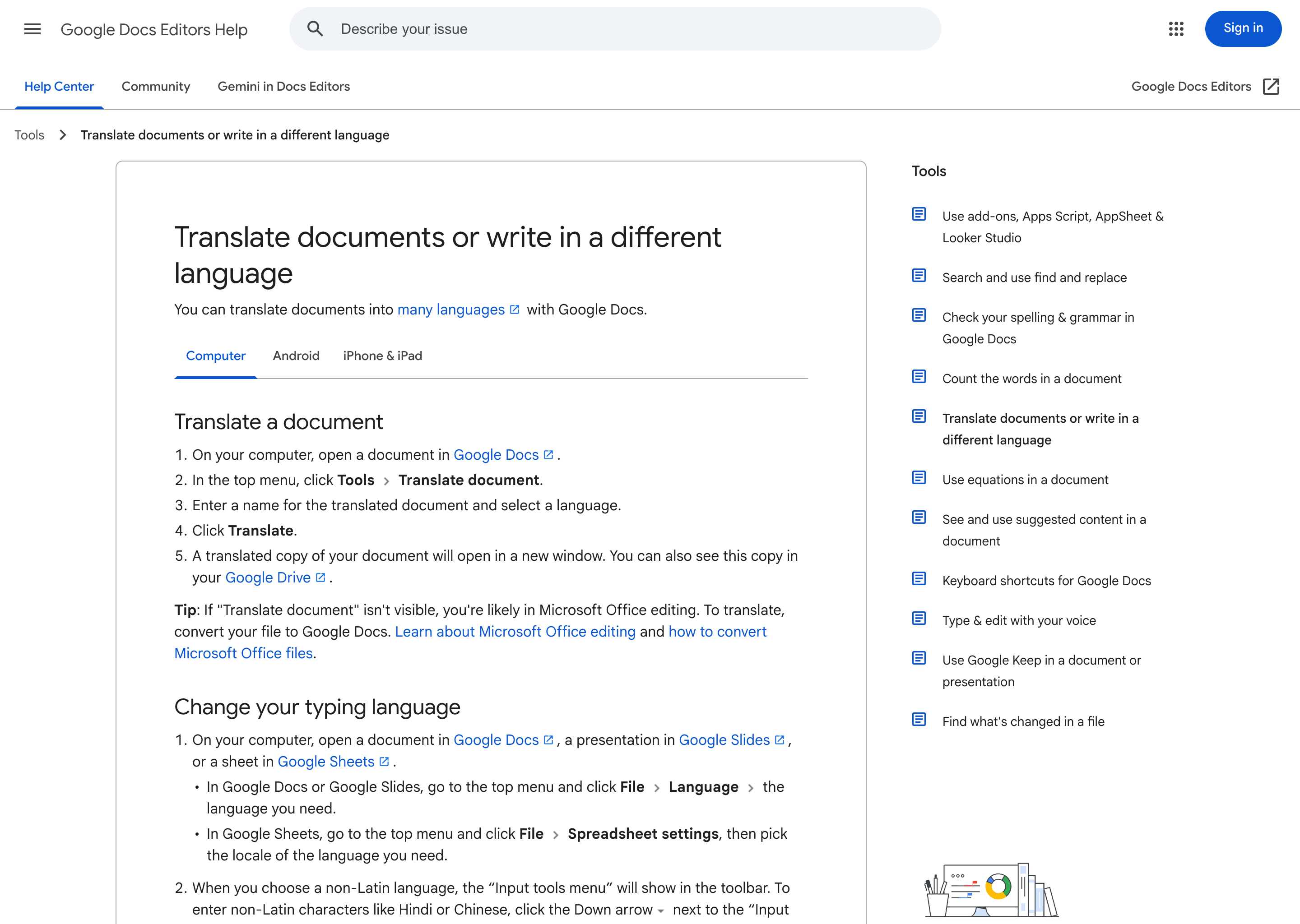
For a fully free workflow, Google Docs is still one of the easiest ways to translate Word-file content. Google’s help page confirms that you can translate documents into many languages directly in Google Docs on desktop.
The catch is the workflow itself. Google also states that if “Translate document” is not visible, you are likely still in Microsoft Office editing and must first convert the file to Google Docs. That makes Google Docs a content-first solution, not a layout-first DOCX translator.
In other words, Google Docs is useful when your priority is understanding or rewriting the content of a Word file. It is less convincing when your priority is reopening the file with layout, structure, and delivery formatting intact.
Best for: free, low-risk translation of simple Word documents where content matters more than exact Word-file fidelity.
Watch out for: conversion is part of the workflow, so it is not the best choice for format-sensitive deliverables.
4. Microsoft Word Translator - Best if you already work inside Office
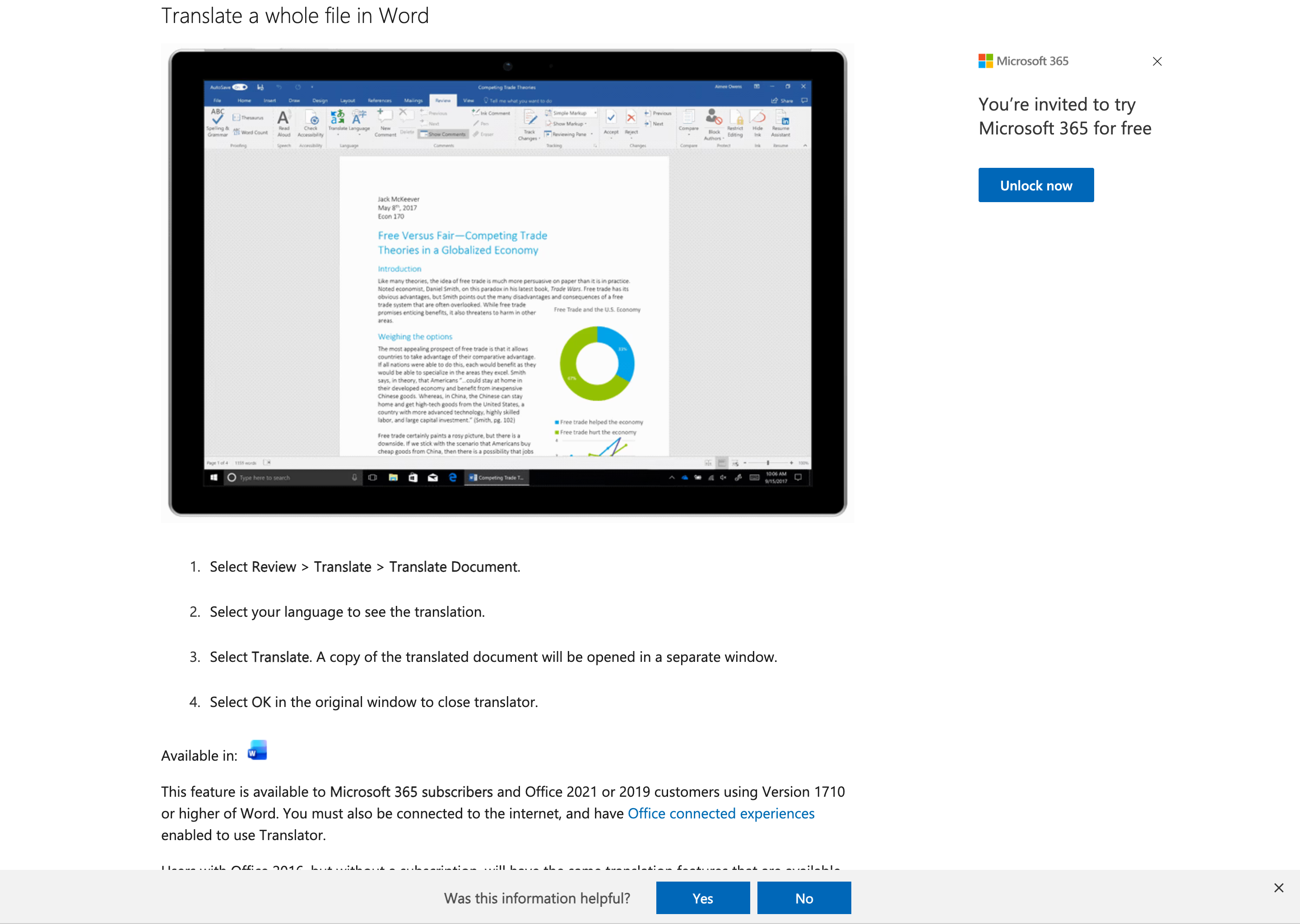
If you already work in Word every day, Microsoft’s built-in translation workflow is the fastest place to start. Microsoft says Word can create a machine-translated copy of the full document and open it in a separate window.
That convenience comes with two important caveats, both spelled out by Microsoft. First, the content in your file is sent over the Internet to a service provider. Second, Microsoft explicitly says machine translation is best for understanding basic subject matter, and that human translation is recommended for high accuracy or sensitive files.
That makes Word Translator a practical convenience feature, not a blanket recommendation for every document. It is great when you are already in Office and want a quick working translation. It is weaker when privacy, nuance, or final-delivery quality matter.
Best for: Microsoft 365 users who want the fastest Office-native translation workflow.
Watch out for: Microsoft’s own documentation is clear that this is machine translation and not ideal for sensitive or high-stakes documents.
5. Smartcat - Best for teams with review and terminology workflows
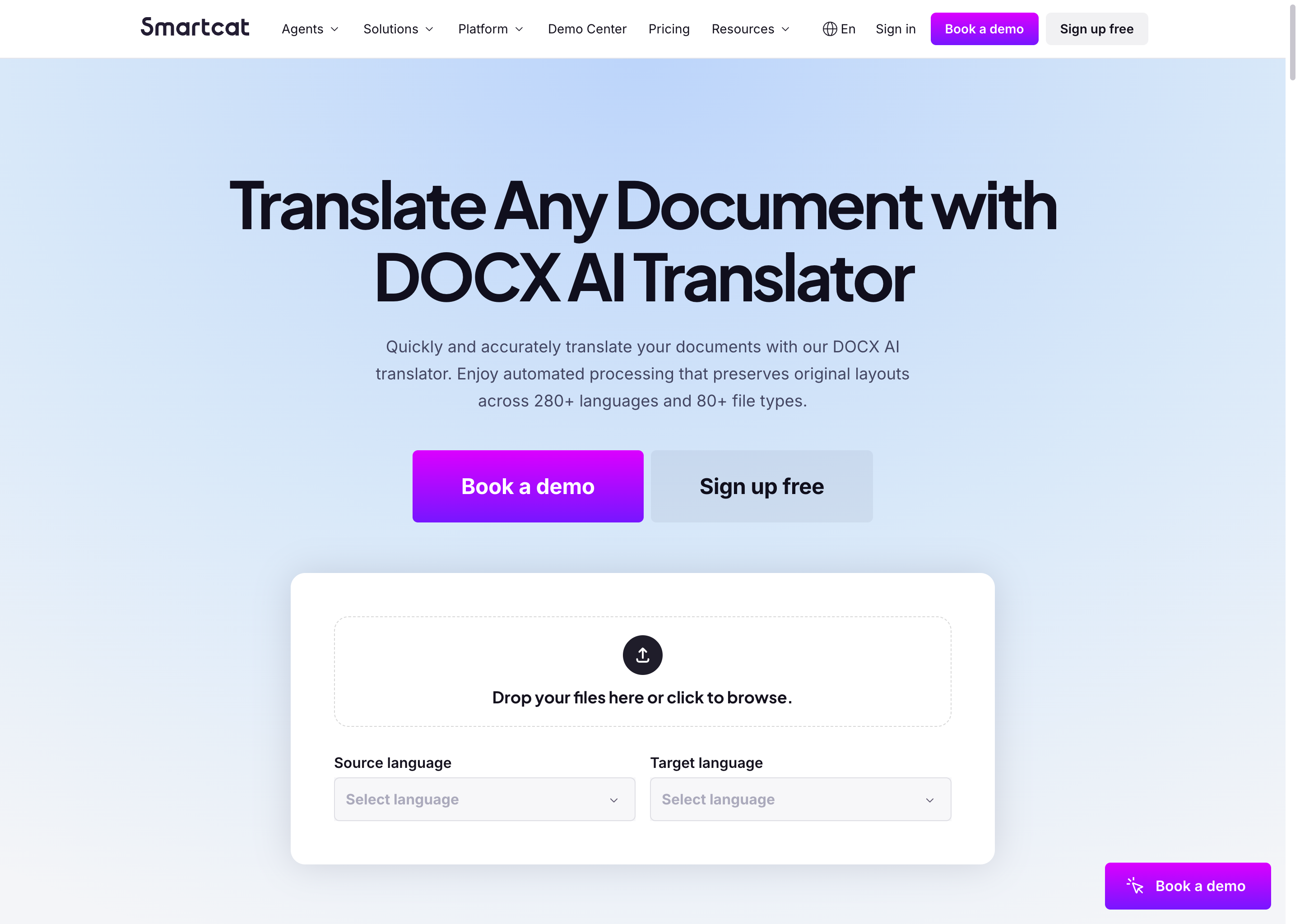
Smartcat is the best DOCX translator on this list for teams, not for one-off solo use. Its current DOCX AI Translator page positions the product around 280+ languages and 80+ file types, while Smartcat’s help center documents support for DOC and DOCX files plus translation memories and glossaries.
That matters because Smartcat is really a workflow platform. If your team needs reusable terminology, review steps, collaborative editing, or repeated translation of similar files, Smartcat is more complete than one-click document translators.
The tradeoff is complexity. If you only need to translate a Word file quickly, Smartcat can feel heavier than necessary. But if you run recurring multilingual content operations, that extra weight is the point.
Best for: localization teams, operations teams, and businesses with recurring translation and review processes.
Watch out for: overkill for simple one-file jobs, and more setup-heavy than document-first tools like OpenL.
Comparison table
| Tool | Best strength | Key documented note | Best for |
|---|---|---|---|
| OpenL Doc Translator | Document-first DOCX workflow with original-format focus | Public DOCX page shows a 50 MB file limit and advanced terminology options | Most users who want clean DOCX output fast |
| DeepL | Paid file translation plus glossary support | Free use is more limited; paid plans unlock the better DOCX workflow | Professionals who want polished paid file translation |
| Google Docs | Free and accessible | DOCX files may need conversion to Google Docs before Translate document appears | Free translation of simple Word content |
| Microsoft Word Translator | Office-native convenience | Microsoft says file content is sent over the Internet and recommends human translation for sensitive files | Existing Office users |
| Smartcat | Team workflows, translation memory, glossaries | Designed for recurring multilingual review and collaboration workflows | Teams with recurring multilingual work |
Other DOCX translators worth considering
These tools are worth a look if your DOCX workflow is closer to CAT or localization operations than to one-click document translation:
- MateCat: MateCat describes itself as a free and open source online CAT tool, and its filters documentation lists DOCX among directly supported Microsoft Office formats. That makes it a credible no-cost option for translators who prefer CAT-style workflows.
- Crowdin: Crowdin natively supports DOCX and offers a WYSIWYG view for document context. That makes it a stronger fit for product, documentation, and structured localization teams than for casual one-file translation.
- Trados: RWS says Trados Studio desktop supports over 50 file types, and Trados Go offers real-time previews for Word, PowerPoint, Excel, PDF, HTML5, and more. That positioning makes it a better fit for professional translation operations than quick one-off DOCX jobs.
Which DOCX translator should you choose?
- Choose OpenL if your main goal is translating Word files while keeping them usable as Word files.
- Choose DeepL if you want a stronger paid file workflow and glossary support.
- Choose Google Docs if you want the easiest no-cost option and can accept a conversion-based workflow.
- Choose Microsoft Word Translator if convenience inside Office matters more than perfect document-handling control.
- Choose Smartcat if your real problem is not one DOCX file, but an ongoing team translation workflow.
When AI-only DOCX translation is not enough
Even the best DOCX translator should not be your final checkpoint in every scenario.
- If the document is certified, notarized, or court-related, use a qualified human or certified translator.
- If the document is medical, legal, safety-critical, or regulated, treat AI output as a draft only.
- If the document is confidential, read the vendor’s privacy and handling notes before you upload it.
After translation, run a quick QA pass for headings, tables, numbers, names, dates, and terminology. Our translation QA checklist is a good place to start.
FAQ
What is the best free DOCX translator?
For a completely free workflow, Google Docs is the most practical option in this roundup. But it is best for simple content-first translation, not for exact Word-file preservation.
Can AI translate a Word document without breaking formatting?
Sometimes, yes. But tools built specifically for file translation usually do much better than general text translators. That is why OpenL and DeepL rank above conversion-based or convenience-first options here.
Is Microsoft Word’s built-in translator safe for confidential files?
Microsoft says document content is sent over the Internet to a service provider, and it recommends human translation for sensitive files. So it is convenient, but not automatically the right choice for confidential or high-stakes documents.
How long does it take to translate a DOCX file?
There is no single honest answer. Turnaround depends on file size, layout complexity, queue time, and whether you add human review afterward. Simple files can be processed quickly, but tables, heavy formatting, and QA checks can extend the workflow.
Can AI tools translate password-protected Word documents?
Usually not until the file is unlocked. Most DOCX translation tools need direct access to the document content before they can parse and translate it, so encrypted or password-protected files typically have to be decrypted first.
Final verdict
For most people in 2026, the best DOCX translator is the one that lets you reopen the file and keep working. That is why OpenL comes out on top. It is built around document translation rather than pasted text, it explicitly emphasizes original-format preservation, and it keeps the workflow simple for common business files.
DeepL is the strongest alternative if you want a more premium paid workflow with glossary support. Google Docs is still a useful free option, but it is better for translating content than for delivering a layout-sensitive Word file. Microsoft Word Translator is convenient, but Microsoft itself frames it as machine translation for basic understanding. Smartcat is excellent for teams, but it solves a broader workflow problem than most individual DOCX users actually have.
If your day-to-day work involves Word files, the easiest way to choose is to test a real document, not a toy paragraph. Use a representative file with a table, a heading hierarchy, and a few critical terms. If format preservation is your top priority, try OpenL Doc Translator first, then do a fast QA pass before you send the translated file.
Sources
- OpenL Doc Translator - DOCX
- DeepL file translation page
- DeepL Help Center - Translate files with DeepL file translation
- DeepL Help Center - File formats
- DeepL Help Center - Apply a glossary to file translation
- Google Docs Editors Help - Translate documents or write in a different language
- Microsoft Support - Translate text into a different language
- Microsoft Support - See translations with the Mini Translator
- Smartcat - DOCX AI Translator
- Smartcat Help Center - Supported file formats
- Smartcat Help Center - Translation memories, glossaries
- MateCat - About
- MateCat Filters Formats
- Crowdin - DOCX file localization
- Crowdin - Localization Platform
- Trados - Supported languages and file types
- Trados Go