How to Translate InDesign IDML Files
 Add to Chrome
TABLE OF CONTENTS
If you’ve ever needed to translate an InDesign document into another language, you know it’s not as simple as copying text into Google Translate. InDesign files contain complex layouts, styles, and formatting that need to stay intact during translation. That’s where IDML comes in.
What is IDML and Why Should You Care?
IDML (InDesign Markup Language) is like a ZIP file that packages your InDesign document into XML format. When you export an IDML file, InDesign bundles together:
- All your text content
- Paragraph and character styles
- Page layouts and structure
- Links to images
- Tables, footnotes, and other elements
The key advantage? IDML is an open format that translation tools can safely process without breaking your carefully crafted layout.
The Challenge: Why You Can’t Just “Translate the Text”
Here’s what makes InDesign translation tricky:
Text expansion: Translated text is often longer. German can be 30% longer than English. Arabic reads right-to-left. Your perfectly balanced layout might break.
Hidden structure: InDesign uses invisible XML tags to maintain formatting. Change one tag by mistake, and your file won’t open.
Special elements: Tables, footnotes, cross-references, and style definitions all need special handling.
Three Ways to Translate IDML Files
Option 1: Professional Translation Tools (CAT Tools)
Tools like Trados, memoQ, or Smartling can import IDML files directly. These are powerful platforms used by translation agencies.
Good for: Large projects with lots of repetitive content, teams needing translation memory and quality checks
Cost: $50-200/month for subscriptions
Difficulty: Medium learning curve
Option 2: Designer-Friendly Plugins
Plugins like Redokun or specialized IDML services let designers stay in control. You export from InDesign, translate in a simpler interface, and import back.
Good for: Marketing materials, catalogs, one-off projects
Cost: $30-100 per document or monthly subscription
Difficulty: Easy to learn
Option 3: Translation Services
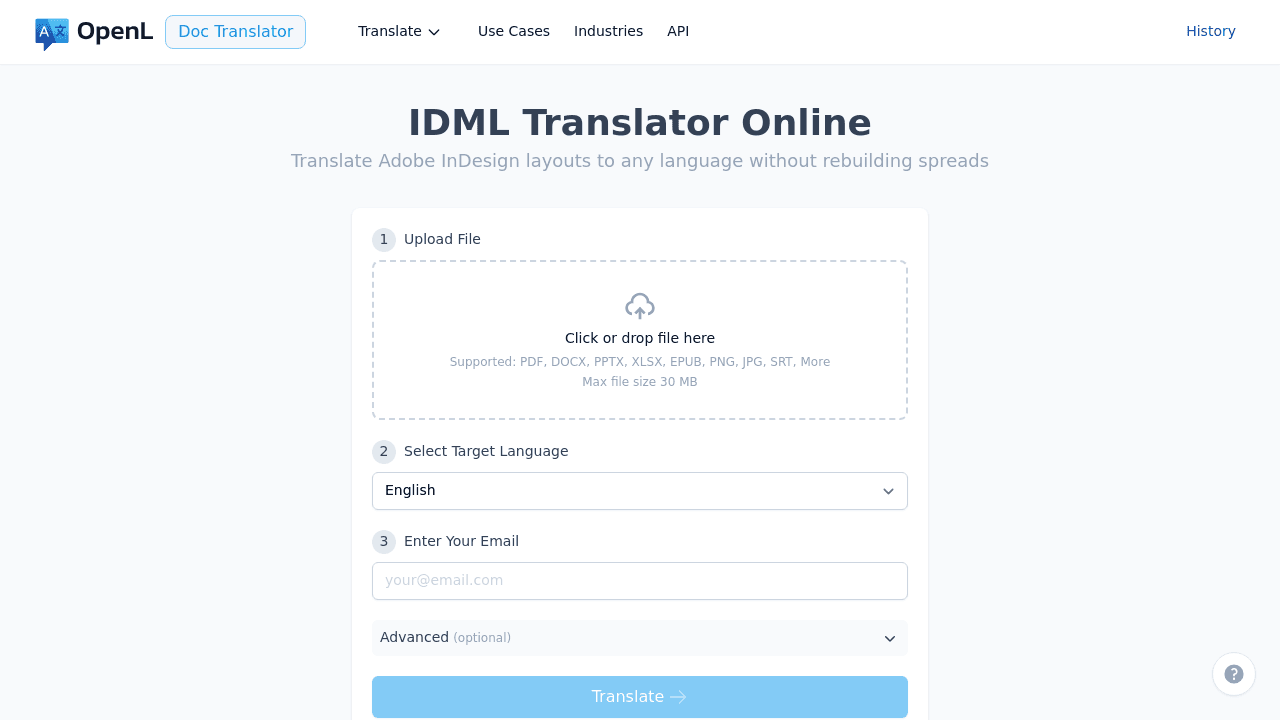
Services like OpenL IDML Translator specialize in document translation. Upload your IDML, select languages, download translated files.
Good for: When you need it done right without learning new software
Cost: Varies by word count and language
Difficulty: Very easy
My Recommended Workflow
Here’s the process I use that works for most projects:
Before Translation
1. Clean up your source file
Open your InDesign document and check for:
- Overset text (red + symbols)
- Missing fonts or images
- Text on locked layers
Fix these issues before exporting to IDML.
2. Export to IDML
In InDesign: File → Export → InDesign Markup (IDML)
Save it with a clear name like Brochure_EN_v1.idml
3. Create a “Do Not Translate” list
Write down things that should stay in the original language:
- Brand names
- Product codes
- URLs and email addresses
- Specific technical terms
During Translation
4. Use a tool designed for IDML
Don’t try to translate IDML with regular text editors or generic translation software. You’ll break the file structure.
Choose one of the three options above based on your needs.
5. Provide context to translators
Let them know:
- Who’s the target audience
- If there are length restrictions
- Any style or tone preferences
After Translation
6. Open the translated IDML in InDesign
This is where the real work begins. You’ll need to:
Check for errors: The file should open without warnings (except missing fonts/images, which is normal)
Fix overset text: This is the #1 issue. When text doesn’t fit in its frame, you’ll see a red + symbol.
Solutions:
- Adjust letter spacing (tracking): Try -5 to -10 in the Character panel
- Make text frames slightly larger
- Reduce line spacing a bit
- As a last resort, reduce font size by 0.5pt
7. Verify fonts work
If you see □ boxes instead of letters, your font doesn’t support that language.
For example, if you’re translating to Russian, make sure your font has Cyrillic characters. You might need to switch to a different font family.
8. Fix formatting issues
Common things to check:
- Tables: Column widths might need adjustment
- Line breaks: Add non-breaking spaces between numbers and units (5 kg → 5[space]kg, use Ctrl+Alt+X on Windows, Cmd+Option+X on Mac)
- Alignment: Right-to-left languages like Arabic need different alignment
9. Export a test PDF
File → Export → Adobe PDF (Print)
Review the PDF on screen to catch any issues you missed.
Quality Checklist Before Delivery
Run through this list:
- File opens without errors
- No overset text (red + symbols)
- All fonts display correctly, no □ boxes
- Images are linked properly
- Tables look complete
- URLs and email addresses are intact
- Test PDF looks good
Common Problems and Quick Fixes
“The file won’t open in InDesign”
The translation process probably broke the XML structure. Try re-exporting from your translation tool, or contact their support.
“Text is overflowing everywhere”
This is normal. Start with letter spacing adjustments (tracking -5 to -10). If that’s not enough, resize text frames or reduce font size slightly.
“Some characters look like boxes”
Your font doesn’t support that language. Switch to a font that does. Google’s Noto fonts support almost every language.
“The layout looks messy”
Translation changes line breaks and spacing. Budget time to manually adjust. Even with the best tools, you’ll spend 15-30 minutes per page on layout refinement for complex documents.
How Much Does This Cost?
Rough estimates:
- Translation: $0.08-0.20 per word (varies by language)
- CAT tool subscription: $50-150/month
- Document translation service: $0.10-0.25 per word (includes file handling)
- Your time for layout QA: Budget 10-30 minutes per page
For a 20-page brochure with 3,000 words:
- Translation: $240-600
- Layout QA: 3-10 hours of your time
Tips from Experience
Always keep backups. Save your source IDML before translation. If something goes wrong, you can start over.
Test with a few pages first. Before translating a 100-page catalog, try 5 pages to test your workflow.
Budget time for layout work. No translation is perfect. Plan for 20-30% of your project time to be spent on layout adjustments after translation.
Work with translators who understand layout. Brief them on length constraints and formatting needs. A good translator considers the layout while translating.
Use consistent file naming. Something like: Project_Language_Version.idml makes life easier when you’re juggling multiple language versions.
Frequently Asked Questions
Can I just copy-paste translated text back into InDesign?
You could, but you’d lose all formatting and have to manually reapply every style. IDML translation preserves styles automatically.
Will the layout look exactly the same?
No. Translation changes text length, so expect to spend time adjusting. But IDML translation preserves the structure, making adjustments much easier.
What about images with text in them?
Images aren’t translated automatically. You need to either:
- Recreate them with translated text
- Have a designer edit them in Photoshop/Illustrator
- Use overlay text frames in InDesign instead
Can I use Google Translate or ChatGPT?
Not directly on IDML files—you’ll corrupt them. But you could:
- Extract text to a plain text file
- Translate with AI
- Carefully paste back in
This is risky and time-consuming. Better to use a proper tool.
Final Thoughts
Translating InDesign files doesn’t have to be painful. The key is using the right tools and planning for layout adjustments afterward.
Here’s what to remember:
- Always export to IDML, never translate the .indd file directly
- Use translation tools that specifically support IDML
- Budget time for layout QA—it’s unavoidable but manageable
- Test your workflow with a small sample before committing to large projects
Choose your approach based on project size and frequency. For occasional projects, use a specialized service. For ongoing translation work, invest in learning a CAT tool or designer-friendly plugin.
And most importantly: the translation is only 70% of the work. The other 30% is making sure it looks professional in the target language.